Revolutionary smart home app Template



Edit Template Offline
2. Create new page and search for id 6539482
Edit Template Online
Create Awesome Websites


Free Nicepage Builder
Keywords
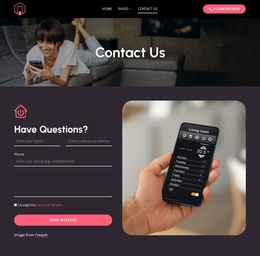
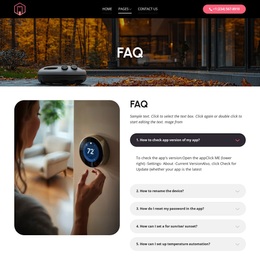
Phone Screens, Lifestyle Scenes, and Store Access Give the Design Range
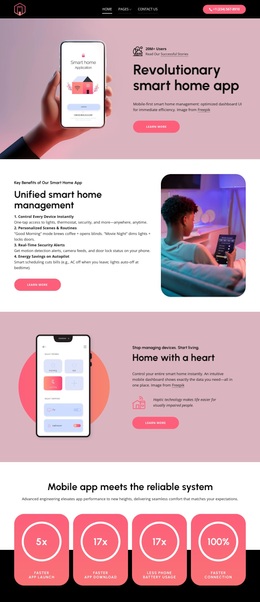
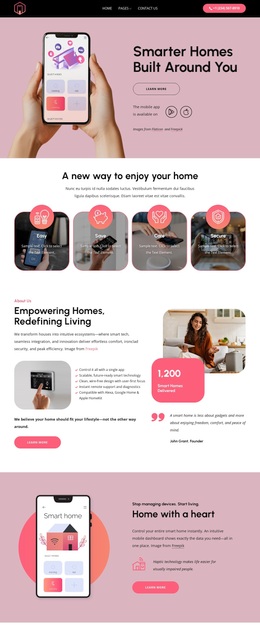
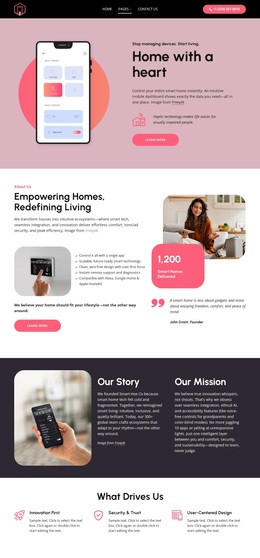
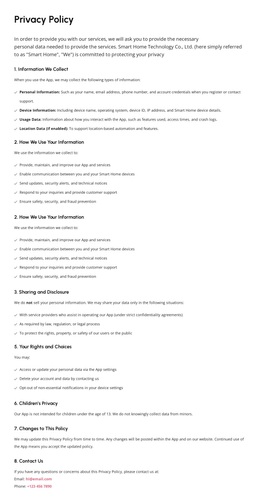
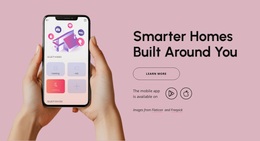
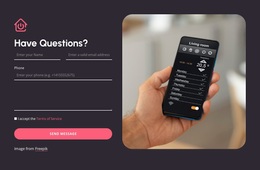
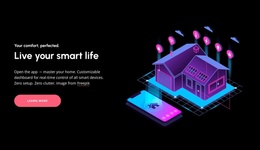
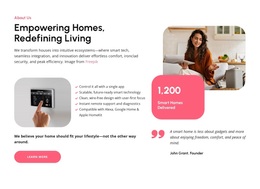
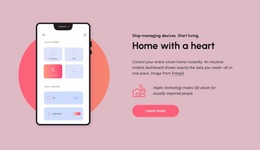
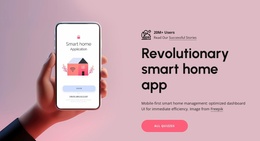
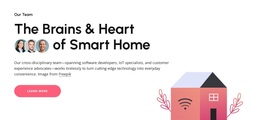
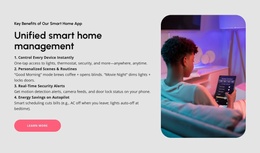
The strongest reason to choose this design is the way it combines application evidence with a broader smart-home story. Phone screens appear in the opening and remote-control sections, making the interface visible early, while lifestyle photography and connected-home illustrations show how the product relates to ordinary domestic routines. The result is more varied than a page built only from technical feature lists or isolated interface screenshots.
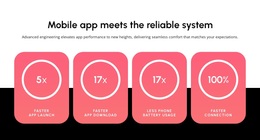
The content coverage also supports several parts of a product explanation. Unified management introduces the central idea, then security monitoring, personalized automation, and smart entertainment show different directions the application can take. The four coral statistic cards add a compact reliability-focused section, although their displayed 5x, 17x, 17x, and 100% figures should be treated as template content until independently confirmed. This combination gives the page both a recognizable product center and enough supporting areas to adapt its message.
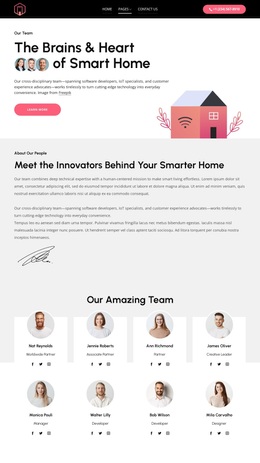
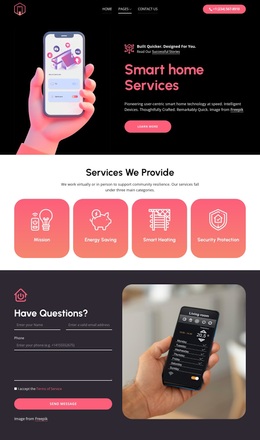
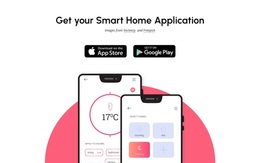
The dedicated download block is especially useful for an app project because it gathers Apple App Store and Google Play choices beside phone imagery instead of leaving distribution access as an afterthought. The dark lifestyle section and blush product panels create additional visual contrast, while the footer supplies navigation and support content. It is therefore a strong design option when a smart home application needs to explain benefits, show interfaces, and direct visitors toward installation in one coherent presentation.
Customize with Nicepage
Open this ready-made template in the Template Builder and customize it visually in the Nicepage editor. Replace demo content, edit page sections, and adapt the design to your project without rebuilding the template from scratch.
Start With a Ready-Made Template
Choose a Design for a New Page
Use a ready-made template as a starting point instead of creating every page from a blank canvas. When adding a new page in Nicepage, browse available designs, compare different layouts, and choose an option that already fits the general purpose and visual direction of your project.
Browse Different Page Designs
Explore Page Designs using search, thematic categories, Design Sets, and full-page previews. The collection includes layouts for different subjects and page purposes, making it easier to compare alternatives before selecting a design to customize.
Customize the Selected Template
After choosing a design, create the page and continue editing it visually in Nicepage. Replace the demo content, adjust images, typography, colors, sections, and other elements, and adapt the ready-made layout to your own content instead of rebuilding the design from the beginning.
Explore More Design Directions
If the first option does not match your project closely enough, return to the design collection and compare other templates before committing to a layout. This makes the template library useful not only for faster page creation, but also for exploring different visual approaches and finding a suitable starting point for a new project.
This workflow gives you access to a broad collection of ready-made designs that can be selected, compared, and customized according to the needs of each new page or project.

Design Set (23)
-

-
-
-
-
-
-
-
-
-
-
Free Website Builder SoftwareDownload
-
-
-