Predictive Modeling Championship Template



A Five-Item Capability Panel Paired With an AI FAQ
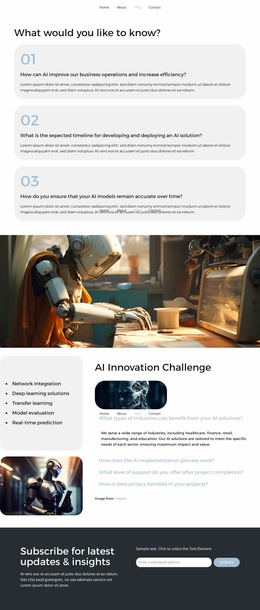
The block stands out through the way it combines a concise capability summary with a more detailed question-and-answer area. Instead of placing all information in a conventional card grid, it uses a rounded left panel for five specific capabilities: Network Integration, Deep learning solutions, Transfer learning, Model evaluation, and Real-time prediction. That list gives visitors an immediate sense of scope before they reach the explanatory content on the right.
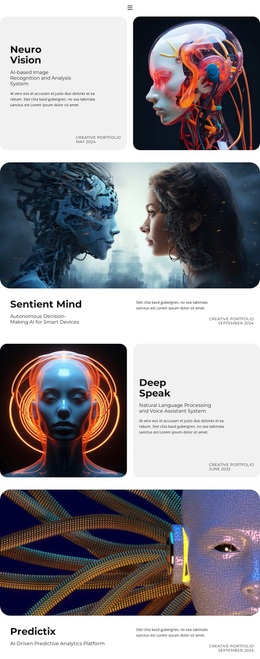
The right side adds the heading “AI Innovation Challenge,” a second rounded AI image, and four accordion questions. Their subjects—industries, implementation, support after completion, and data privacy—make the design suitable when a page needs to address practical concerns alongside a service overview. The expanded first answer also gives the section an active starting point, while the remaining questions stay compact until selected. Supporting details include references to healthcare, finance, retail, manufacturing, education, staged implementation, encryption, restricted access, and GDPR compliance.
As a ready-made block choice, its value lies in this combination of coverage and visual balance. The left capability list is quick to scan, the right accordion can hold fuller explanations, and the two dark image crops keep the section from becoming text-only. It is a useful alternative to a plain FAQ stack when an AI or technology-focused page needs both a service snapshot and space for implementation questions within one reusable section.
Customize with Nicepage
Open this ready-made template in the Template Builder and customize it visually in the Nicepage editor. Replace demo content, edit page sections, and adapt the design to your project without rebuilding the template from scratch.
Edit Template Offline
2. Create a new page or select existing
3. Click Add new block, search for id 6381676 and click enter
Edit Template Online
Create Awesome Websites


Free Nicepage Builder
Keywords
Start With a Ready-Made Template
Choose a Design for a New Page
Use a ready-made template as a starting point instead of creating every page from a blank canvas. When adding a new page in Nicepage, browse available designs, compare different layouts, and choose an option that already fits the general purpose and visual direction of your project.
Browse Different Page Designs
Explore Page Designs using search, thematic categories, Design Sets, and full-page previews. The collection includes layouts for different subjects and page purposes, making it easier to compare alternatives before selecting a design to customize.
Customize the Selected Template
After choosing a design, create the page and continue editing it visually in Nicepage. Replace the demo content, adjust images, typography, colors, sections, and other elements, and adapt the ready-made layout to your own content instead of rebuilding the design from the beginning.
Explore More Design Directions
If the first option does not match your project closely enough, return to the design collection and compare other templates before committing to a layout. This makes the template library useful not only for faster page creation, but also for exploring different visual approaches and finding a suitable starting point for a new project.
This workflow gives you access to a broad collection of ready-made designs that can be selected, compared, and customized according to the needs of each new page or project.