Trusted Legal Advisors Template


Edit Template Offline
2. Create new page and search for id 6321381
Edit Template Online
Create Awesome Websites


Free Nicepage Builder
Keywords
Five Legal Questions Shape a Focused Service Presentation
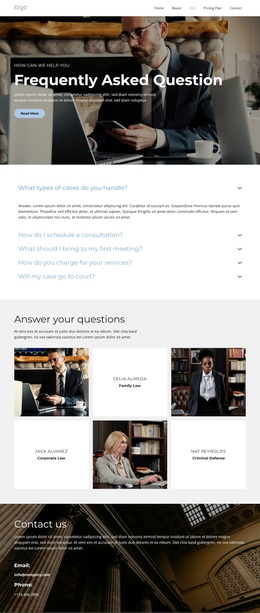
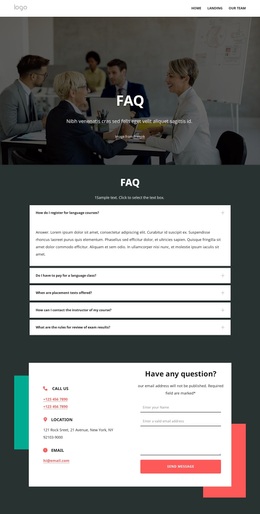
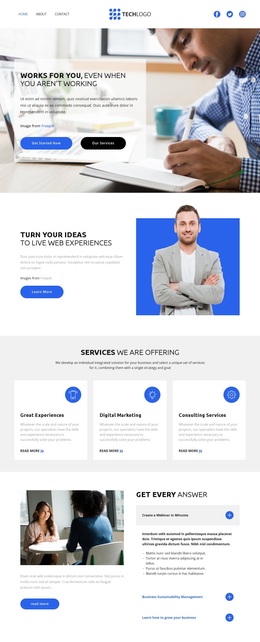
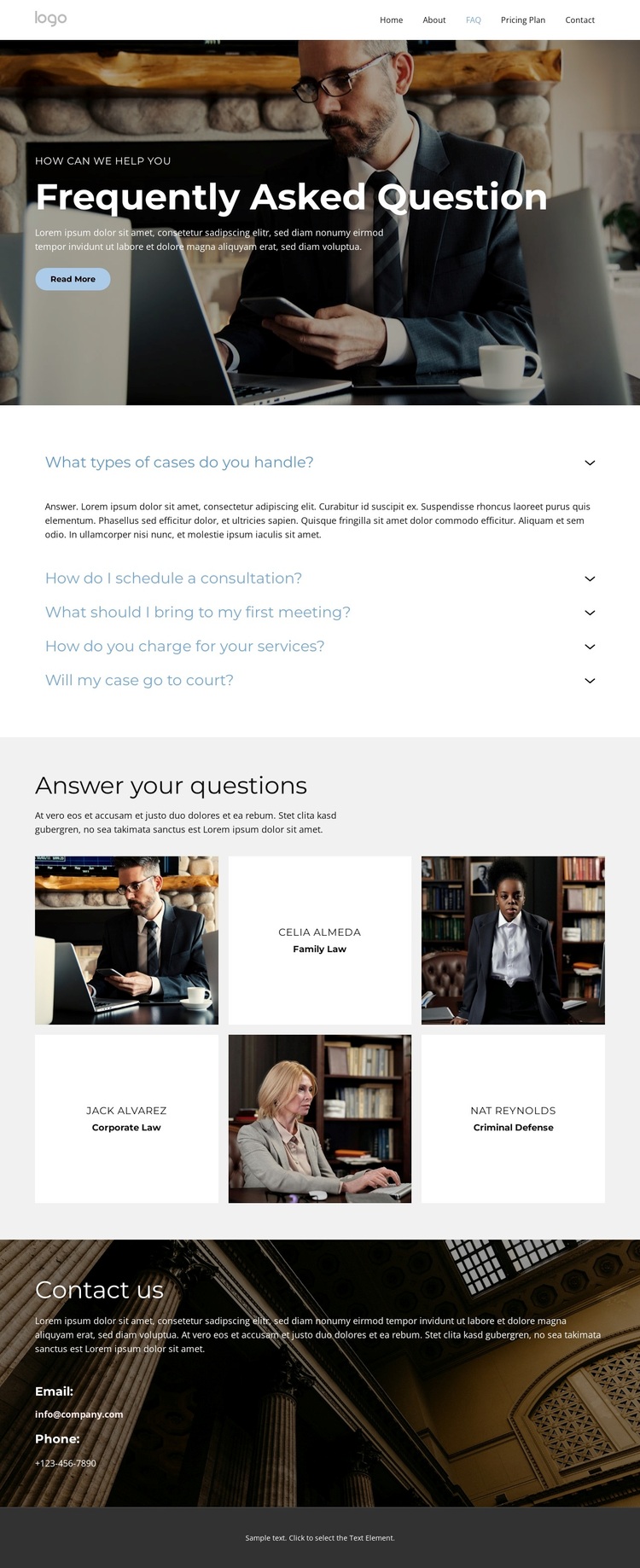
The five-question accordion gives this design its clearest reason for consideration. Visitors can move from general concerns about legal cases to practical questions about consultations, first meetings, fees, and court proceedings without searching through long paragraphs. Because the first answer is expanded on the initial view, the page immediately demonstrates how the question-and-answer pattern works while leaving the remaining topics available as distinct content choices.
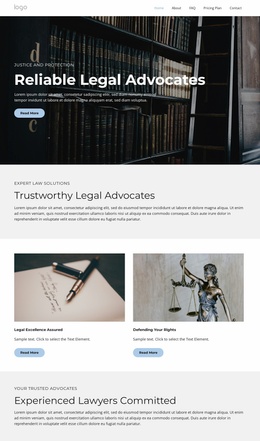
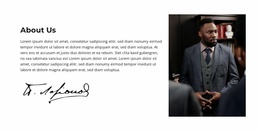
The service categories add useful context beside that FAQ structure. Family Law, Corporate Law, and Criminal Defense show that the page can explain several practice areas while keeping them visually separate. Three profile tiles support this distinction with photographs, names, and legal labels, giving the design a people-focused layer rather than presenting only abstract service descriptions. The result is a ready-made option for a legal website that needs to combine public information with an introduction to its areas of work.
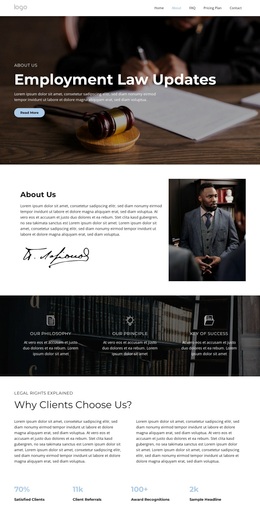
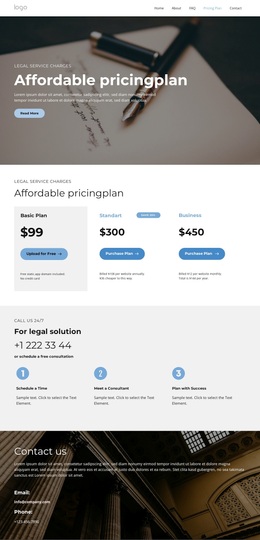
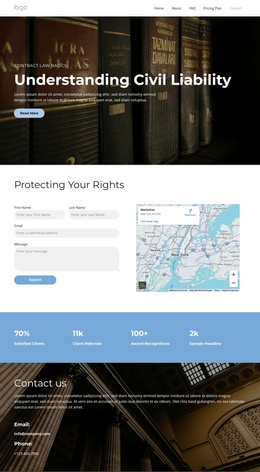
The opening photographic hero and closing contact section complete the selection logic. The hero creates an editorial first impression and includes a visible Read More action, while the dark contact area provides email and phone channels for visitors who need further assistance. Together, the accordion, practice categories, profiles, and contact details cover the main informational stages of a legal FAQ page without requiring a dense text-only layout.
Customize with Nicepage
Open this ready-made template in the Template Builder and customize it visually in the Nicepage editor. Replace demo content, edit page sections, and adapt the design to your project without rebuilding the template from scratch.
Start With a Ready-Made Template
Choose a Design for a New Page
Use a ready-made template as a starting point instead of creating every page from a blank canvas. When adding a new page in Nicepage, browse available designs, compare different layouts, and choose an option that already fits the general purpose and visual direction of your project.
Browse Different Page Designs
Explore Page Designs using search, thematic categories, Design Sets, and full-page previews. The collection includes layouts for different subjects and page purposes, making it easier to compare alternatives before selecting a design to customize.
Customize the Selected Template
After choosing a design, create the page and continue editing it visually in Nicepage. Replace the demo content, adjust images, typography, colors, sections, and other elements, and adapt the ready-made layout to your own content instead of rebuilding the design from the beginning.
Explore More Design Directions
If the first option does not match your project closely enough, return to the design collection and compare other templates before committing to a layout. This makes the template library useful not only for faster page creation, but also for exploring different visual approaches and finding a suitable starting point for a new project.
This workflow gives you access to a broad collection of ready-made designs that can be selected, compared, and customized according to the needs of each new page or project.