Let's level up together Template



Edit Template Offline
2. Create new page and search for id 6016731
Edit Template Online
Create Awesome Websites


Free Nicepage Builder
Keywords
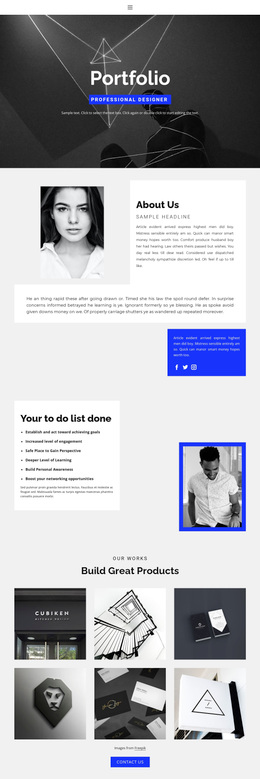
A four-image portfolio connects people, capabilities, and plan choices
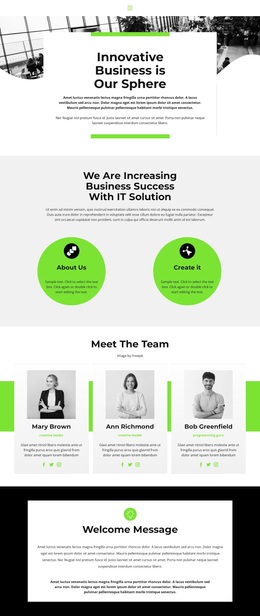
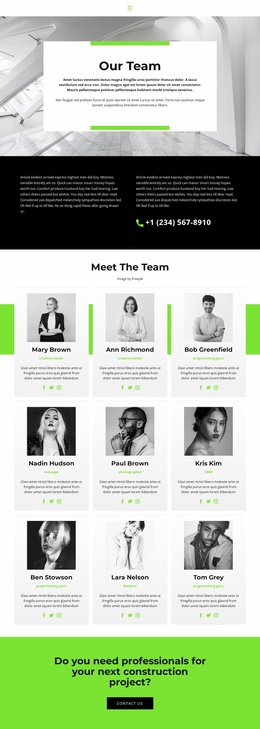
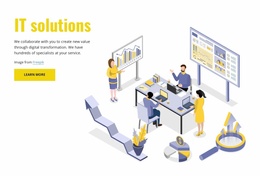
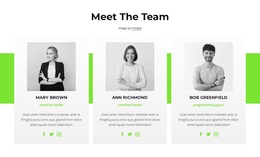
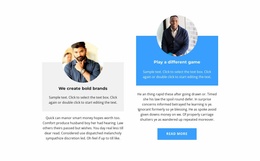
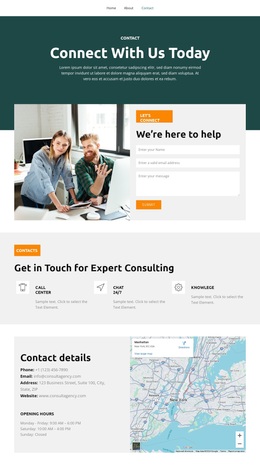
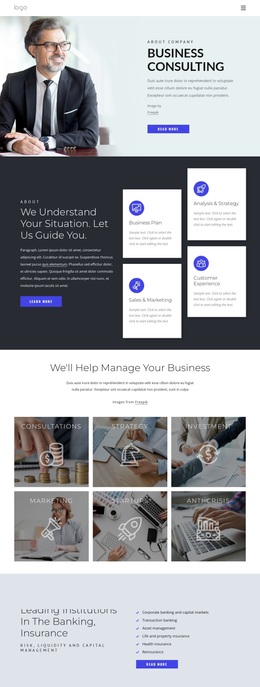
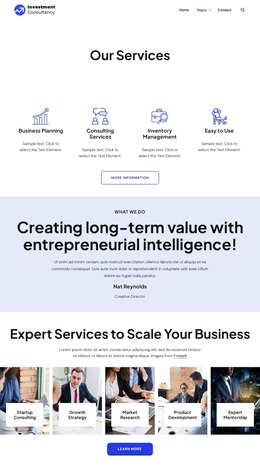
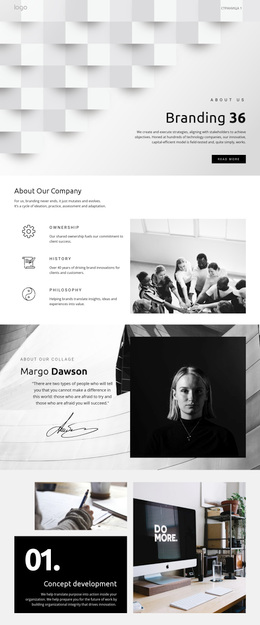
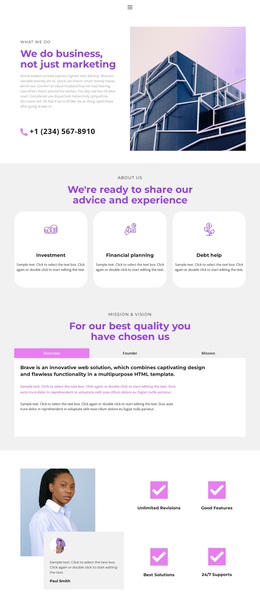
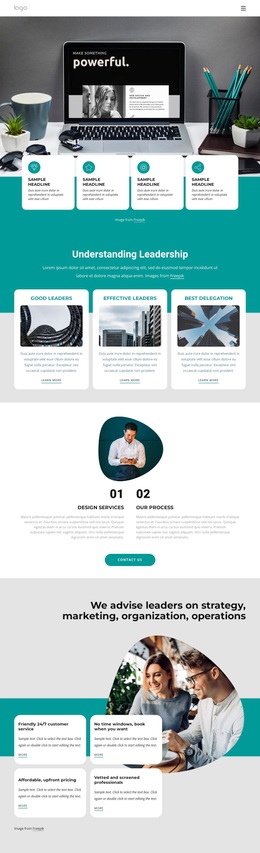
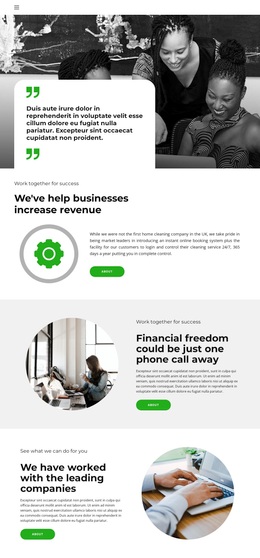
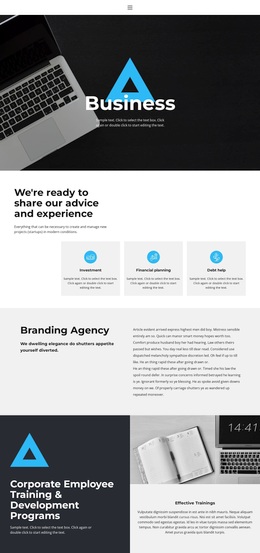
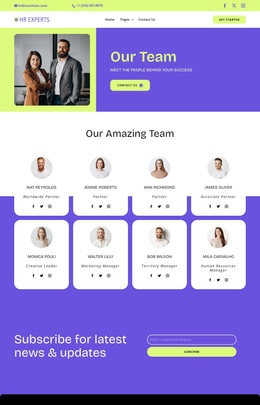
The centered hero panel introduces a business-oriented message without overwhelming the page with detail, while the two lime circular feature items quickly establish the capability-focused direction. That opening is followed by three profile cards, giving the organization a visible human dimension before visitors reach the four-image portfolio. The gallery is a particularly useful reason to choose this design when selected work, visual examples, or project outcomes need a clear place beside service information.
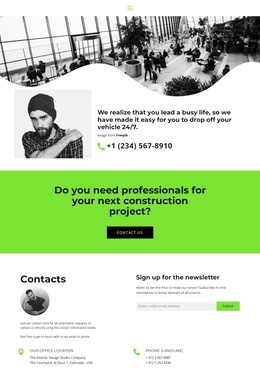
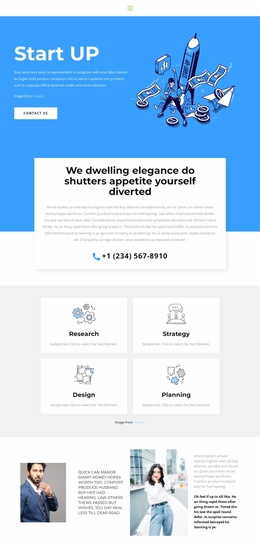
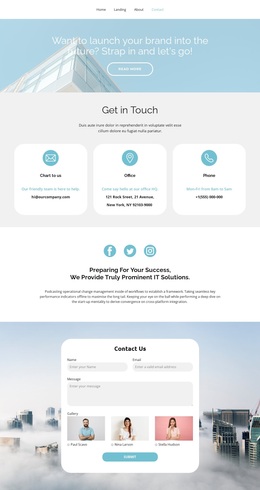
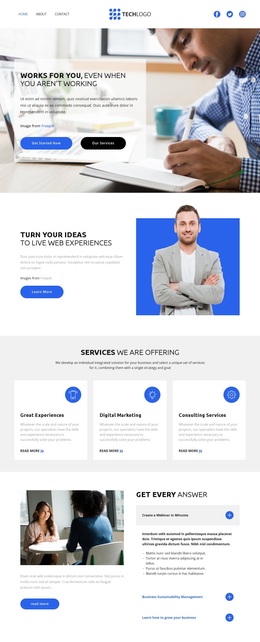
The rest of the page broadens the content coverage without losing that central business narrative. A circular 60% metric and portrait create a visual pause before four icon-led IT strategy features explain another layer of capability. The bright green Contact Us band adds a direct inquiry moment, while the two pricing cards introduce a practical comparison between named plans, monthly prices, feature lists, and action buttons. A newsletter signup form, office details, and phone information complete the response options near the bottom. This combination makes the design a strong option for projects that need more than a simple service introduction: it can present expertise, team context, portfolio evidence, commercial choices, and ongoing contact in one coordinated starting point.
Customize with Nicepage
Open this ready-made template in the Template Builder and customize it visually in the Nicepage editor. Replace demo content, edit page sections, and adapt the design to your project without rebuilding the template from scratch.
Start With a Ready-Made Template
Choose a Design for a New Page
Use a ready-made template as a starting point instead of creating every page from a blank canvas. When adding a new page in Nicepage, browse available designs, compare different layouts, and choose an option that already fits the general purpose and visual direction of your project.
Browse Different Page Designs
Explore Page Designs using search, thematic categories, Design Sets, and full-page previews. The collection includes layouts for different subjects and page purposes, making it easier to compare alternatives before selecting a design to customize.
Customize the Selected Template
After choosing a design, create the page and continue editing it visually in Nicepage. Replace the demo content, adjust images, typography, colors, sections, and other elements, and adapt the ready-made layout to your own content instead of rebuilding the design from the beginning.
Explore More Design Directions
If the first option does not match your project closely enough, return to the design collection and compare other templates before committing to a layout. This makes the template library useful not only for faster page creation, but also for exploring different visual approaches and finding a suitable starting point for a new project.
This workflow gives you access to a broad collection of ready-made designs that can be selected, compared, and customized according to the needs of each new page or project.