Understanding Civil Liability Template


A Question-Led Legal Section With a Low-Noise Metric Row
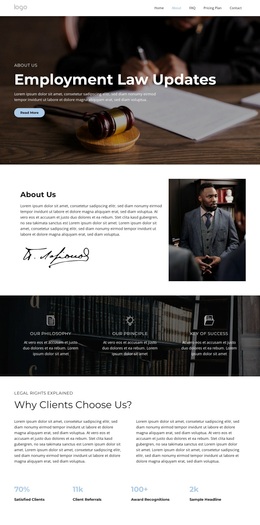
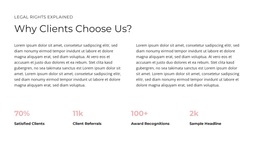
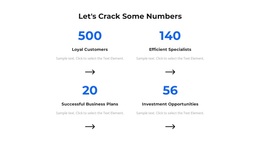
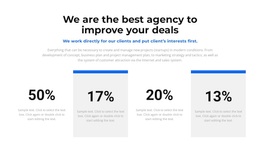
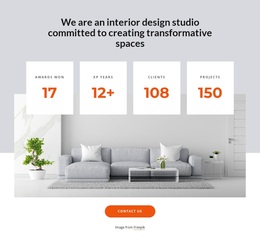
The design opens with a small eyebrow and the heading “Legal Rights Explained,” then uses “Why Clients Choose Us?” as a question-led frame for the content that follows. That opening gives the section a recognizable editorial direction before the layout divides two supporting paragraph blocks across the available width. Instead of surrounding each figure with a separate card, the lower region keeps four counters in one evenly spaced row, using open space to separate the repeated items.
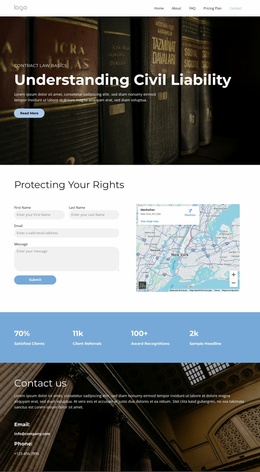
This combination makes the block a useful choice when a page needs legal-information context followed by a concise summary of credibility-oriented categories. The labels Satisfied Clients, Client Referrals, Award Recognitions, and Sample Headline provide the visible content pattern, while the values 70%, 11k, 100+, and 2k demonstrate how each item is presented. Those displayed figures are design content rather than independently confirmed achievements. The pale pink counter values introduce a restrained accent against the white background, while dark text maintains a clear hierarchy above them. Compared with a card-heavy statistics section, this option emphasizes typography, spacing, and alignment. It can therefore supply a focused mid-page content choice without attempting to carry the surrounding page’s navigation, contact process, or broader information architecture.
Customize with Nicepage
Open this ready-made template in the Template Builder and customize it visually in the Nicepage editor. Replace demo content, edit page sections, and adapt the design to your project without rebuilding the template from scratch.
Edit Template Offline
2. Create a new page or select existing
3. Click Add new block, search for id 6319285 and click enter
Edit Template Online
Create Awesome Websites


Free Nicepage Builder
Keywords
Start With a Ready-Made Template
Choose a Design for a New Page
Use a ready-made template as a starting point instead of creating every page from a blank canvas. When adding a new page in Nicepage, browse available designs, compare different layouts, and choose an option that already fits the general purpose and visual direction of your project.
Browse Different Page Designs
Explore Page Designs using search, thematic categories, Design Sets, and full-page previews. The collection includes layouts for different subjects and page purposes, making it easier to compare alternatives before selecting a design to customize.
Customize the Selected Template
After choosing a design, create the page and continue editing it visually in Nicepage. Replace the demo content, adjust images, typography, colors, sections, and other elements, and adapt the ready-made layout to your own content instead of rebuilding the design from the beginning.
Explore More Design Directions
If the first option does not match your project closely enough, return to the design collection and compare other templates before committing to a layout. This makes the template library useful not only for faster page creation, but also for exploring different visual approaches and finding a suitable starting point for a new project.
This workflow gives you access to a broad collection of ready-made designs that can be selected, compared, and customized according to the needs of each new page or project.