Lates photo gallery Template


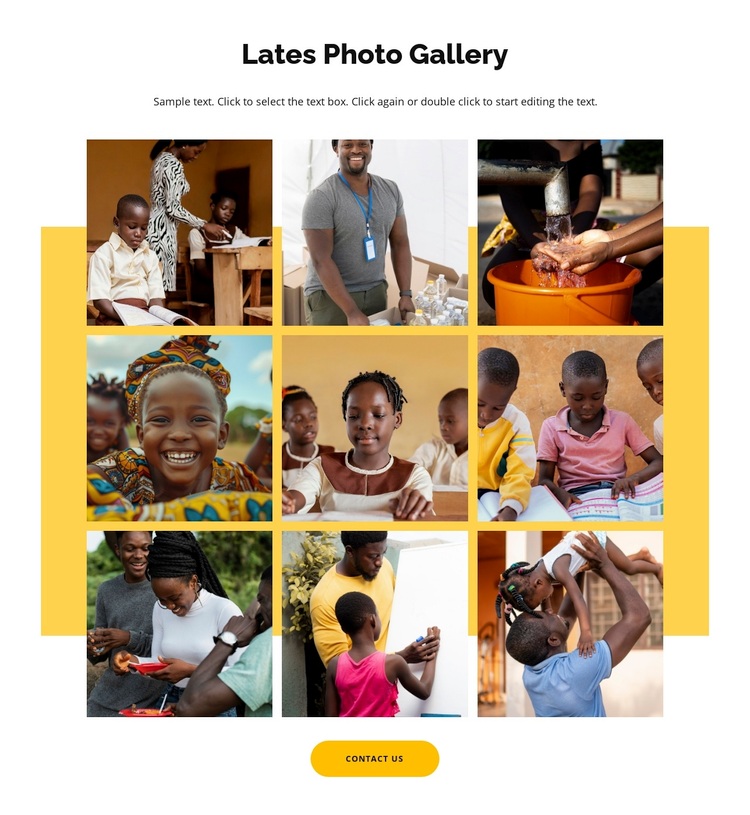
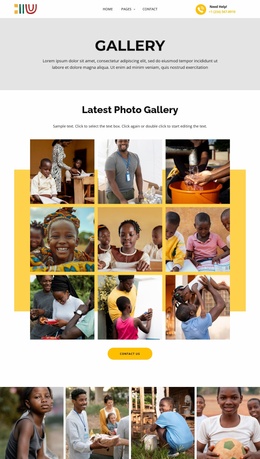
A nine-image grid gives the gallery a clear visual identity
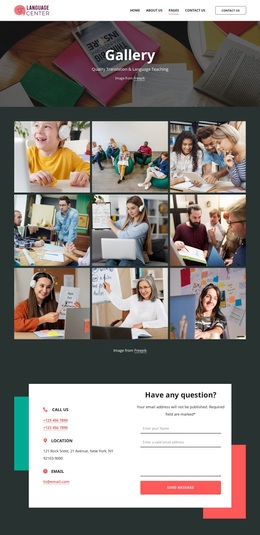
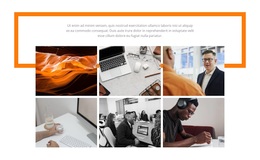
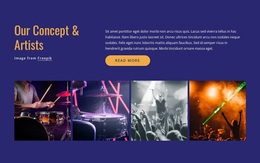
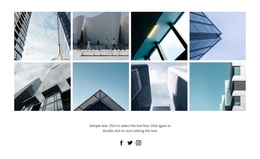
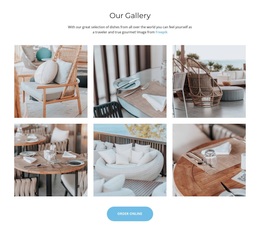
The section’s strongest design choice is the combination of nine evenly sized photographs with a warm yellow panel placed behind the grid. Arranged in three columns and three rows, the images create more visual coverage than a narrow strip while remaining orderly and easy to scan. Narrow white gaps prevent the rectangular crops from merging into one large picture, so visitors can recognize the collection as separate moments within a shared gallery.
The centered “Latest Photo Gallery” heading and supporting paragraph provide a concise introduction above that visual field. Below it, the rounded Contact Us button adds a purposeful ending instead of leaving the section as an image-only display. Lightbox viewing further distinguishes the design by allowing a visitor to move from the overview grid into a closer look at photographs depicting children, families, teaching, food preparation, and water-related activities.
This makes the block a useful choice when a page needs a compact but substantial photo section with a clear narrative sequence: introduce the collection, show many images at once, offer detailed viewing, and provide a related contact route. It offers a different direction from a basic card grid or isolated hero image while remaining one reusable section.
Customize with Nicepage
Open this ready-made template in the Template Builder and customize it visually in the Nicepage editor. Replace demo content, edit page sections, and adapt the design to your project without rebuilding the template from scratch.
Edit Template Offline
2. Create a new page or select existing
3. Click Add new block, search for id 6319410 and click enter
Edit Template Online
Create Awesome Websites


Free Nicepage Builder
Keywords
Start With a Ready-Made Template
Choose a Design for a New Page
Use a ready-made template as a starting point instead of creating every page from a blank canvas. When adding a new page in Nicepage, browse available designs, compare different layouts, and choose an option that already fits the general purpose and visual direction of your project.
Browse Different Page Designs
Explore Page Designs using search, thematic categories, Design Sets, and full-page previews. The collection includes layouts for different subjects and page purposes, making it easier to compare alternatives before selecting a design to customize.
Customize the Selected Template
After choosing a design, create the page and continue editing it visually in Nicepage. Replace the demo content, adjust images, typography, colors, sections, and other elements, and adapt the ready-made layout to your own content instead of rebuilding the design from the beginning.
Explore More Design Directions
If the first option does not match your project closely enough, return to the design collection and compare other templates before committing to a layout. This makes the template library useful not only for faster page creation, but also for exploring different visual approaches and finding a suitable starting point for a new project.
This workflow gives you access to a broad collection of ready-made designs that can be selected, compared, and customized according to the needs of each new page or project.