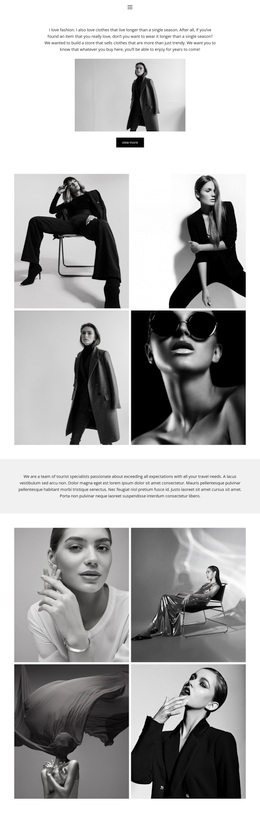
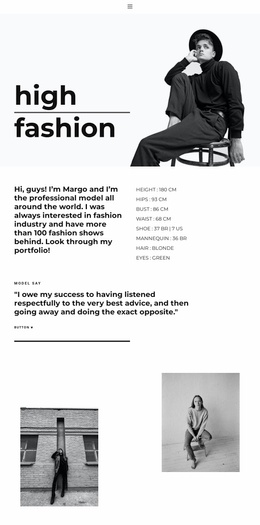
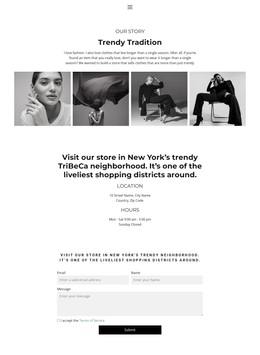
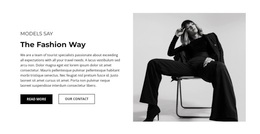
Fashion season Template



A compact address-and-phone design with a clear visual focus
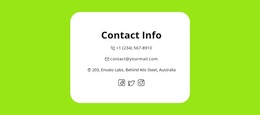
The most distinctive choice in this section is its concentration: one address line group, one visually prominent linked phone number, and one supporting paragraph share a centered vertical axis. Rather than spreading contact information across columns or surrounding it with a form, the design makes the phone channel the central point of attention. The phone icon supports that decision by identifying the number as an actionable contact route at a glance.
This arrangement is useful when a page needs contact details to feel direct and composed. The uppercase, spaced address treatment gives the first line a measured presence, while the larger bold phone number creates a clear hierarchy between location context and immediate contact. The smaller paragraph completes the stack without competing with either. White space on both sides keeps the block visually light and gives the section enough separation to stand beside or between other page content.
As a ready-made block design, it offers a specific alternative to contact layouts built around maps, forms, or several contact channels. The sample values can be replaced with project content, but the underlying relationship remains: location first, phone action second, supporting explanation last. Choose this option when that narrow content model and centered emphasis match the page’s needs, rather than asking the section to carry functions it does not contain.
Customize with Nicepage
Open this ready-made template in the Template Builder and customize it visually in the Nicepage editor. Replace demo content, edit page sections, and adapt the design to your project without rebuilding the template from scratch.
Edit Template Offline
2. Create a new page or select existing
3. Click Add new block, search for id 6157978 and click enter
Edit Template Online
Create Awesome Websites


Free Nicepage Builder
Keywords
Start With a Ready-Made Template
Choose a Design for a New Page
Use a ready-made template as a starting point instead of creating every page from a blank canvas. When adding a new page in Nicepage, browse available designs, compare different layouts, and choose an option that already fits the general purpose and visual direction of your project.
Browse Different Page Designs
Explore Page Designs using search, thematic categories, Design Sets, and full-page previews. The collection includes layouts for different subjects and page purposes, making it easier to compare alternatives before selecting a design to customize.
Customize the Selected Template
After choosing a design, create the page and continue editing it visually in Nicepage. Replace the demo content, adjust images, typography, colors, sections, and other elements, and adapt the ready-made layout to your own content instead of rebuilding the design from the beginning.
Explore More Design Directions
If the first option does not match your project closely enough, return to the design collection and compare other templates before committing to a layout. This makes the template library useful not only for faster page creation, but also for exploring different visual approaches and finding a suitable starting point for a new project.
This workflow gives you access to a broad collection of ready-made designs that can be selected, compared, and customized according to the needs of each new page or project.