The Family support and education center Template



Edit Template Offline
2. Create new page and search for id 6087476
Edit Template Online
Create Awesome Websites


Free Nicepage Builder
Keywords
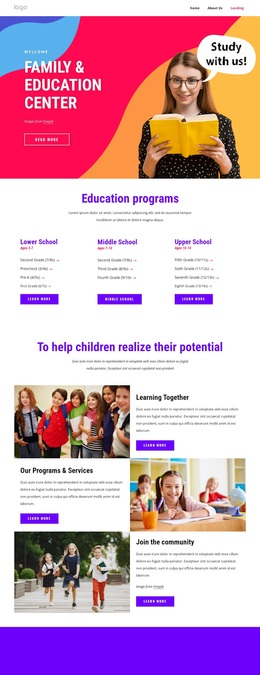
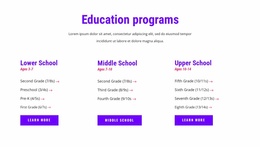
Three school paths and six class choices make the design easy to distinguish
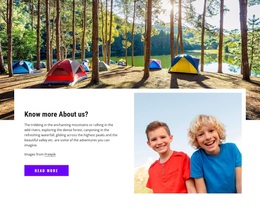
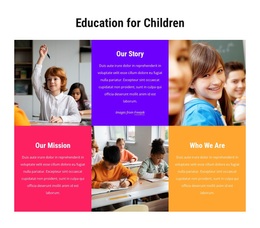
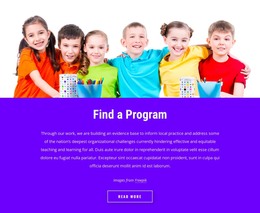
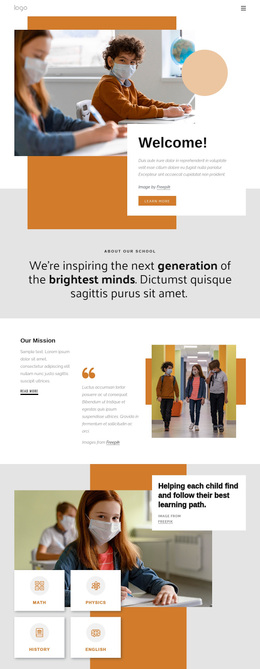
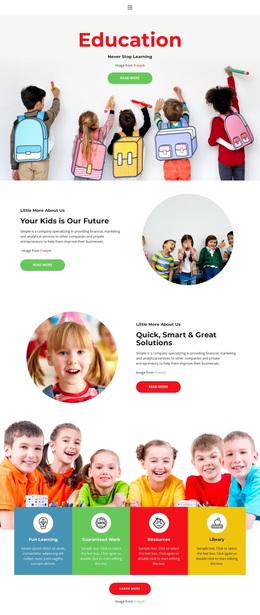
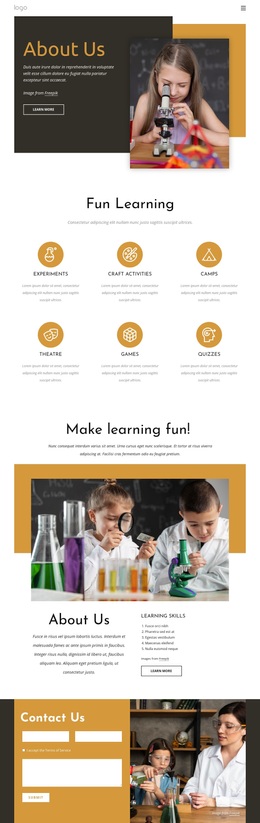
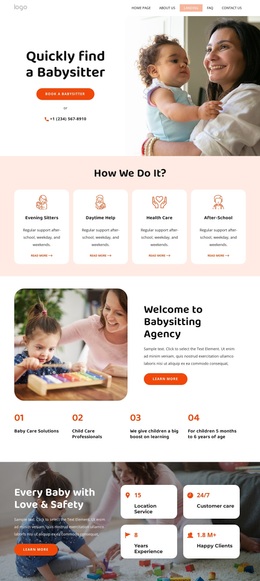
The design is centered on educational choice rather than on one narrow content format. Its hero immediately identifies a Family & Education Center through child-focused photography and a bright multicolor treatment, while the next grid makes the subject more specific with Lower School, Middle School, and Upper School. This combination gives the page a useful balance: the opening creates a broad family-oriented context, and the three peer columns show how that context can be divided into recognizable program paths.
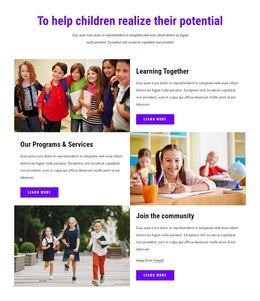
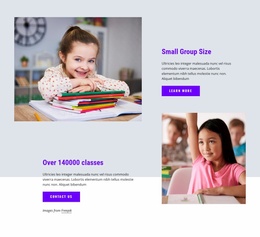
The middle of the page adds variety without losing the educational focus. Learning Together, Our Programs & Services, and Join the community are presented as alternating image-and-text rows, so the design can explain values and activities through a more editorial rhythm. The social callout gives Programs, Events & Updates a visible supporting role. Later, the six online class entries make the design more concrete by showing subject choices such as math, English, iRobot Education, coding with Minecraft, motion animation, and drawing.
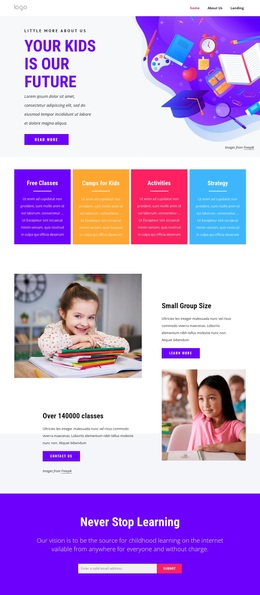
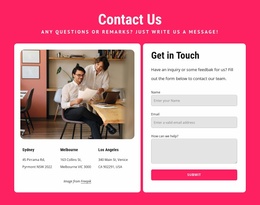
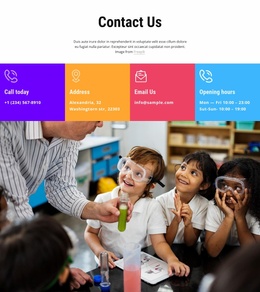
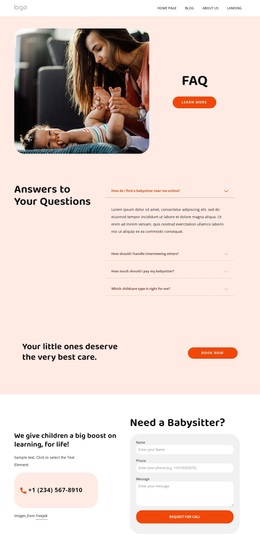
The page also covers reassurance and contact needs through testimonials, four structural counters, and four contact channels. Those sample names and figures should be treated as replaceable demo content, but the sections show how the layout supports proof before inquiry. As a ready-made design option, its strongest distinction is the combination of school-level organization, class discovery, family imagery, community communication, and a clearly developed contact ending.
Customize with Nicepage
Open this ready-made template in the Template Builder and customize it visually in the Nicepage editor. Replace demo content, edit page sections, and adapt the design to your project without rebuilding the template from scratch.
Start With a Ready-Made Template
Choose a Design for a New Page
Use a ready-made template as a starting point instead of creating every page from a blank canvas. When adding a new page in Nicepage, browse available designs, compare different layouts, and choose an option that already fits the general purpose and visual direction of your project.
Browse Different Page Designs
Explore Page Designs using search, thematic categories, Design Sets, and full-page previews. The collection includes layouts for different subjects and page purposes, making it easier to compare alternatives before selecting a design to customize.
Customize the Selected Template
After choosing a design, create the page and continue editing it visually in Nicepage. Replace the demo content, adjust images, typography, colors, sections, and other elements, and adapt the ready-made layout to your own content instead of rebuilding the design from the beginning.
Explore More Design Directions
If the first option does not match your project closely enough, return to the design collection and compare other templates before committing to a layout. This makes the template library useful not only for faster page creation, but also for exploring different visual approaches and finding a suitable starting point for a new project.
This workflow gives you access to a broad collection of ready-made designs that can be selected, compared, and customized according to the needs of each new page or project.