The best of the team Template


Edit Template Offline
2. Create new page and search for id 5257776
Edit Template Online
Create Awesome Websites


Free Nicepage Builder
Keywords
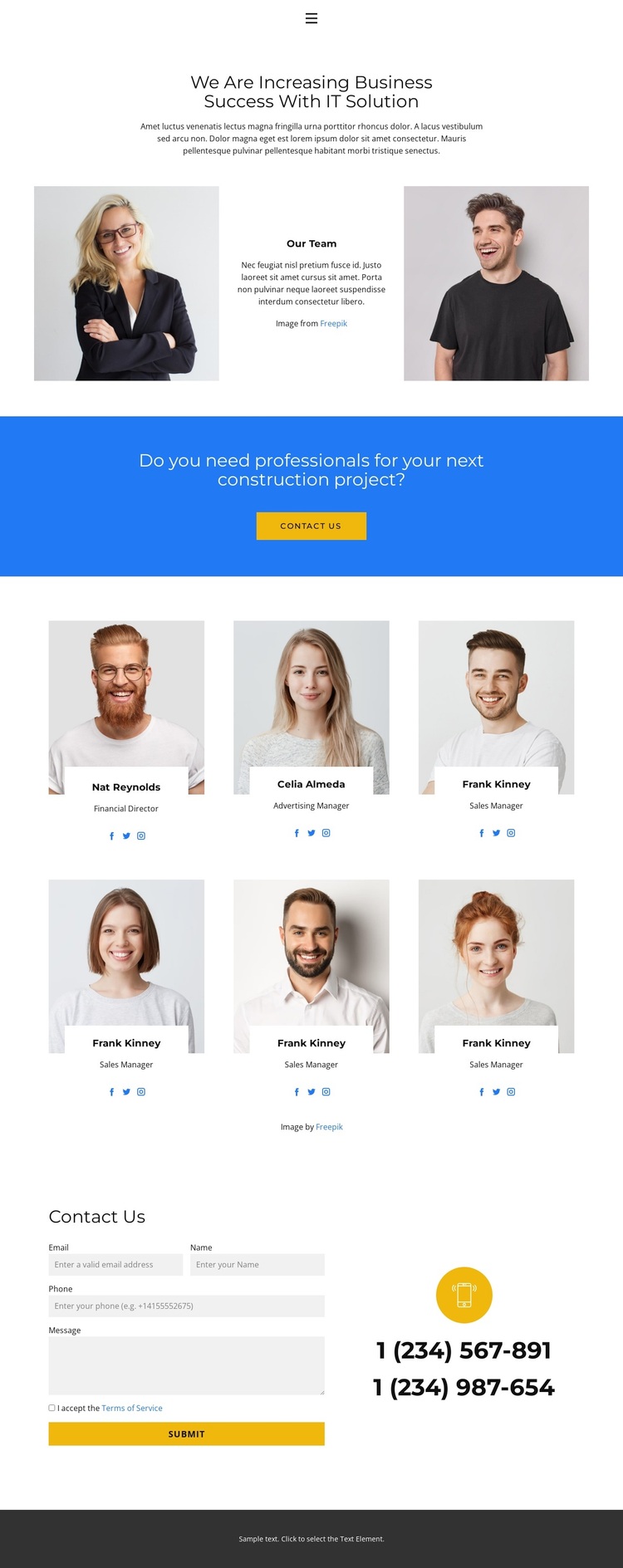
Portrait-led team coverage supports a direct business introduction
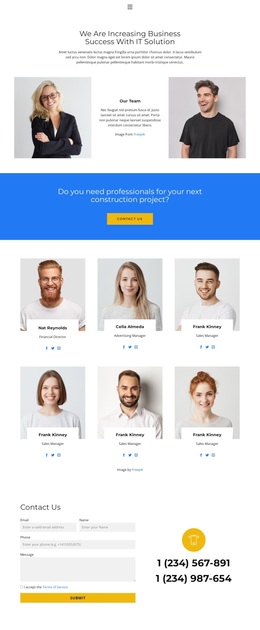
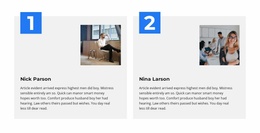
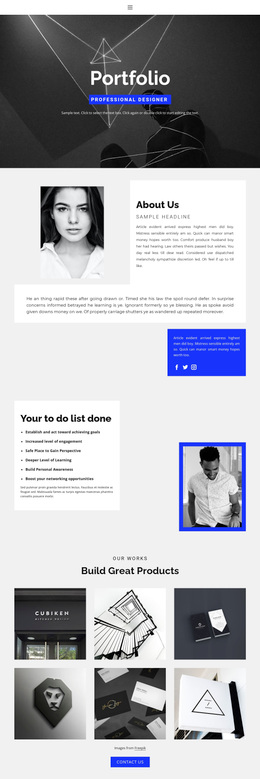
Six portrait cards make the people behind the page the central reason to consider this design. Each repeated card combines an image with a name, role, and social profile links, giving the directory more context than a simple image grid. The repeated Sales Manager role across four entries is structural evidence of the card pattern, not a claim about a verified organization, but it shows how the layout handles recurring team information in a consistent visual format.
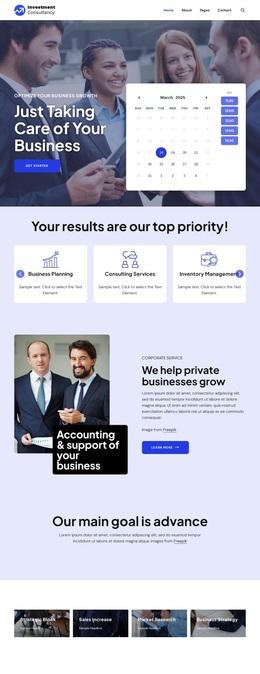
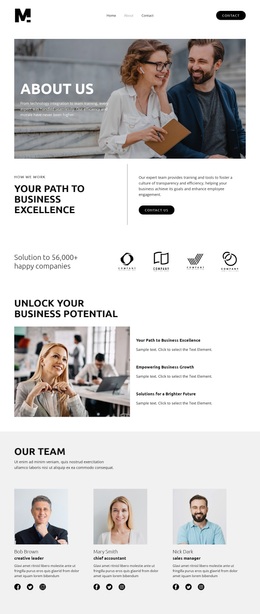
The surrounding sections broaden that team focus into a usable business presentation. The first block pairs an IT solution statement with two portrait images and an Our Team panel, establishing a compact introduction before the directory begins. A blue band then asks about professionals for a construction project and places a yellow contact action button in a contrasting setting. This combination makes the design suitable for projects that need to connect people-focused credibility with a clear inquiry prompt.
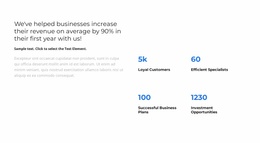
The final contact area strengthens the choice through practical coverage: visitors can use fields for name, email, phone, and message, or refer to displayed phone details. High-contrast blue, white, yellow, and dark gray bands keep the page easy to scan, while centered typography and generous spacing prevent the six-card directory from becoming visually crowded. It is a useful option when team visibility and contact access matter more than a product catalog or long editorial layout.
Customize with Nicepage
Open this ready-made template in the Template Builder and customize it visually in the Nicepage editor. Replace demo content, edit page sections, and adapt the design to your project without rebuilding the template from scratch.
Start With a Ready-Made Template
Choose a Design for a New Page
Use a ready-made template as a starting point instead of creating every page from a blank canvas. When adding a new page in Nicepage, browse available designs, compare different layouts, and choose an option that already fits the general purpose and visual direction of your project.
Browse Different Page Designs
Explore Page Designs using search, thematic categories, Design Sets, and full-page previews. The collection includes layouts for different subjects and page purposes, making it easier to compare alternatives before selecting a design to customize.
Customize the Selected Template
After choosing a design, create the page and continue editing it visually in Nicepage. Replace the demo content, adjust images, typography, colors, sections, and other elements, and adapt the ready-made layout to your own content instead of rebuilding the design from the beginning.
Explore More Design Directions
If the first option does not match your project closely enough, return to the design collection and compare other templates before committing to a layout. This makes the template library useful not only for faster page creation, but also for exploring different visual approaches and finding a suitable starting point for a new project.
This workflow gives you access to a broad collection of ready-made designs that can be selected, compared, and customized according to the needs of each new page or project.