Best photos for wedding Template



Edit Template Offline
2. Create new page and search for id 32364
Edit Template Online
Create Awesome Websites


Free Nicepage Builder
Keywords
Creative Photography Meets Practical Planning in One Image-Led Design
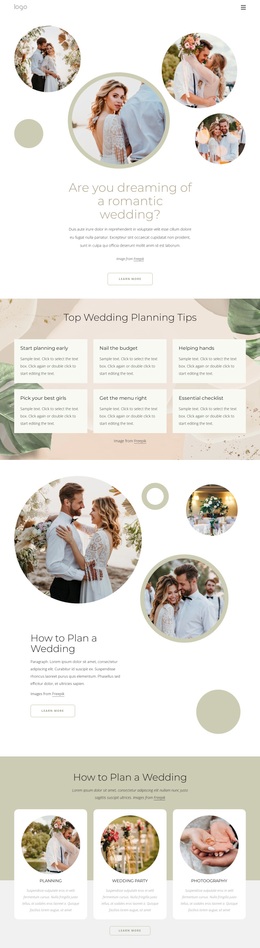
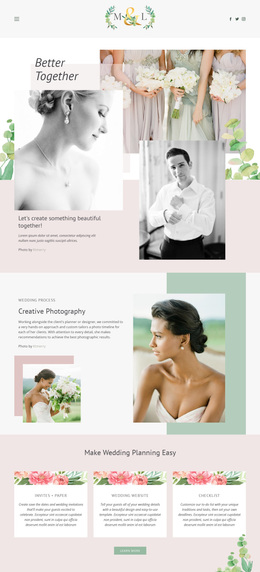
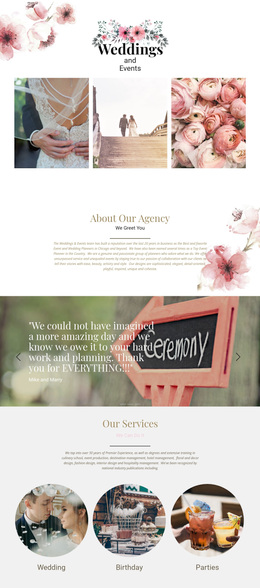
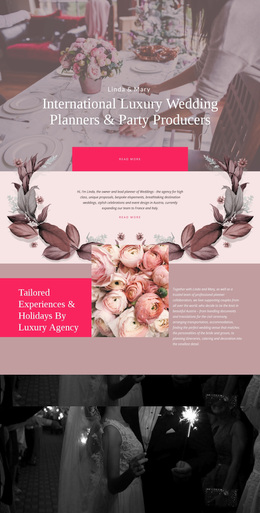
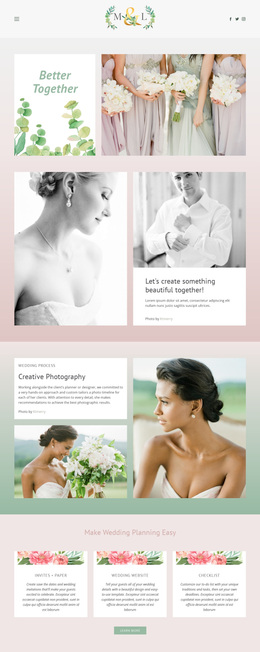
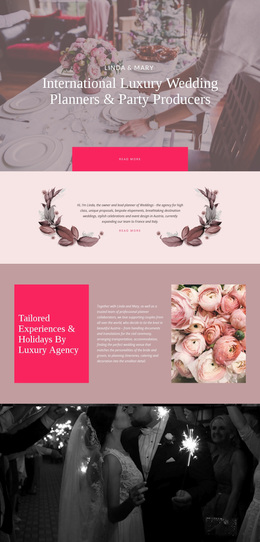
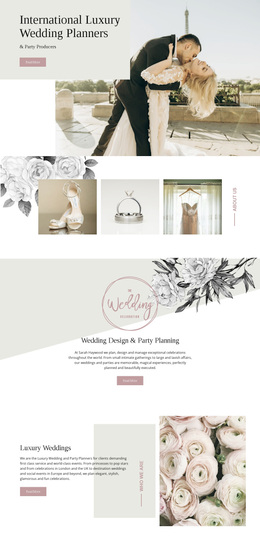
Large wedding photographs carry the emotional emphasis of this design, beginning with the botanical split hero and continuing through portrait collages, featured couple imagery, and full-width quotation backgrounds. That image-led approach is balanced by the Creative Photography process section, where explanatory text sits beside several photographic panels. The result is not simply a gallery: it combines visual storytelling with enough supporting content to explain an approach and invite further exploration.
The three-item planning resource group is a distinctive addition. “Invites + Paper,” “Wedding Website,” and “Checklist” introduce practical wedding topics as equal cards beneath one heading, giving the page a useful information layer alongside its photography. The destination section extends the same direction through a collage of six photographs, descriptive copy, and a “learn more” link. These areas make the design suitable for projects that want wedding imagery and planning guidance to share the same page rather than choosing between a portfolio layout and a resource page.
Pastel pink, cream, sage, and muted green tones, refined serif-style display typography, airy spacing, and centered image compositions reinforce the romantic editorial character. Couples planning weddings, photography studios, and destination-focused wedding services could adapt this option when imagery should lead the presentation while practical planning categories remain visible and easy to distinguish.
Customize with Nicepage
Open this ready-made template in the Template Builder and customize it visually in the Nicepage editor. Replace demo content, edit page sections, and adapt the design to your project without rebuilding the template from scratch.
Start With a Ready-Made Template
Choose a Design for a New Page
Use a ready-made template as a starting point instead of creating every page from a blank canvas. When adding a new page in Nicepage, browse available designs, compare different layouts, and choose an option that already fits the general purpose and visual direction of your project.
Browse Different Page Designs
Explore Page Designs using search, thematic categories, Design Sets, and full-page previews. The collection includes layouts for different subjects and page purposes, making it easier to compare alternatives before selecting a design to customize.
Customize the Selected Template
After choosing a design, create the page and continue editing it visually in Nicepage. Replace the demo content, adjust images, typography, colors, sections, and other elements, and adapt the ready-made layout to your own content instead of rebuilding the design from the beginning.
Explore More Design Directions
If the first option does not match your project closely enough, return to the design collection and compare other templates before committing to a layout. This makes the template library useful not only for faster page creation, but also for exploring different visual approaches and finding a suitable starting point for a new project.
This workflow gives you access to a broad collection of ready-made designs that can be selected, compared, and customized according to the needs of each new page or project.