Gallery with projects Template


A Two-by-Four Gallery With Varied Visual Emphasis
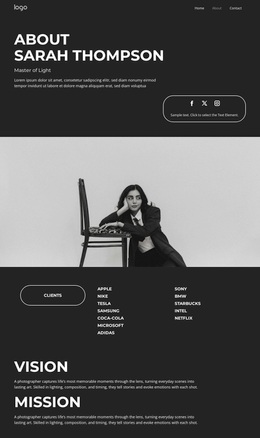
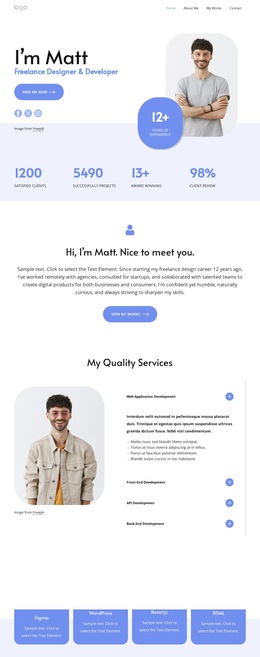
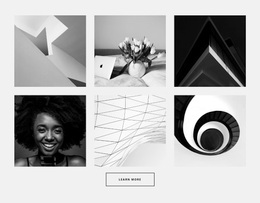
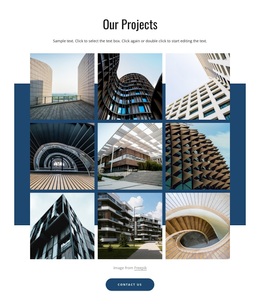
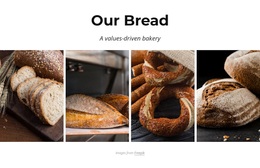
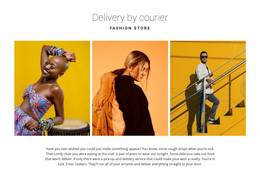
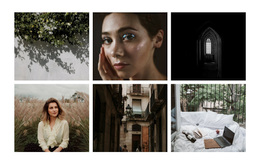
The design combines a two-row, four-column grid with a deliberately varied image collection. Eight tiles present portraits, monochrome photography, architectural or abstract imagery, and bright yellow editorial still-life scenes, so the section has more visual range than a uniform set of similarly toned thumbnails. At the same time, narrow white gutters and even alignment prevent that variety from becoming disorderly. The result is a compact gallery option for projects that need several images to remain visible together.
Hover overlay areas add a shared interaction cue across the collection, while lightbox viewing gives selected images room for closer consideration. That combination makes the design useful when the section should work both as an overview and as an invitation to inspect individual visuals. Since the block has no heading, its strongest identity comes from the balance between the repeated grid and the contrasting imagery. A project can choose this option when it wants the visual material itself to lead the section, with the surrounding page supplying context or labels as needed. The arrangement is distinctive because it offers both editorial contrast and strict geometric order: the images can vary in subject and tone, but the two-by-four structure keeps the presentation coherent.
Customize with Nicepage
Open this ready-made template in the Template Builder and customize it visually in the Nicepage editor. Replace demo content, edit page sections, and adapt the design to your project without rebuilding the template from scratch.
Edit Template Offline
2. Create a new page or select existing
3. Click Add new block, search for id 294764 and click enter
Edit Template Online
Create Awesome Websites


Free Nicepage Builder
Keywords
Start With a Ready-Made Template
Choose a Design for a New Page
Use a ready-made template as a starting point instead of creating every page from a blank canvas. When adding a new page in Nicepage, browse available designs, compare different layouts, and choose an option that already fits the general purpose and visual direction of your project.
Browse Different Page Designs
Explore Page Designs using search, thematic categories, Design Sets, and full-page previews. The collection includes layouts for different subjects and page purposes, making it easier to compare alternatives before selecting a design to customize.
Customize the Selected Template
After choosing a design, create the page and continue editing it visually in Nicepage. Replace the demo content, adjust images, typography, colors, sections, and other elements, and adapt the ready-made layout to your own content instead of rebuilding the design from the beginning.
Explore More Design Directions
If the first option does not match your project closely enough, return to the design collection and compare other templates before committing to a layout. This makes the template library useful not only for faster page creation, but also for exploring different visual approaches and finding a suitable starting point for a new project.
This workflow gives you access to a broad collection of ready-made designs that can be selected, compared, and customized according to the needs of each new page or project.