Nike sportwear Template


Edit Template Offline
2. Create new page and search for id 29282
Edit Template Online
Create Awesome Websites


Free Nicepage Builder
Keywords
Editorial Sports Photography Meets Product and Community Storytelling
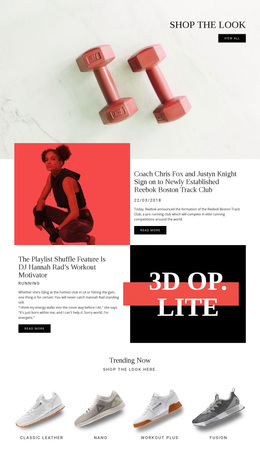
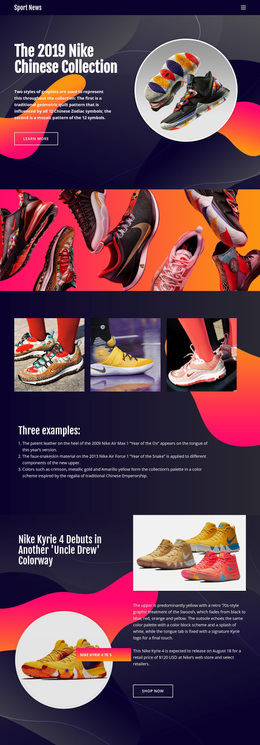
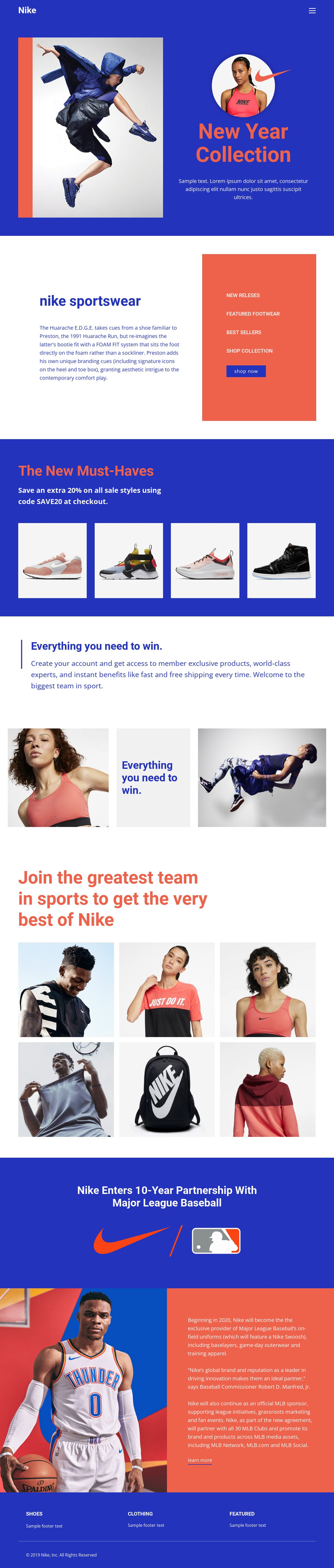
Large editorial imagery gives this design a clear point of distinction from layouts centered only on product lists. The New Year Collection hero places fashion photography beside seasonal copy, establishing a visual-first introduction before the sportswear section adds Featured Footwear, Best Sellers, Shop Collection, and Shop Now links. This combination suits a project that needs products to remain connected to a larger brand presentation.
The four-image New Must-Haves gallery adds a compact merchandising moment through its sale heading and SAVE20 offer. It is balanced by the membership benefits section, which changes the emphasis from individual products to account and shipping value. The three-part lifestyle panel and six-image community gallery continue that broader message with a mix of lifestyle and product imagery, making participation part of the page's identity. The Major League Baseball partnership announcement adds an editorial and partnership dimension that many simpler sportswear layouts would not include. As a ready-made design option, the page is especially suited to promotional work where seasonal merchandise, community membership, visual storytelling, and sports affiliation need to share one high-contrast presentation rather than appear as unrelated content areas.
Customize with Nicepage
Open this ready-made template in the Template Builder and customize it visually in the Nicepage editor. Replace demo content, edit page sections, and adapt the design to your project without rebuilding the template from scratch.
Start With a Ready-Made Template
Choose a Design for a New Page
Use a ready-made template as a starting point instead of creating every page from a blank canvas. When adding a new page in Nicepage, browse available designs, compare different layouts, and choose an option that already fits the general purpose and visual direction of your project.
Browse Different Page Designs
Explore Page Designs using search, thematic categories, Design Sets, and full-page previews. The collection includes layouts for different subjects and page purposes, making it easier to compare alternatives before selecting a design to customize.
Customize the Selected Template
After choosing a design, create the page and continue editing it visually in Nicepage. Replace the demo content, adjust images, typography, colors, sections, and other elements, and adapt the ready-made layout to your own content instead of rebuilding the design from the beginning.
Explore More Design Directions
If the first option does not match your project closely enough, return to the design collection and compare other templates before committing to a layout. This makes the template library useful not only for faster page creation, but also for exploring different visual approaches and finding a suitable starting point for a new project.
This workflow gives you access to a broad collection of ready-made designs that can be selected, compared, and customized according to the needs of each new page or project.