Reebok Template


Edit Template Offline
2. Create new page and search for id 18116
Edit Template Online
Create Awesome Websites


Free Nicepage Builder
Keywords
Four Trending Products Meet Six Category Tiles and Editorial Stories
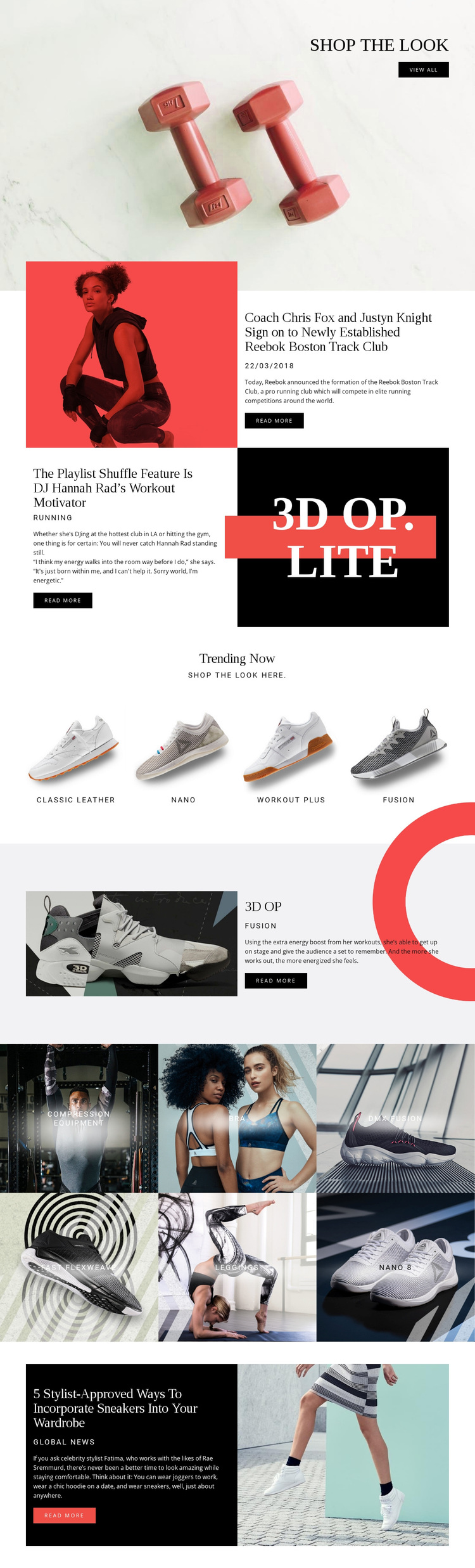
Large lifestyle imagery gives this design an immediate sportswear context, but its strongest distinguishing feature is the way shopping content and editorial content share the same page. The opening shop the look section establishes a direct product invitation, while the three feature stories broaden the subject into athletics, music, and sneaker styling. That combination suits projects that need more than a catalog grid and want products to appear within a wider lifestyle narrative.
The product coverage is also unusually explicit. Trending Now presents four named tiles—Classic Leather, nano, workout plus, and fusion—so visitors can compare a compact group of highlighted products. The 3D OP feature then shifts to a larger product story with image, category, description, and action. A separate six-item gallery adds compression equipment, bra, dmx fusion, fast flexweave, leggings, and nano 8, giving the design another browsing layer without making the editorial blocks irrelevant.
This is a useful option when visual merchandising, article engagement, and fashion-oriented context need to coexist. Its black, white, and red contrast supports bold product presentation, while the alternating split sections and repeated tile groups prevent the page from feeling like a single-purpose sales layout. The result is a design choice centered on content coverage as much as appearance.
Customize with Nicepage
Open this ready-made template in the Template Builder and customize it visually in the Nicepage editor. Replace demo content, edit page sections, and adapt the design to your project without rebuilding the template from scratch.
Start With a Ready-Made Template
Choose a Design for a New Page
Use a ready-made template as a starting point instead of creating every page from a blank canvas. When adding a new page in Nicepage, browse available designs, compare different layouts, and choose an option that already fits the general purpose and visual direction of your project.
Browse Different Page Designs
Explore Page Designs using search, thematic categories, Design Sets, and full-page previews. The collection includes layouts for different subjects and page purposes, making it easier to compare alternatives before selecting a design to customize.
Customize the Selected Template
After choosing a design, create the page and continue editing it visually in Nicepage. Replace the demo content, adjust images, typography, colors, sections, and other elements, and adapt the ready-made layout to your own content instead of rebuilding the design from the beginning.
Explore More Design Directions
If the first option does not match your project closely enough, return to the design collection and compare other templates before committing to a layout. This makes the template library useful not only for faster page creation, but also for exploring different visual approaches and finding a suitable starting point for a new project.
This workflow gives you access to a broad collection of ready-made designs that can be selected, compared, and customized according to the needs of each new page or project.