Get moving with our range of classes Template


Edit Template Offline
2. Create new page and search for id 6210045
Edit Template Online
Create Awesome Websites


Free Nicepage Builder
Keywords
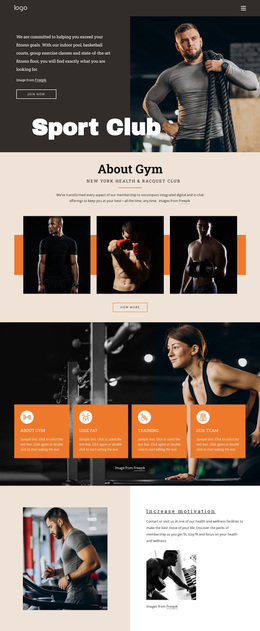
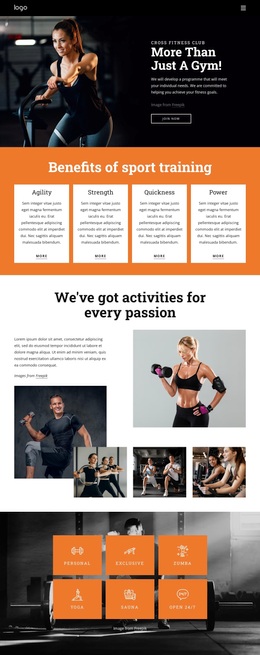
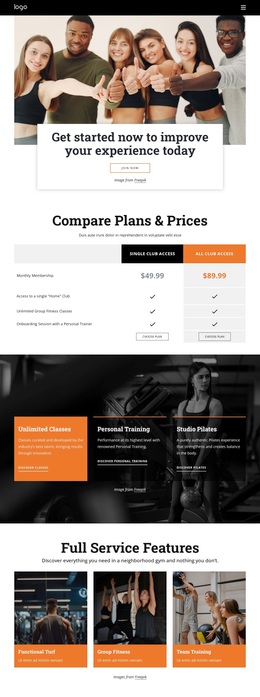
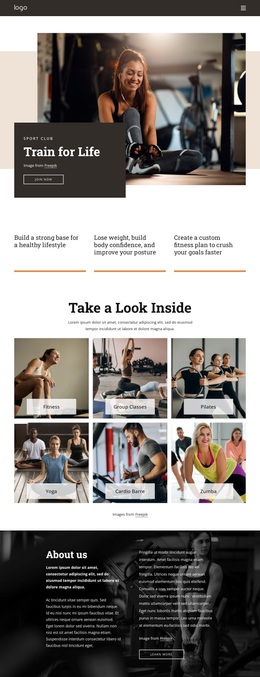
Six Labeled Activities Give the Club Design a Distinctive Focus
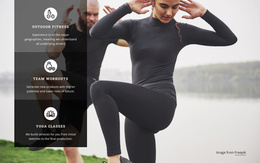
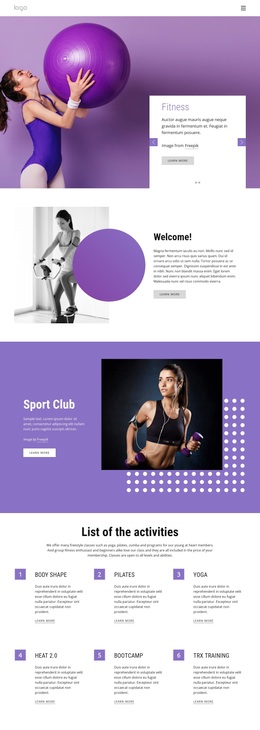
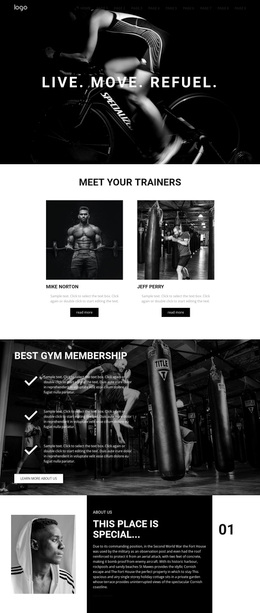
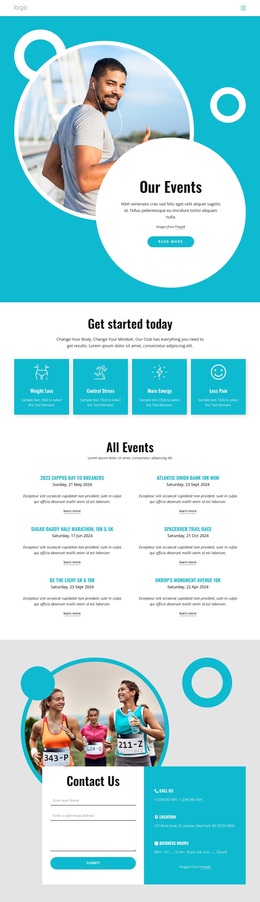
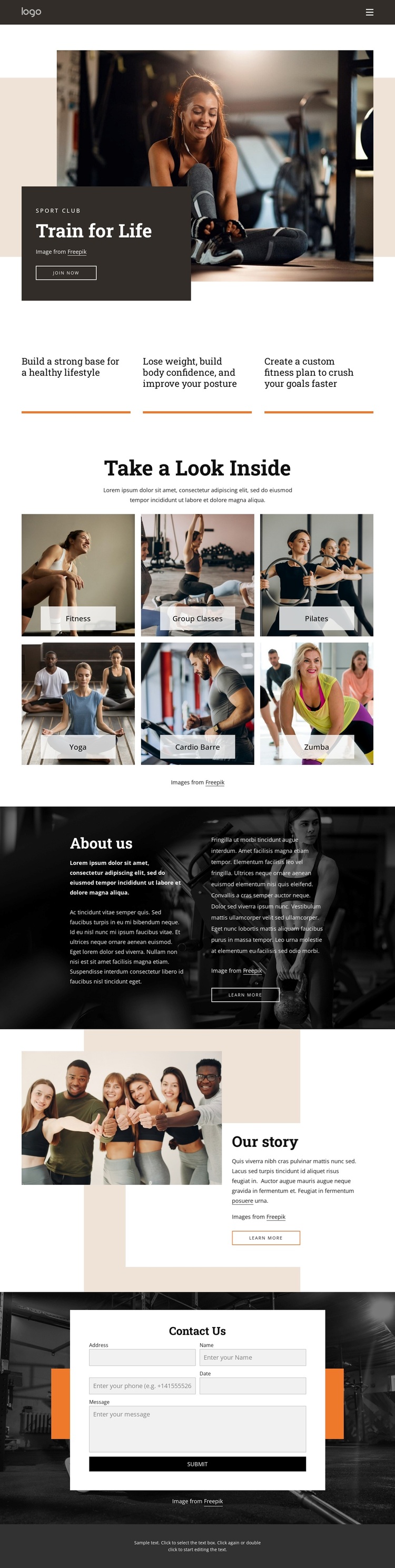
The strongest reason to choose this design is the way it lets imagery carry the fitness message. Rather than relying only on a general club headline, the “Take a Look Inside” section presents six labeled activity photographs: Fitness, Group Classes, Pilates, Yoga, Cardio Barre, and Zumba. That combination immediately communicates variety and gives the page a recognizable subject-specific center. The three benefit statements above it add a compact explanation of what the club offers without overwhelming the visual presentation.
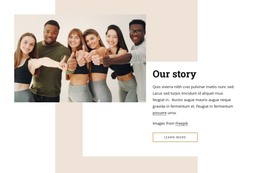
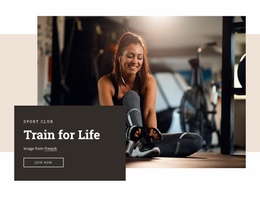
The surrounding sections broaden the design while keeping that activity focus visible. The “Train for Life” hero introduces membership with a large workout image and a join now action. “About us” uses two text columns over a dark photographic background, while “Our story” changes the rhythm through an overlapping image, light panel, and warm geometric backdrop. These shifts make the page feel editorial and layered instead of like a simple list of services.
The final contact form gives the selection practical completeness. Visitors can move from the club’s visual character to its class range, then to its background and a direct inquiry opportunity. This makes the template a useful option for fitness projects that need energetic photography, clear program categories, and a membership-oriented ending in one coherent page.
Customize with Nicepage
Open this ready-made template in the Template Builder and customize it visually in the Nicepage editor. Replace demo content, edit page sections, and adapt the design to your project without rebuilding the template from scratch.
Start With a Ready-Made Template
Choose a Design for a New Page
Use a ready-made template as a starting point instead of creating every page from a blank canvas. When adding a new page in Nicepage, browse available designs, compare different layouts, and choose an option that already fits the general purpose and visual direction of your project.
Browse Different Page Designs
Explore Page Designs using search, thematic categories, Design Sets, and full-page previews. The collection includes layouts for different subjects and page purposes, making it easier to compare alternatives before selecting a design to customize.
Customize the Selected Template
After choosing a design, create the page and continue editing it visually in Nicepage. Replace the demo content, adjust images, typography, colors, sections, and other elements, and adapt the ready-made layout to your own content instead of rebuilding the design from the beginning.
Explore More Design Directions
If the first option does not match your project closely enough, return to the design collection and compare other templates before committing to a layout. This makes the template library useful not only for faster page creation, but also for exploring different visual approaches and finding a suitable starting point for a new project.
This workflow gives you access to a broad collection of ready-made designs that can be selected, compared, and customized according to the needs of each new page or project.