Smart Bottle Template


Edit Template Offline
2. Create new page and search for id 13068
Edit Template Online
Create Awesome Websites


Free Nicepage Builder
Keywords
Four Named Bottles Make Product Exploration the Central Choice
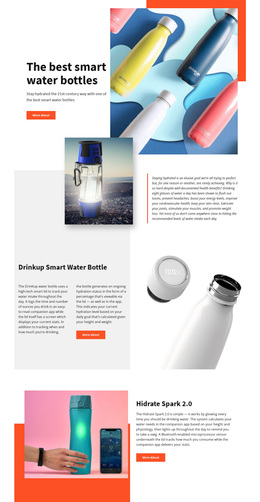
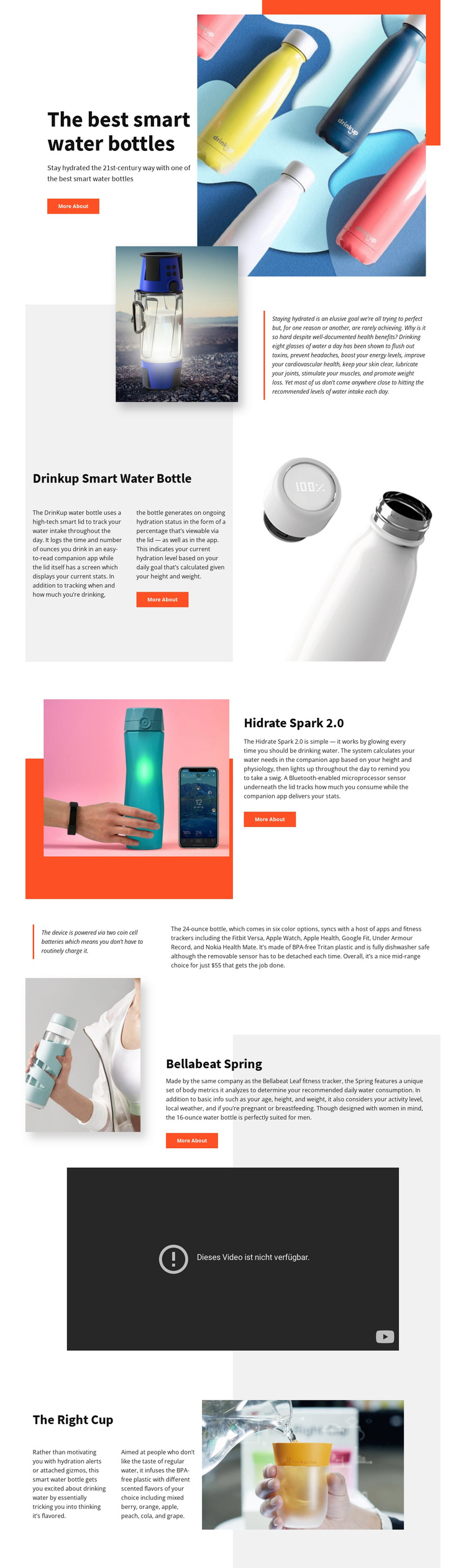
The page begins with a direct category statement, “The best smart water bottles,” and quickly supports that message with large product photography and a small call-to-action. Its strongest distinguishing feature is the way four named products receive their own visual space: Drinkup Smart Water Bottle, Hidrate Spark 2.0, Bellabeat Spring, and The Right Cup appear as separate presentations rather than being compressed into a generic catalogue grid.
Each product section combines a name, descriptive copy, and imagery in an alternating split composition. That repeated pattern gives the design enough consistency for comparison while allowing every bottle to remain a visible subject. The short supporting statement creates breathing room between product groups, and the dark video area introduces a different presentation mode without overwhelming the product narrative. Coral accents and pale surfaces reinforce the bright, consumer-facing direction, while the spacious layouts keep the imagery prominent.
This makes the template a useful choice for projects that need to explain several hydration products through visual storytelling and concise product information. It is less centered on dense specifications, pricing, or long editorial content. The design’s appeal lies in combining recognizable product names, image-led sections, and a clear path for exploring a small, curated bottle range.
Customize with Nicepage
Open this ready-made template in the Template Builder and customize it visually in the Nicepage editor. Replace demo content, edit page sections, and adapt the design to your project without rebuilding the template from scratch.
Start With a Ready-Made Template
Choose a Design for a New Page
Use a ready-made template as a starting point instead of creating every page from a blank canvas. When adding a new page in Nicepage, browse available designs, compare different layouts, and choose an option that already fits the general purpose and visual direction of your project.
Browse Different Page Designs
Explore Page Designs using search, thematic categories, Design Sets, and full-page previews. The collection includes layouts for different subjects and page purposes, making it easier to compare alternatives before selecting a design to customize.
Customize the Selected Template
After choosing a design, create the page and continue editing it visually in Nicepage. Replace the demo content, adjust images, typography, colors, sections, and other elements, and adapt the ready-made layout to your own content instead of rebuilding the design from the beginning.
Explore More Design Directions
If the first option does not match your project closely enough, return to the design collection and compare other templates before committing to a layout. This makes the template library useful not only for faster page creation, but also for exploring different visual approaches and finding a suitable starting point for a new project.
This workflow gives you access to a broad collection of ready-made designs that can be selected, compared, and customized according to the needs of each new page or project.