Snapchat Launchers Template


Edit Template Offline
2. Create new page and search for id 12789
Edit Template Online
Create Awesome Websites


Free Nicepage Builder
Keywords
Product Imagery and Editorial Sections Give This Design a Clear Point of View
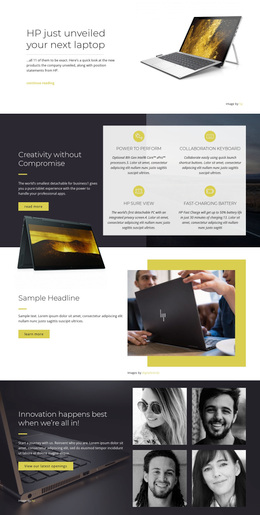
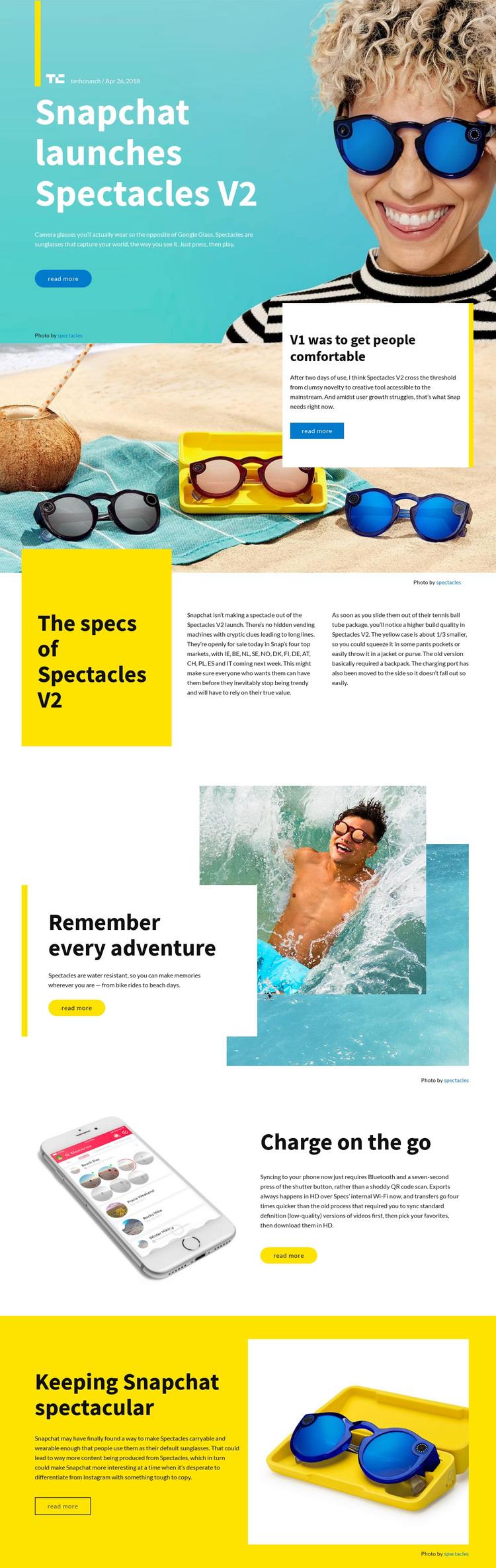
Large lifestyle photography, product imagery, and concise editorial excerpts make Snapchat Launchers more specific than a generic technology landing layout. The turquoise hero immediately establishes the Spectacles V2 subject, while the white review card over a photographic background introduces an opinion-led tone. The yellow specification panel then changes the visual emphasis and gives availability and build quality a dedicated place in the story.
The design also covers practical product themes without losing its editorial character. A split section connects water resistance with outdoor imagery, and another pairs a phone illustration with Bluetooth syncing and HD export over internal Wi-Fi. The smaller charging case appears as part of the product-improvement narrative rather than as an isolated specification list. A final yellow block beside a large product image brings the discussion back to Snapchat’s broader product direction.
This makes the template worth choosing when a technology page needs to explain a product through visual context, review commentary, and feature-specific sections. Its strongest distinction is the relationship between magazine composition and product evidence: bold color panels attract attention, while white space and short text areas leave room for linked full articles. It is a focused design option for editorial product coverage, not a claim of a broader prebuilt site.
Customize with Nicepage
Open this ready-made template in the Template Builder and customize it visually in the Nicepage editor. Replace demo content, edit page sections, and adapt the design to your project without rebuilding the template from scratch.
Start With a Ready-Made Template
Choose a Design for a New Page
Use a ready-made template as a starting point instead of creating every page from a blank canvas. When adding a new page in Nicepage, browse available designs, compare different layouts, and choose an option that already fits the general purpose and visual direction of your project.
Browse Different Page Designs
Explore Page Designs using search, thematic categories, Design Sets, and full-page previews. The collection includes layouts for different subjects and page purposes, making it easier to compare alternatives before selecting a design to customize.
Customize the Selected Template
After choosing a design, create the page and continue editing it visually in Nicepage. Replace the demo content, adjust images, typography, colors, sections, and other elements, and adapt the ready-made layout to your own content instead of rebuilding the design from the beginning.
Explore More Design Directions
If the first option does not match your project closely enough, return to the design collection and compare other templates before committing to a layout. This makes the template library useful not only for faster page creation, but also for exploring different visual approaches and finding a suitable starting point for a new project.
This workflow gives you access to a broad collection of ready-made designs that can be selected, compared, and customized according to the needs of each new page or project.