Vacations and great tours Template


An Asymmetrical Gallery for Travel Category Discovery
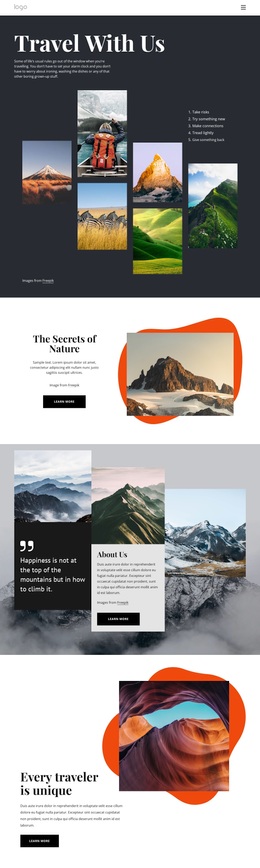
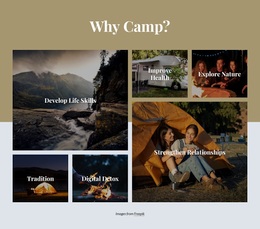
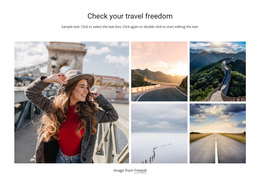
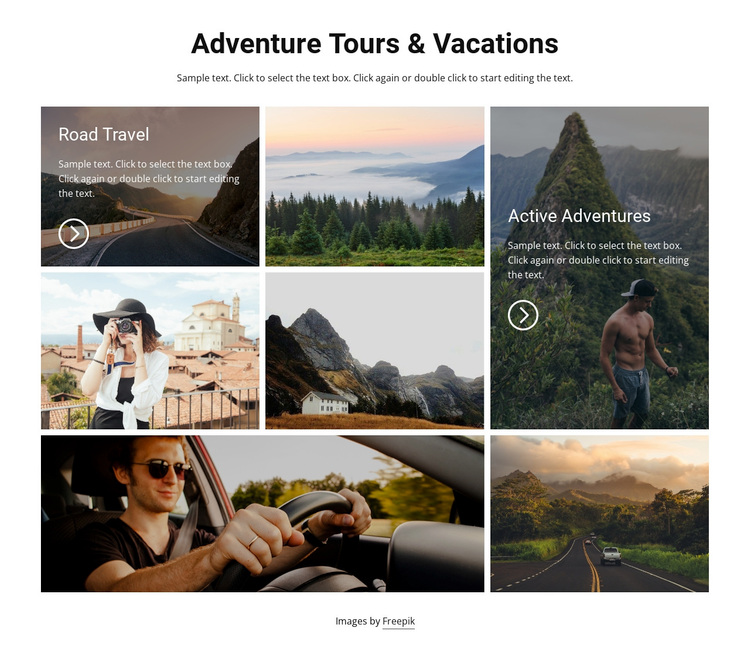
The block’s strongest design choice is the combination of seven photographic tiles with an asymmetrical mosaic rather than a uniform row or card grid. Four tiles occupy a two-column area, a tall panel creates vertical emphasis on the right, and two wide tiles stretch across the lower portion. Narrow white gutters keep the varied shapes orderly, while the centered heading and restrained supporting paragraph give the image field a clear point of entry.
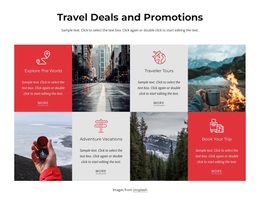
Two tiles add more than photography alone. Road Travel and Active Adventures use dark overlays, white text, and circular arrow icons to identify category content within the larger gallery. That contrast makes the block useful when a travel page needs to present broad visual inspiration alongside two readable activity or destination directions. The remaining tiles preserve the outdoor image rhythm and prevent the named categories from feeling isolated.
This is a ready-made section choice for projects that want travel content to feel editorial and image-led without relying on a repetitive seven-card layout. It can introduce vacation themes, separate visual categories, or create a mid-page transition toward more detailed content. The block’s value comes from the specific balance of image scale, white space, overlay information, and repeated photographic treatment, not from claiming that it supplies an entire travel website or booking journey.
Customize with Nicepage
Open this ready-made template in the Template Builder and customize it visually in the Nicepage editor. Replace demo content, edit page sections, and adapt the design to your project without rebuilding the template from scratch.
Edit Template Offline
2. Create a new page or select existing
3. Click Add new block, search for id 110617 and click enter
Edit Template Online
Create Awesome Websites


Free Nicepage Builder
Keywords
Start With a Ready-Made Template
Choose a Design for a New Page
Use a ready-made template as a starting point instead of creating every page from a blank canvas. When adding a new page in Nicepage, browse available designs, compare different layouts, and choose an option that already fits the general purpose and visual direction of your project.
Browse Different Page Designs
Explore Page Designs using search, thematic categories, Design Sets, and full-page previews. The collection includes layouts for different subjects and page purposes, making it easier to compare alternatives before selecting a design to customize.
Customize the Selected Template
After choosing a design, create the page and continue editing it visually in Nicepage. Replace the demo content, adjust images, typography, colors, sections, and other elements, and adapt the ready-made layout to your own content instead of rebuilding the design from the beginning.
Explore More Design Directions
If the first option does not match your project closely enough, return to the design collection and compare other templates before committing to a layout. This makes the template library useful not only for faster page creation, but also for exploring different visual approaches and finding a suitable starting point for a new project.
This workflow gives you access to a broad collection of ready-made designs that can be selected, compared, and customized according to the needs of each new page or project.