Manage your money effectively Template


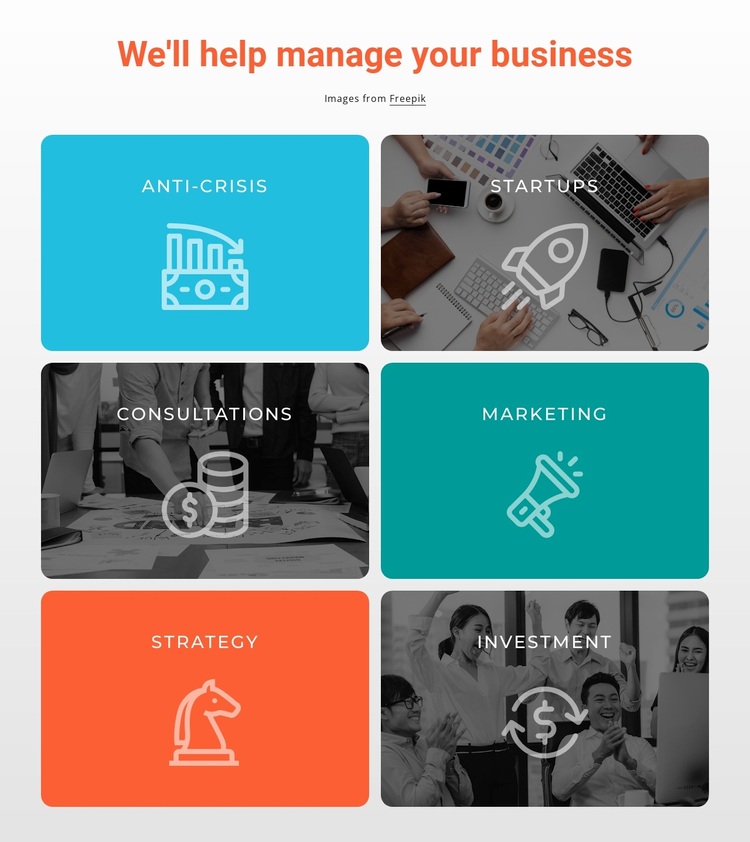
A six-category grid gives the services section a strong visual pattern
The design combines several concrete choices that distinguish it from a simpler service list. One centered heading introduces six categories—Anti-Crisis, Startups, Consultations, Marketing, Strategy, and Investment—while a two-column grid distributes them across three rows. This gives the section a compact footprint but still allows each category to occupy its own visual card. The repeated centered label and large outlined icon make the content immediately scannable.
The block is also notable for mixing two background treatments within the same pattern. Three cards use photographic backgrounds with dark overlays, allowing white labels and icons to remain legible. Three others use solid-color backgrounds, including bright cyan, teal, orange, and neutral tones. Rounded corners appear across the card set, so the variation feels intentional rather than inconsistent. Together, the image and color contrast adds visual interest without changing the underlying service structure.
This makes the section a useful choice when a page needs to communicate several business capabilities with more character than a plain list or uniform text grid. It can introduce a broad consulting or management offering while keeping the categories separate and easy to compare. The static arrangement is direct, and its defined heading, six-item content model, and repeated card language make it adaptable as one focused section among other design alternatives.
Customize with Nicepage
Open this ready-made template in the Template Builder and customize it visually in the Nicepage editor. Replace demo content, edit page sections, and adapt the design to your project without rebuilding the template from scratch.
Edit Template Offline
2. Create a new page or select existing
3. Click Add new block, search for id 1804176 and click enter
Edit Template Online
Create Awesome Websites


Free Nicepage Builder
Keywords
Start With a Ready-Made Template
Choose a Design for a New Page
Use a ready-made template as a starting point instead of creating every page from a blank canvas. When adding a new page in Nicepage, browse available designs, compare different layouts, and choose an option that already fits the general purpose and visual direction of your project.
Browse Different Page Designs
Explore Page Designs using search, thematic categories, Design Sets, and full-page previews. The collection includes layouts for different subjects and page purposes, making it easier to compare alternatives before selecting a design to customize.
Customize the Selected Template
After choosing a design, create the page and continue editing it visually in Nicepage. Replace the demo content, adjust images, typography, colors, sections, and other elements, and adapt the ready-made layout to your own content instead of rebuilding the design from the beginning.
Explore More Design Directions
If the first option does not match your project closely enough, return to the design collection and compare other templates before committing to a layout. This makes the template library useful not only for faster page creation, but also for exploring different visual approaches and finding a suitable starting point for a new project.
This workflow gives you access to a broad collection of ready-made designs that can be selected, compared, and customized according to the needs of each new page or project.