Delicious food restaurant Joomla Template



History, Community, and Philosophy Create a Structured Content Region
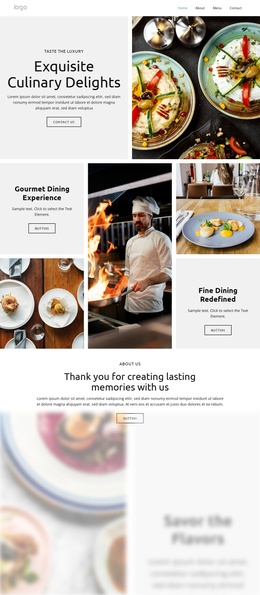
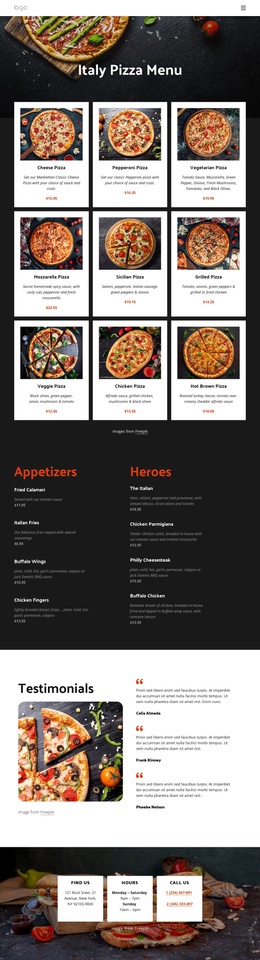
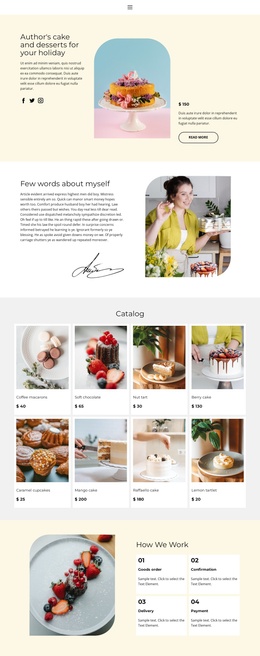
The three thematic labels give this section a useful information model for a Joomla-managed page. History, Community, and Philosophy divide the food-related material into recognizable content areas, and each area pairs a heading with supporting text and a Read more link. The block therefore reads as a structured feature region rather than as one long paragraph. The three food images add visual separation while remaining tied to the surrounding stories through the alternating row arrangement.
The upper row places the History text tile between two images, creating an introductory story position with visual support on both sides. Below it, Community and Philosophy form two outer text regions around a central food image. This second arrangement gives the lower row a different relationship between content and media while preserving the same six-tile system. The centered serif headings, uppercase labels, white panels, and generous spacing help the separate information units remain visually related.
Within a Joomla-oriented project, this block can participate as one stable page section while the wider site manages its other editorial areas. Its content can be treated as a reusable food feature region, with surrounding pages or CMS content supplying additional context. Nicepage’s Joomla workflow can connect visual page design with Joomla-managed content, but the block itself remains the specific six-tile section described here rather than an entire Joomla Template, article system, or site.
Customize with Nicepage
Open this ready-made template in the Joomla Page Builder and customize it visually in the Nicepage editor. Replace demo content, edit page sections, and adapt the design to your project without rebuilding the template from scratch.
Edit Template Offline
2. Create a new page or select existing
3. Click Add new block, search for id 123068 and click enter
Edit Template Online
Create Awesome Websites


Free Nicepage Builder
Keywords
Work With This Template in Joomla
Customize and Install the Joomla Template
Start with this ready-made template instead of building the Joomla design from scratch. Customize its layout, content, typography, images, sections, and other design elements visually in the Nicepage application, then export and install the Joomla Template, Nicepage Extension, and supported content on your Joomla website.
Edit the Template Directly in Joomla
After installation, you can edit the Joomla Template directly in Joomla with the Nicepage Joomla Extension. Customize the Header, Footer, Colors, Fonts, typography, and Page Templates from the Joomla workflow while keeping the site design connected with your CMS content.
Edit Joomla Articles Visually
Use the Nicepage Joomla Extension to open and edit Joomla Articles visually from the Joomla Administrator. Change text, images, sections, layouts, and other page content in the Nicepage editor while continuing to manage the Articles through Joomla.
Joomla Content and Template Integration
Use the customized template together with Joomla Articles, module Positions, menus, forms, Blog Pages, and other supported CMS elements. With the Nicepage Extension used as the Site Style Source, shared design settings can be applied across Joomla Articles while Joomla continues to provide the CMS environment for managing site content.
This workflow combines a ready-made Joomla Template with visual customization, direct template editing in Joomla, and continued content management through the Nicepage Joomla Extension.