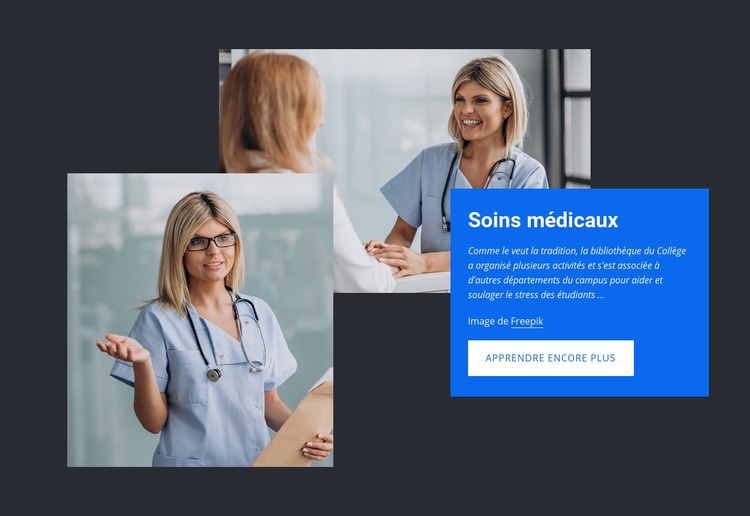
Des soins de santé de haute qualité Modèle


Personnalisez avec Nicepage
Lorsque vous utilisez Générateur de modèles, vous pourrez ajuster les couleurs, les polices, l'en-tête et le texte, la mise en page, les colonnes et autres éléments de conception, ainsi que le contenu et les images.
Modifier le modèle hors ligne
2. Créez une nouvelle page ou sélectionnez une page existante
3. Cliquez sur Ajouter un nouveau bloc, recherchez l'identifiant 388305 et cliquez sur Entrée
Modifier le modèle en ligne
Créez des sites Web géniaux


Nicepage Builder gratuit
Mots clés
Commencer avec un modèle prêt à l'emploi
Choisir un design pour une nouvelle page
Utilisez un modèle prêt à l'emploi comme point de départ au lieu de créer chaque page à partir d'une page blanche. Lorsque vous ajoutez une nouvelle page dans Nicepage, parcourez les designs disponibles, comparez les différentes mises en page et choisissez une option qui correspond déjà à l'objectif général et à l'orientation visuelle de votre projet.
Explorer différents designs de page
Explorez les Designs de page à l'aide de la recherche, des catégories thématiques, des ensembles de designs et des aperçus plein écran. La collection comprend des mises en page pour différents sujets et usages, ce qui facilite la comparaison des alternatives avant de sélectionner un design à personnaliser.
Personnaliser le modèle sélectionné
Après avoir choisi un design, créez la page et continuez à la modifier visuellement dans Nicepage. Remplacez le contenu de démonstration, ajustez les images, la typographie, les couleurs, les sections et autres éléments, et adaptez la mise en page prête à l'emploi à votre propre contenu au lieu de reconstruire le design depuis le début.
Explorer d'autres pistes de design
Si la première option ne correspond pas suffisamment à votre projet, retournez à la collection de modèles et comparez-en d'autres avant de choisir une mise en page. La bibliothèque de modèles s'avère ainsi utile non seulement pour créer des pages plus rapidement, mais aussi pour explorer différentes approches visuelles et trouver un point de départ adapté à un nouveau projet.
Ce processus vous donne accès à une vaste collection de designs prêts à l'emploi que vous pouvez sélectionner, comparer et personnaliser en fonction des besoins de chaque nouvelle page ou projet.

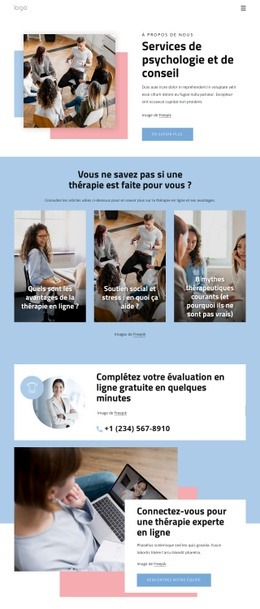
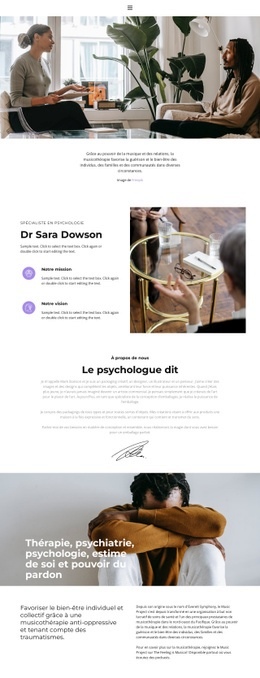
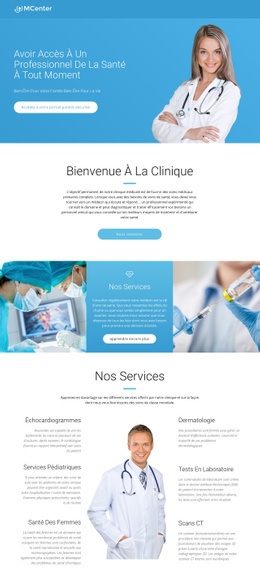
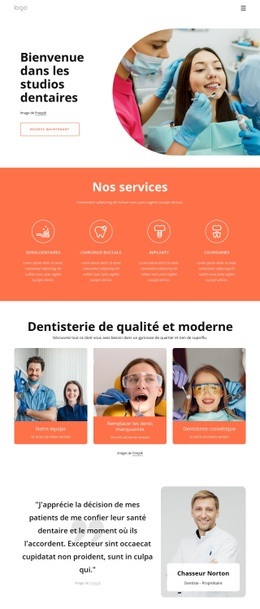
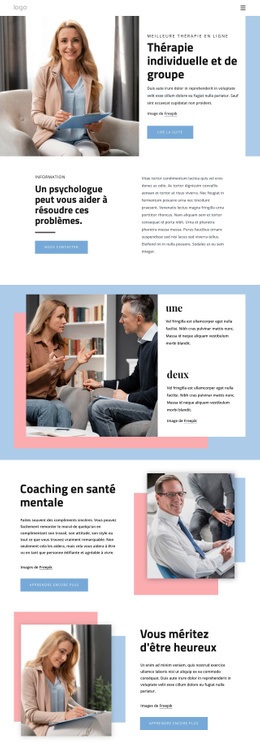
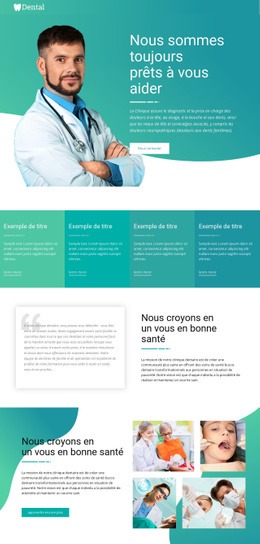
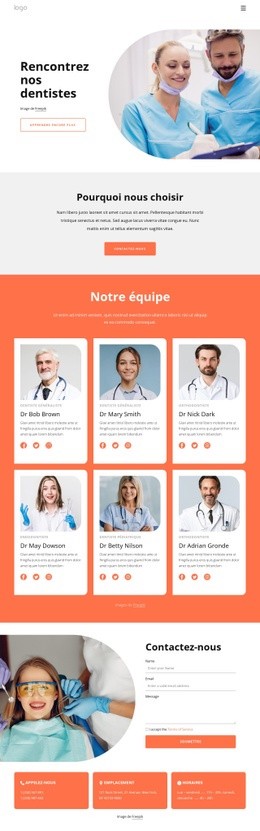
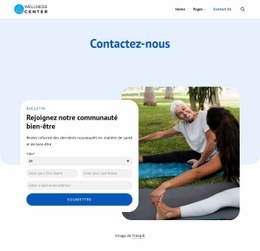


Plus de Médecine et sciences blocs
-
EN

-

-
-
-
EN
-
EN
-
EN
-
EN
-
EN
-
EN
-
EN
-
EN
-
EN
-
EN
-
-
EN
-
EN
-
-
EN
-
EN







Plus de Grouper blocs
-
EN
-
EN
-
EN
-
EN
-
EN
-
EN
-
EN
-
EN
-
EN
-
-
EN
-
EN
-
-
EN
-
-
EN
-
EN
-
EN
-
EN
-
EN