
How to add a Booking Calendar to your website


Calendar Presets
Calendar Presets in Nicepage are ready-made calendar block designs for quickly adding appointment or event booking to a website. You can select a preset from the Add Panel, then customize its layout, colors, dates, available time slots, booking form, and schedule settings.
Appointment Booking
You can let your website visitors book appointments directly on your website without third-party tools. They can choose from available dates and time slots in a simple, familiar calendar interface. This makes scheduling faster for both businesses and customers. It works perfectly for consultations, classes, meetings, and personal services.


Schedule Events
Define your schedule with flexible rules for weekdays, exact dates, multiple time slots, and booking duration. Add custom availability for specific days or recurring weekly appointments. Set booking limits and control when reservations close. This gives you precise scheduling without extra tools.
Stylize Your Calendar
You can stylize the Dates, Weekdays, Month and Year, and Time Slots in the corresponding Property Groups. You can also modify the general Element Properties like Background, Border, Shadow, etc.

Manage Appointments
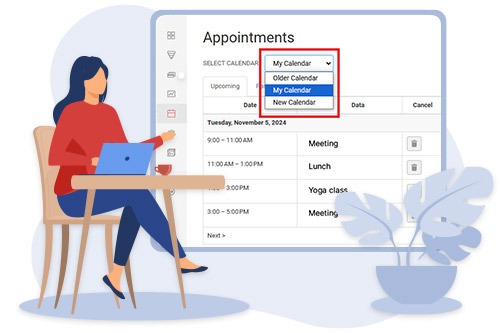
Track all appointments with built-in Upcoming, Past, and Canceled tabs. Nicepage automatically moves bookings between statuses over time. Cancel appointments directly from the management panel when needed. This helps keep your booking system organized and easy to manage.