
Before 2010, most web pages had a height of a desktop screen. And each of those pages covered specific topics on the website, including Home, Products, About Us, Contact Us, and others. To go to pages, visitors usually clicked the corresponding links in the Menu.
Blocks vs. Pages
What are Blocks? There are still many websites that use traditional Navigation, which is not very convenient, especially on mobile devices. Generally, modern web layouts combine several pages into a single long page. All the information is put into separate parts. The Menu still may have links, but to parts, not to separate pages.
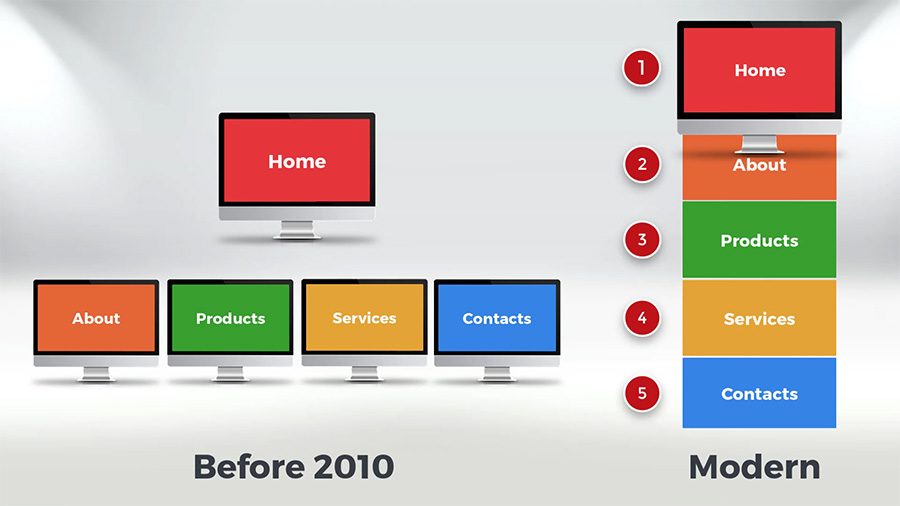
Special HTML Tag. There are parts, so they need to be managed separately. Such layouts are trendy and known as One-Page Designs. Such web page parts are called Blocks. Even in HTML, the "SECTION" element was introduced to separate page blocks. Now, it is widely used in the markup of web pages with Blocks.

Building Websites From Blocks. Since their first appearance, Blocks have become the main building blocks of modern Web Design. Building web pages from Blocks is like building toy towers from LEGO bricks.

Block Types
Block Types. Add a New Website. Note the new page is created with the blank block. Add a new Block. You can add Blank Blocks, Blocks with Grids, Design Blocks, or use the Block Builder.
Block Builder. In the “New Block” dialog, click “Builder.” The Nicepage Intellectual Services allow the generation of blocks from provided images and text. You can upload images from your PC, use posts in social accounts, or search online. In this demo, we will use free images. In the Builder, select images. Pick texts. Finally, select a design for your block. Click Done. Your new block is ready. That simple!
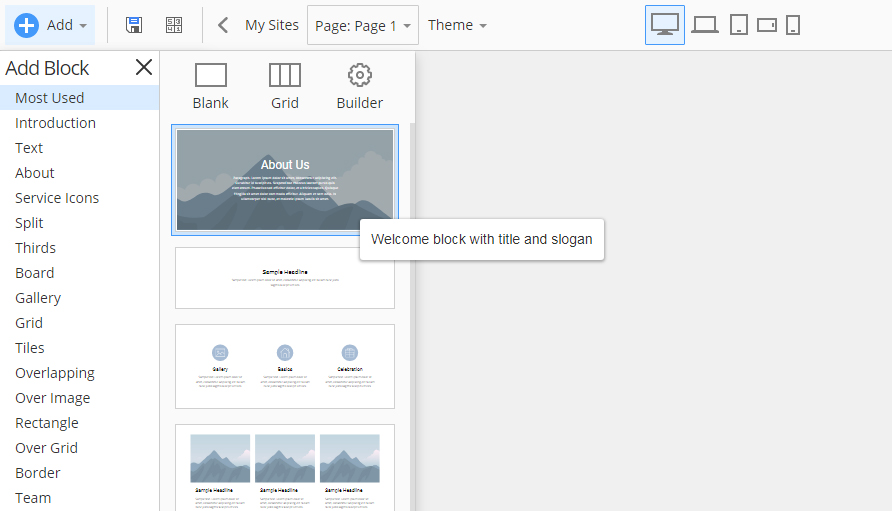
Premade Blocks. Let’s add premade blocks. Add a New Block. There are over a thousand pre-designed blocks available. All premade designs were selected based on thorough research. Functions categorize blocks, such as Introduction, Images, Text, About Us, Contact Us, and Map.
Operations with blocks
Block Navigator. Add an Introduction block. Select this design and click Done. Now add a block from the Images and Texts Category Layouts. Combine Blocks in the Images and Texts category. Select this design and click Done. Very easy!

What you can do with blocks? First, you can change the layout. ** It’s convenient since you can, unlike the design you have just selected.** Click the Change button in the Right Panel. Select another style, then close the list. Change the block order in the Page Navigator to the left. Move the Introduction block up.
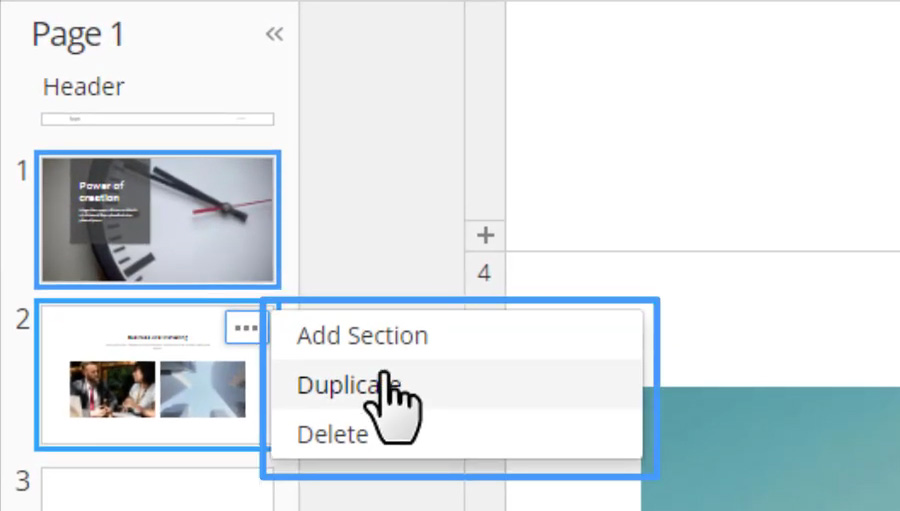
Block Menu. In the Page Navigator, each block has a menu with options to add, duplicate, and delete a block. Also, you can add, duplicate, and remove blocks in the Editor and the Panel to the right.
Block Copy. Let’s copy the current block in the Editor. Use Copy in the context menu, or press the CTRL + C keys, and Paste in the context menu, or press the CTRL + V keys. Move the copied block up in the Page Navigator.

Block Delete. To delete a block, select the Delete option from the Block Menu. To remove a block, click the “Delete Block” button in the Property Panel to the right.
Editing Blocks
Block
Background. Enable the “Fill” for the current block in the Right Panel. Change the Color to light grey. Flip the Block. Select the Introduction block. Enable the Parallax effect for the Background Image.

Block with the Grid. Select the block with the Grid. This block has a Boxed layout. It is sheet-wide.
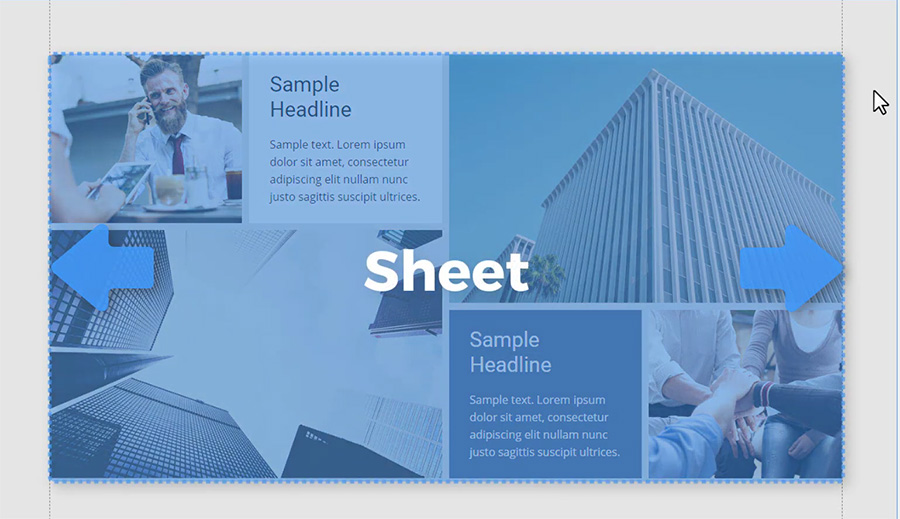
To make this block screen-wide, enable the Wide property, supported for blocks with grids. Make cosmetic changes. Please also watch the video on how to use Grids in Nicepage HTML Website Builder.
One-Page Navigation
Changing Anchors. Earlier, we talked about the One-Page Design. The Navigation of such websites is done using anchor links in the Menu. Change the default values in the block Anchor property for each block.

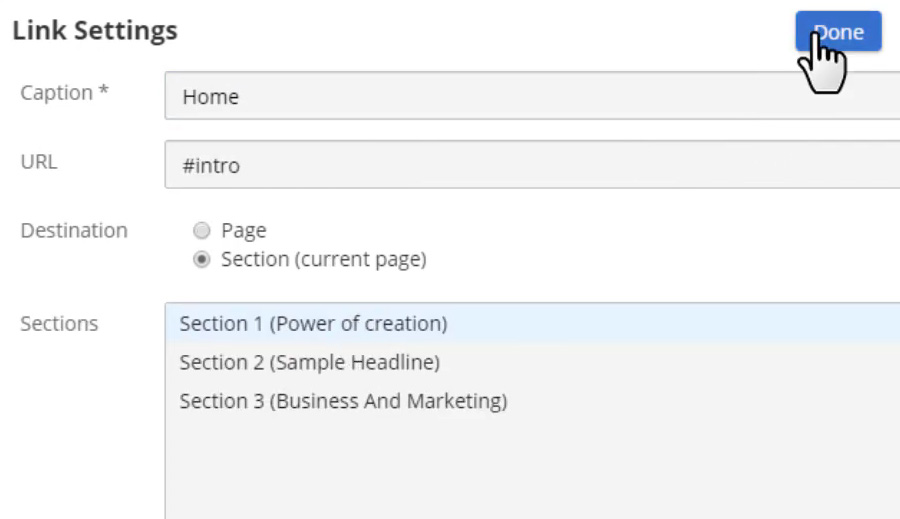
Menu Editing. Edit the Menu in the Header. Select the Menu in the Header, then the Edit Menu button in the Right Menu, and modify the Caption and the Destination for the first link on the current page. Add new links and specify the destinations to other block anchors.
Responsive Modes
Mobile-friendliness. As a reminder, to make any block look good on all devices automatically, block content should be placed in containers and grids.

Watch the demos on Containers, Grids, and Responsive Web Design. Note that the blocks in this demo are mobile-friendly by default, with no settings and, indeed, no coding.

Page Preview. Click the Device Icons in the Topbar to change the View. The responsiveness is done automatically. Preview the page. You see the Parallax effect on the Introduction block. Click the links in the Menu to navigate to Blocks.
We are done with the demo on using blocks in Nicepage.
Related Articles
- Responsive Design with Nicepage
- Nicepage Builders
- Nicepage Menu
- Nicepage Container
- Nicepage Grid
- Nicepage on YouTube
- Nicepage Video Tutorials