
Nicepage is an easy-to-use, visual, and drag-and-drop website builder that allows you to create beautiful websites in minutes. This article will guide you through getting started quickly with the Nicepage Desktop Application for Windows or macOS.
The following links also help you start working with Nicepage.
 Features |
 Download |
 Premium |
 Documentation |
 Forums |
 Video Lessons |
You can also get information about working with the WordPress Plugin, Joomla Extension, and Online Editor.
Download Nicepage
You can download Nicepage from our website.
- Open the Download page.
- Click the appropriate button for the Windows or Mac OS application.
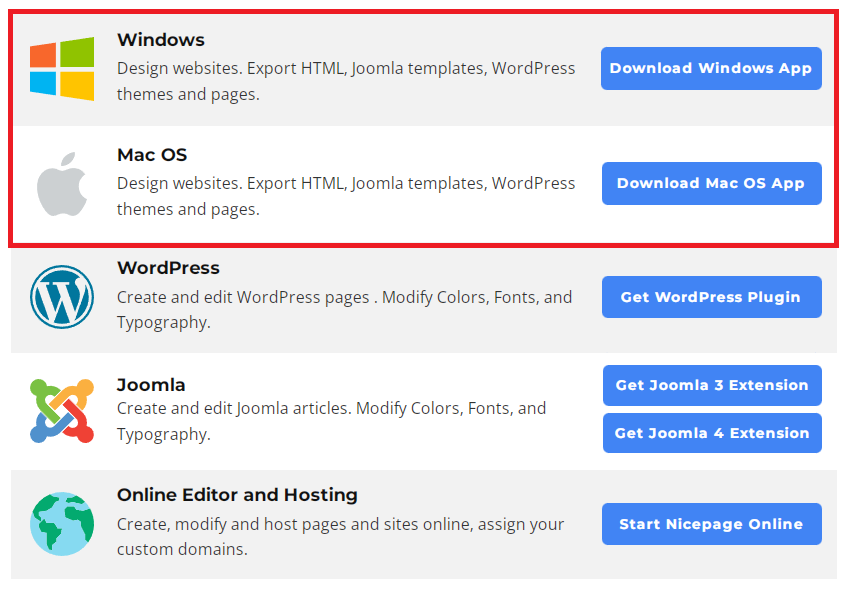
Alternatively, you can get the Nicepage WordPress Plugin and Joomla Extension.
Install Nicepage
After downloading, click on the file in the Download dialog of your browser to start the installation. Additionally, you can learn how to install Nicepage Windows Application and Mac OS Application.
Getting Started Tutorial
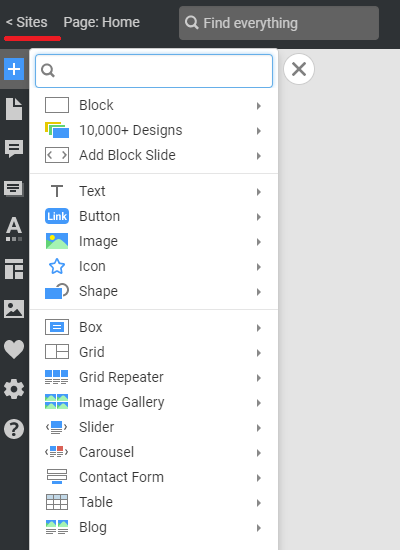
After the installation and registration, you automatically get the Getting Started Interactive Tutorial, which you cannot skip for the first time. After the Tutorial, the blue arrow stops on the Add Icon, opening the Add Panel.
New Website
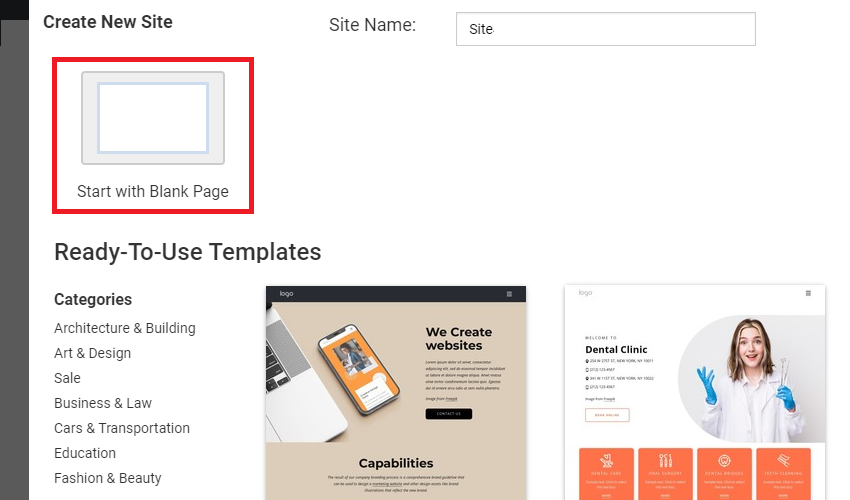
Click the "Sites" link above to access the Dashboard. On the Dashboard, click the New Website button to build a new website.
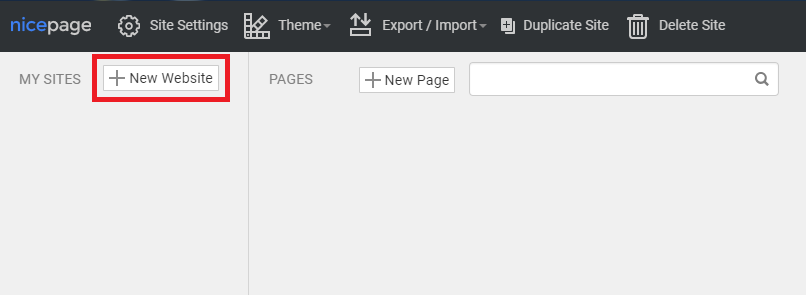
Start with the Black website or choose from predesigned, more exciting and informative examples.
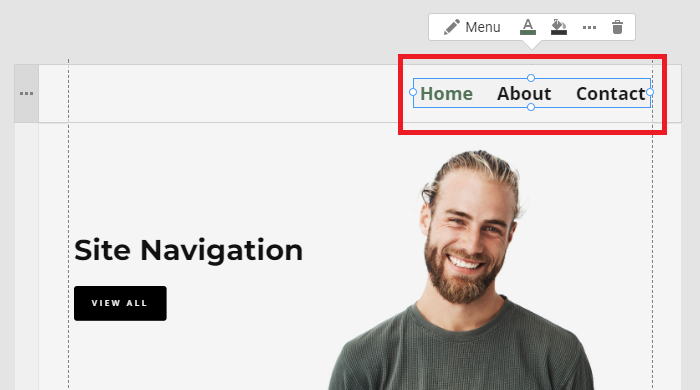
Site Navigation
Commonly, modern websites have header and Footer blocks, accessible from all website pages. The Header usually contains the Menu Element, the main navigation on a website.
The Menu can link to Pages, Blocks on a Page, URLs, and Files.
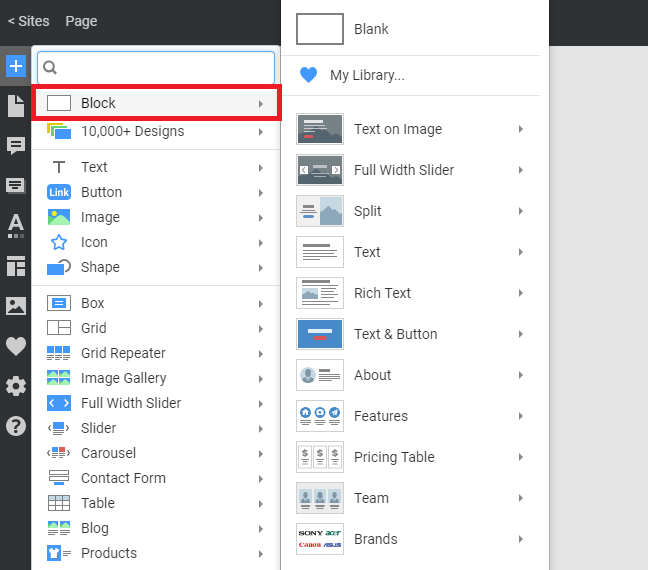
Add Blocks
Websites are usually built from Blocks. You can start with the Blank Block, Block Presets, or Designs. All Blocks are fully responsive and customizable with the Nicepage Editor.
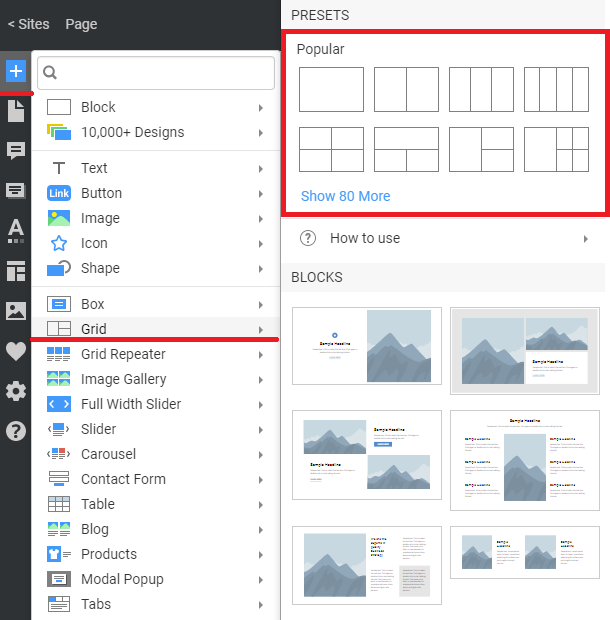
Use Grids
We strongly recommend using Grids to simplify working with Mobile Views, as Cells move down automatically on smaller screens.
How to use Grids to build responsive websites
Add Elements
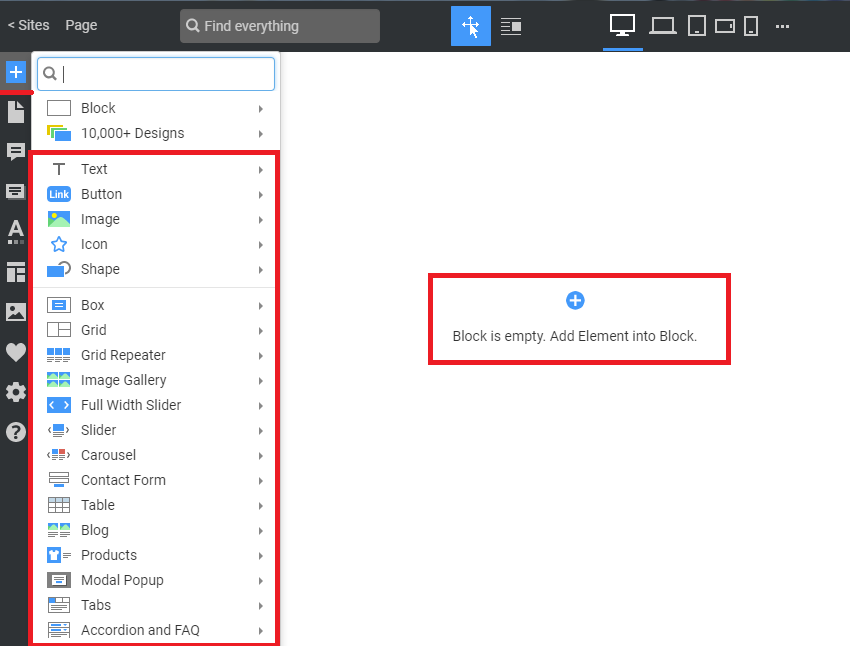
Add the Elements from the Add Panel to customize Block layouts and designs.
Responsive Modes
Today, visitors view websites mostly on Mobile Devices, so your website should look comfortable on different mobile screens.
Learn the main principles of Responsive Web Design quickly and efficiently. Please learn about the Basic Tips on how to build responsive websites.
Publish Website
When you finish with the design, Publish Websites or Export HTML and upload it to your hosting.
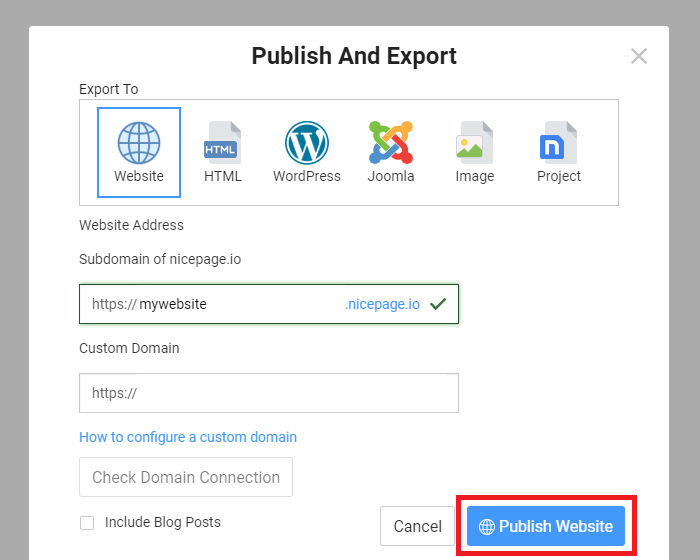
You can also export website projects as WordPress Themes or Joomla Templates.
You can also read about how to:
- Download Nicepage
- Install Windows Application
- Install Mac OS Application
- Quickly start on Windows and Mac OS
- Start with the Online Editor
Please visit: