Blog Posts Static Site Generator











Free Static Website Generator Download
Download the best static site generator for Windows or MacOS today and generate mobile-friendly static sites that look great on any device and browser.
Ready-To-Use Blog Posts Static Site Generator Layouts for Exported Article Feeds
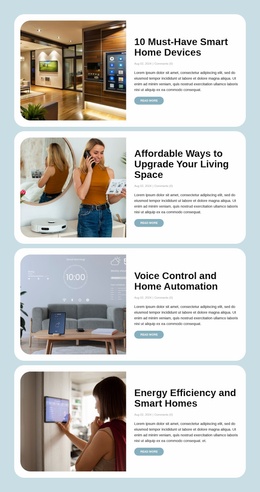
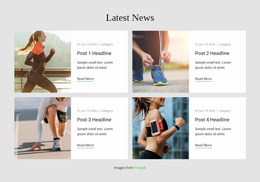
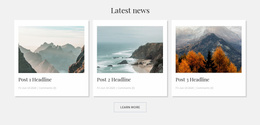
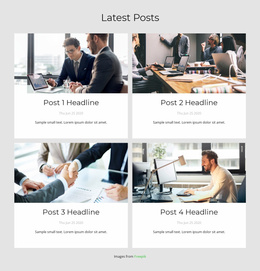
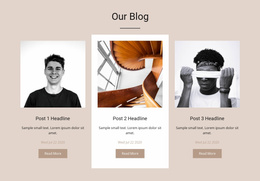
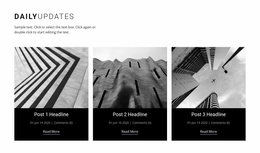
A static blog needs more than individual article pages. Readers also need a place to browse recent stories, compare topics, and follow links to the articles that interest them. Blog Posts Static Site Generator layouts organize this editorial content into sections with repeated post previews, featured images, excerpts, and publication details. In Nicepage, the Blog Posts Element can serve this role within a project intended for static HTML export.
How Does a Blog Posts Section Work on a Static Site?
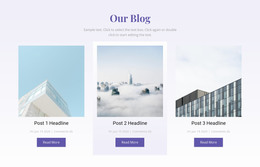
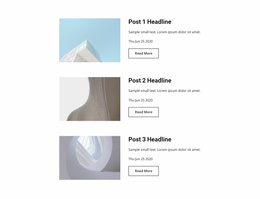
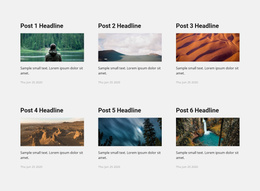
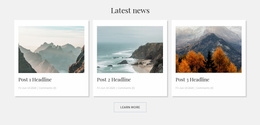
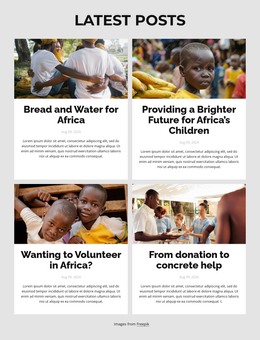
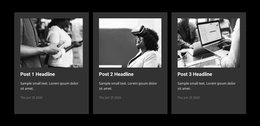
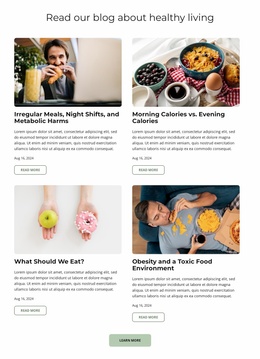
A Blog Posts section presents several editorial entries in a consistent layout, letting visitors browse article summaries before opening the full stories. Each entry normally includes a title, an image, a short excerpt, and a reading link. Publication dates or categories can provide additional context.
On a static HTML site, the listing forms a connection between the page containing the article previews and the exported pages containing the complete posts.
This format is useful for recent news, featured articles, editorial updates, and related reading sections.
Unlike a general Grid, which can arrange unrelated cards or content items, Blog Posts follow an editorial publishing structure. The repeated entries represent articles with distinct topics, publication information, and reading destinations.
Organizing a Clean Static Blog Feed
Treat the static output as a connected article collection, not just a preview section. The listing should point to individual exported post pages, and those pages should retain their image, stylesheet, and navigation resources.
Understand the Static HTML Export Workflow
Nicepage HTML export is not the same as a traditional static site generator such as Hugo, Jekyll, or Astro. Those tools typically build pages from templates and content files through a separate generation pipeline. The documented Nicepage workflow creates an HTML website project through its own editor and export tools; it does not imply compatibility with, or replace, those external content-build pipelines.
In the Nicepage Desktop Application, create your articles, assign featured images, and use the Blog Posts Element for the collection. The Post Template governs the appearance of an individual article page. When you export the HTML website, choose Include Blog Posts in the Publish & Export dialog so the blog and post pages are included in the exported Blog folder.
Check the output as a connected set of files rather than a single attractive section:
- Listing page: the exported page shows the article previews.
- Individual posts: the complete story pages are present in the exported blog content.
- Links and assets: each preview opens its corresponding page, and the supporting images and styles load from their exported locations.
The exported HTML files and website resources can be uploaded to a compatible third-party host. Before publishing, open the local output and follow several article links. A listing without working post destinations is not a finished static blog.
Choosing an Editorial Layout for Static Pages
The right arrangement depends on how visitors will browse the published articles.
A compact post list works when headlines and publication dates are the main browsing signals. Image-led cards are useful for featured stories where the visual preview adds important context; blog layouts can help compare these editorial presentations before export.
A recent-articles section may contain only a few entries, while a dedicated editorial listing can provide more space for excerpts and images.
For static publishing, pay close attention to he relationship between previews and exported article pages. Each visible post should have a recognizable title, a useful summary, and a clear link to the full story.
The Blog Posts Element also supports responsive column settings, allowing the editorial arrangement to be adjusted for different screen sizes.
Keep the listing focused on article discovery. A static blog section does not need to behave like a general image gallery or a collection of unrelated content cards.
Frequently Asked Questions About Blog Posts Static Site Generator
Can Nicepage export blog posts as static HTML pages?
Yes. Nicepage supports exporting HTML blogs and individual posts from its Desktop Applications. Select the Include Blog Posts option in the Publish & Export dialog to include the blog content in the exported HTML project.
Can I add a Blog Posts section to an existing HTML page?
Yes. The Blog Posts Element can be added to a block on an existing page, including a homepage or another content page. It displays recurring article previews within the surrounding page layout.
Can I customize the appearance of individual blog post pages?
Yes. Nicepage provides a Post Template for HTML blogs. You can edit this template to control the layout used for individual posts in the exported website.
Can I host an exported Nicepage HTML website on a third-party server?
Yes. Nicepage supports exporting static HTML websites for third-party hosting. The exported files can be uploaded to a compatible web server, with blog content included when the relevant export option is enabled.
What should I check before publishing this Blog Posts section?
Open a few article links, review real headline lengths, and check the layout on a narrow screen. Confirm that every preview leads to the intended complete story.
Prepare Your Blog Posts Section for Static Publishing
Start with a Blog Posts block that fits your editorial content and arrange the article previews in the Nicepage editor. Refine titles, excerpts, images, and reading links, then review the individual Post Template before exporting the HTML project with blog posts included. This keeps the listing and its article pages connected in the static website output.