Get our consultation WordPress Theme


Stable consultation content around one direct page action
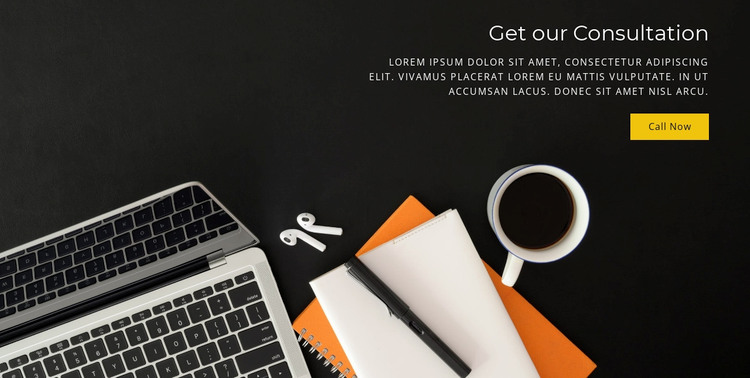
The consultation heading and Call Now button give this section a clear page-content role: it introduces a request and places one direct action beside it. The dark photograph of a laptop workspace, notebook, pen, earphones, and coffee adds a practical visual setting, while the right-aligned white text remains grouped against the image instead of spreading across the entire width. The yellow button provides a distinct action cue and creates contrast without adding another content component. The supporting paragraph is placeholder text, so its wording can be replaced with the actual consultation explanation used by the project.
In a WordPress-managed page, this block can function as a stable consultation area within broader publishable content. It may sit after service information, near an inquiry section, or at a point where visitors need a clear way to request further discussion. The block itself keeps its existing visual and content logic: one heading, one supporting text region, one Call Now action, and one photographic background. Other page content can handle detailed offerings, editorial updates, testimonials, or contact information without forcing this compact section to carry them. The right-side grouping also makes the block easy to recognize as a specific page region when several content sections share the same site. Its value lies in preserving a consistent consultation message and action while the surrounding WordPress project manages the wider page content.
Customize with Nicepage
Open this ready-made template in the WordPress Website Builder and customize it visually in the Nicepage editor. Replace demo content, edit page sections, and adapt the design to your project without rebuilding the template from scratch.
Edit Template Offline
2. Create a new page or select existing
3. Click Add new block, search for id 68451 and click enter
Edit Template Online
Create Awesome Websites


Free Nicepage Builder
Keywords
Manage and Edit This Theme in WordPress
Customize and Install the WordPress Theme
Start with this ready-made theme instead of building the WordPress design from scratch. Customize its layout, content, typography, images, sections, and other design elements visually in Nicepage editor, then export and install the WordPress Theme, Plugin, and Pages on your WordPress site. The Nicepage WordPress Plugin lets you continue working with the site after installation.
Edit the Theme Directly in WordPress
After installation, you can edit the WordPress Theme directly in WordPress with the Nicepage WordPress Plugin. Use Site Style to customize site Colors, Fonts, Header, Footer, Blog, and Post Page Templates while working within your WordPress website.
Edit WordPress Pages Visually
Use the Nicepage WordPress Plugin to edit page content directly from the WordPress admin area. Open a WordPress Page with Nicepage and visually change its text, images, sections, and other page elements while continuing to manage the Page through WordPress.
WordPress Content and Theme Integration
Use the customized theme with WordPress Pages, Posts, Blog and Post Templates, menus, widgets, and other CMS-managed content. Shared theme elements such as Colors, Fonts, Header, Footer, Blog, and Post Page Templates can be managed as part of the overall site design, while WordPress provides the CMS environment for managing site content.
This workflow combines a ready-made WordPress Theme with visual customization, direct theme editing in WordPress, and continued content management through the Nicepage WordPress Plugin.