List with headline WordPress Theme


The Feature List Works as Stable Software Page Content
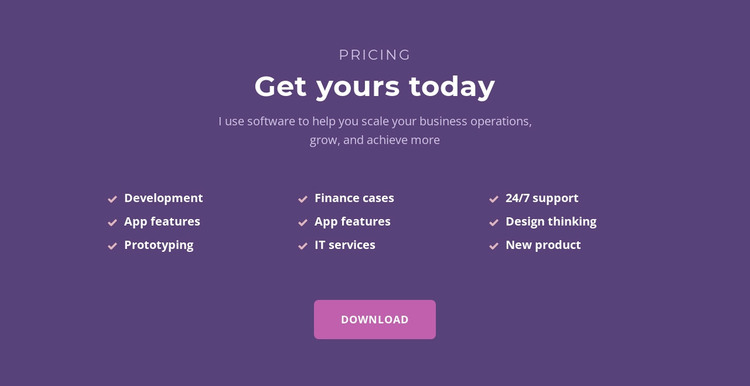
The “Pricing” label, “Get yours today” heading, and supporting paragraph give this section a clear page-content role before the repeated feature information begins. Rather than relying on a long article, the block presents nine feature-list positions across three columns, using checkmark-style markers to keep the software capabilities easy to scan. Development, App features, Prototyping, Finance cases, IT services, 24/7 support, and Design thinking appear as visible labels, with “App features” repeated as part of the supplied list structure.
The centered Download button provides a defined action beneath the feature content. In a WordPress-managed page, this combination can remain a stable software-offering section while surrounding content handles fuller product explanations, support information, demonstrations, or other page responsibilities. The block does not display monetary prices or plan names, so its role is better understood as capability presentation followed by a download response rather than a complete pricing system.
The purple background, light typography, pink accents, and rounded button preserve a recognizable visual pattern when the section is reused as permanent page content. WordPress-oriented editing can place this block within a broader page while keeping its internal relationship intact: concise introduction first, parallel capabilities in the middle, and the Download action at the end. This makes the section suitable for a stable software page area that can sit alongside other CMS-managed content.
Customize with Nicepage
Open this ready-made template in the WordPress Website Builder and customize it visually in the Nicepage editor. Replace demo content, edit page sections, and adapt the design to your project without rebuilding the template from scratch.
Edit Template Offline
2. Create a new page or select existing
3. Click Add new block, search for id 476855 and click enter
Edit Template Online
Create Awesome Websites


Free Nicepage Builder
Keywords
Manage and Edit This Theme in WordPress
Customize and Install the WordPress Theme
Start with this ready-made theme instead of building the WordPress design from scratch. Customize its layout, content, typography, images, sections, and other design elements visually in Nicepage editor, then export and install the WordPress Theme, Plugin, and Pages on your WordPress site. The Nicepage WordPress Plugin lets you continue working with the site after installation.
Edit the Theme Directly in WordPress
After installation, you can edit the WordPress Theme directly in WordPress with the Nicepage WordPress Plugin. Use Site Style to customize site Colors, Fonts, Header, Footer, Blog, and Post Page Templates while working within your WordPress website.
Edit WordPress Pages Visually
Use the Nicepage WordPress Plugin to edit page content directly from the WordPress admin area. Open a WordPress Page with Nicepage and visually change its text, images, sections, and other page elements while continuing to manage the Page through WordPress.
WordPress Content and Theme Integration
Use the customized theme with WordPress Pages, Posts, Blog and Post Templates, menus, widgets, and other CMS-managed content. Shared theme elements such as Colors, Fonts, Header, Footer, Blog, and Post Page Templates can be managed as part of the overall site design, while WordPress provides the CMS environment for managing site content.
This workflow combines a ready-made WordPress Theme with visual customization, direct theme editing in WordPress, and continued content management through the Nicepage WordPress Plugin.