Make wedding planning easier WordPress Theme


A Stable Wedding Planning Content Area With Visual Context
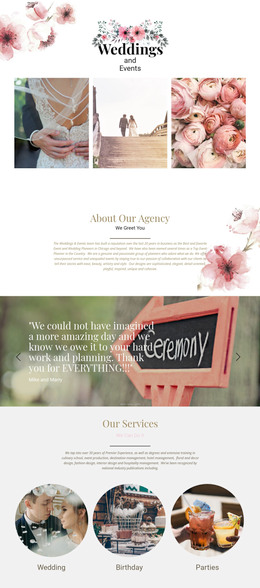
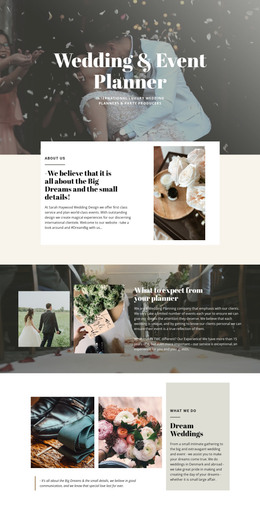
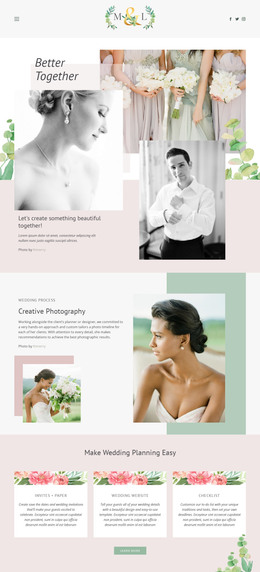
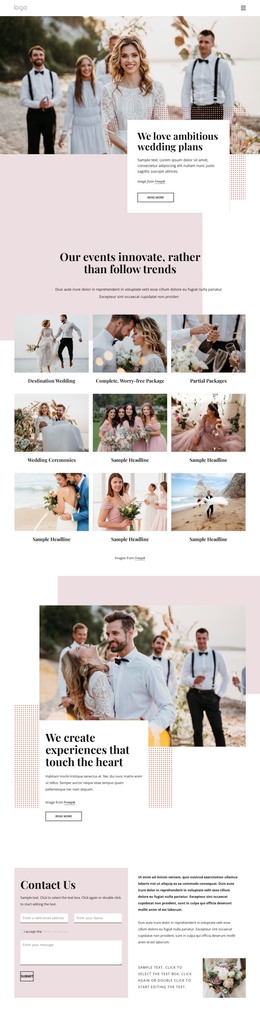
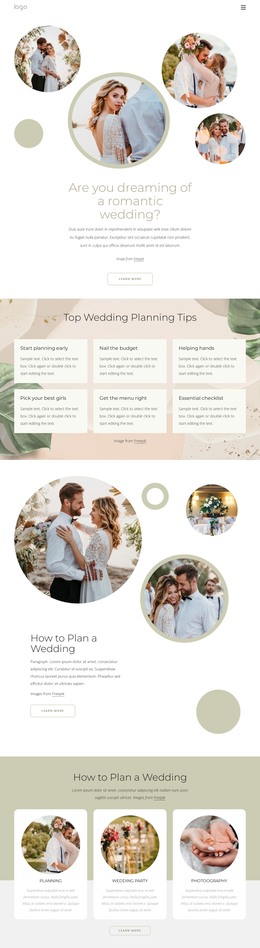
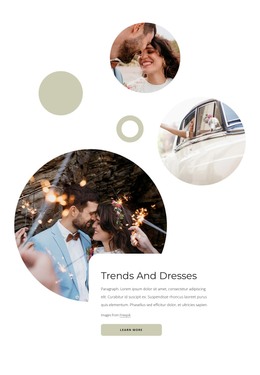
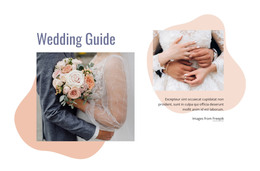
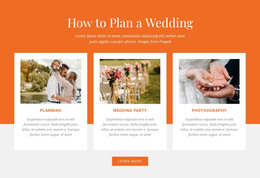
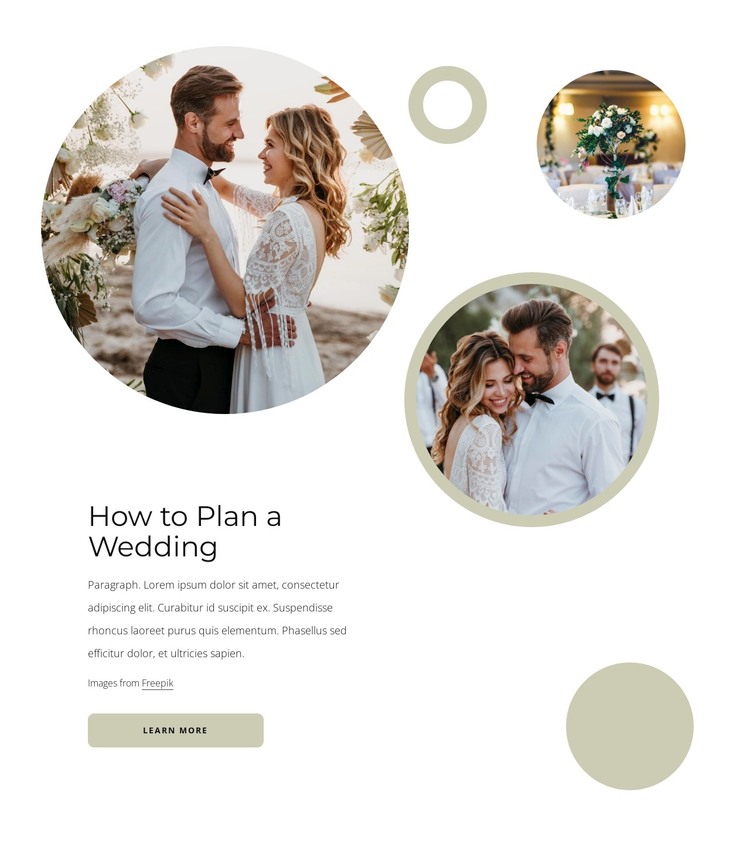
The heading “How to Plan a Wedding” and its supporting paragraph read as stable informational page content rather than a time-sensitive feed. The learn more button adds a clear continuation point, while the three circular wedding photographs give the topic a visual context that can remain associated with the text. One large image sits above the left-aligned content area, and two smaller images with beige circular decorations extend the composition without turning it into a separate gallery or list.
In a WordPress-managed page or site, this block can serve as a reusable wedding-planning section within permanent content. It could introduce a services or guidance page, connect readers to a more detailed article, or provide context before another page section handles contact or inquiry information. The broader WordPress project can manage its other pages and content around this section; the block itself remains the focused visual and editorial region described here.
The design also offers a consistent presentation pattern for related page content. Large typography identifies the subject quickly, the compact paragraph controls reading density, and the rounded button gives the section a practical next step. The white background and muted beige accents make the block adaptable beside other content areas, while the image attribution line keeps the photographic treatment part of the complete section content.
Customize with Nicepage
Open this ready-made template in the WordPress Website Builder and customize it visually in the Nicepage editor. Replace demo content, edit page sections, and adapt the design to your project without rebuilding the template from scratch.
Edit Template Offline
2. Create a new page or select existing
3. Click Add new block, search for id 2731923 and click enter
Edit Template Online
Create Awesome Websites


Free Nicepage Builder
Keywords
Manage and Edit This Theme in WordPress
Customize and Install the WordPress Theme
Start with this ready-made theme instead of building the WordPress design from scratch. Customize its layout, content, typography, images, sections, and other design elements visually in Nicepage editor, then export and install the WordPress Theme, Plugin, and Pages on your WordPress site. The Nicepage WordPress Plugin lets you continue working with the site after installation.
Edit the Theme Directly in WordPress
After installation, you can edit the WordPress Theme directly in WordPress with the Nicepage WordPress Plugin. Use Site Style to customize site Colors, Fonts, Header, Footer, Blog, and Post Page Templates while working within your WordPress website.
Edit WordPress Pages Visually
Use the Nicepage WordPress Plugin to edit page content directly from the WordPress admin area. Open a WordPress Page with Nicepage and visually change its text, images, sections, and other page elements while continuing to manage the Page through WordPress.
WordPress Content and Theme Integration
Use the customized theme with WordPress Pages, Posts, Blog and Post Templates, menus, widgets, and other CMS-managed content. Shared theme elements such as Colors, Fonts, Header, Footer, Blog, and Post Page Templates can be managed as part of the overall site design, while WordPress provides the CMS environment for managing site content.
This workflow combines a ready-made WordPress Theme with visual customization, direct theme editing in WordPress, and continued content management through the Nicepage WordPress Plugin.