Digital Design that Performs Template


Edit Template Offline
2. Create new page and search for id 6542487
Edit Template Online
Create Awesome Websites


Free Nicepage Builder
Keywords
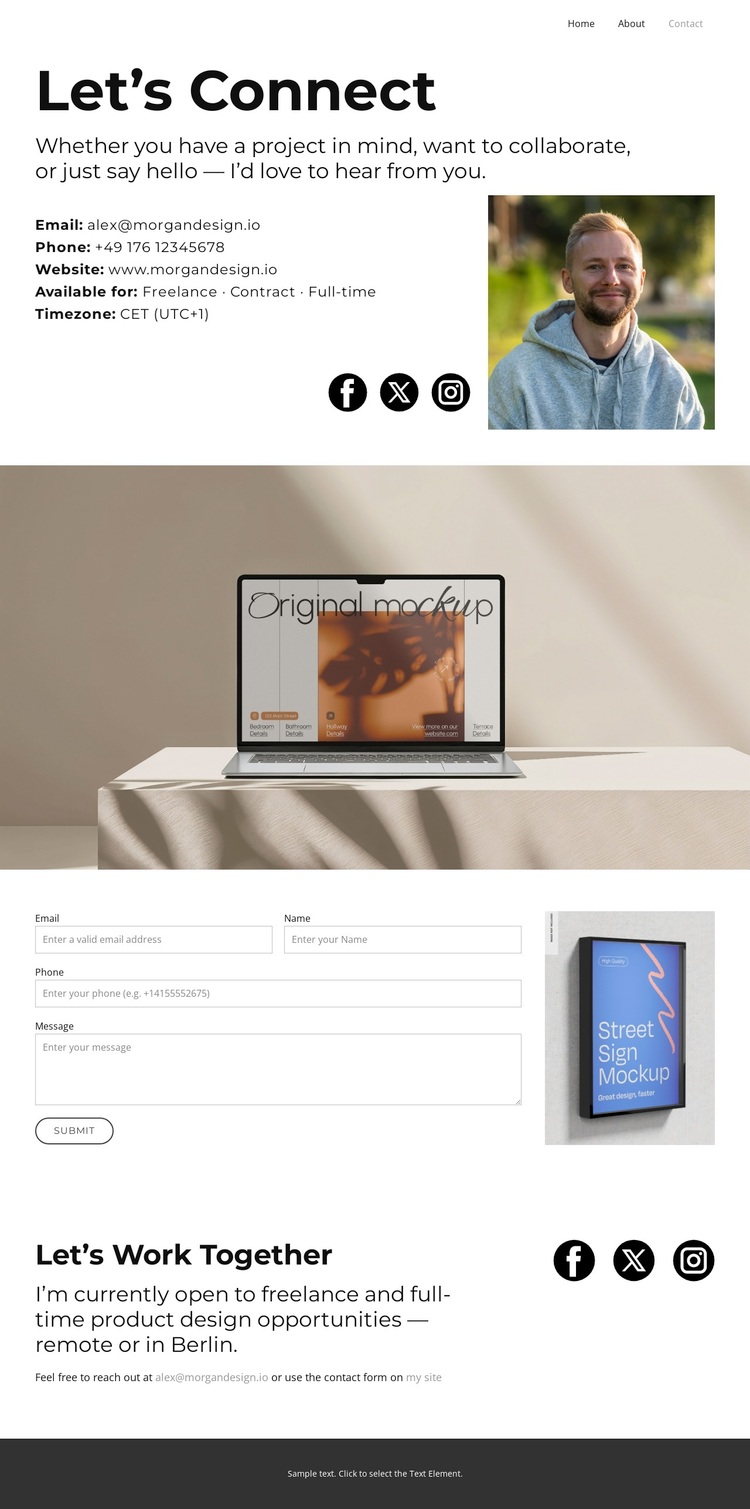
Portrait, workspace imagery, and a direct invitation
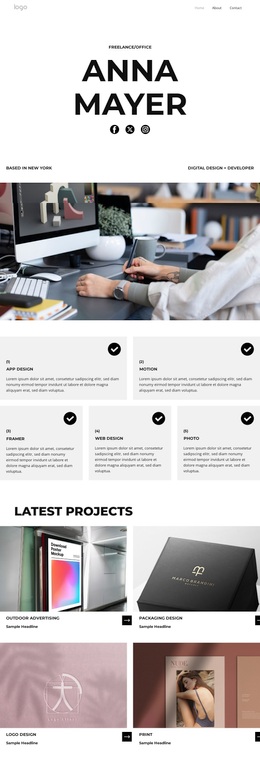
The portrait-led opening gives this design a clear reason to stand apart from contact layouts built only from fields and labels. “Let’s Connect” pairs personal invitation text with a visible portrait, contact overview, and links to Facebook, Twitter, and Instagram. That combination presents the designer as an identifiable point of contact while still leaving room for visitors to choose the channel that suits them. The compact navigation keeps the surrounding portfolio context close without overwhelming the contact message.
The full-width workspace photograph adds a second visual layer. It separates the personal introduction from the inquiry form and gives the page an editorial rhythm, while the narrow image beside the form keeps the practical section connected to the same visual story. The closing “Let’s Work Together” content broadens the use case by naming freelance, contract, and full-time availability and referring to remote or Berlin-based product design opportunities. Together, these facts make the design a useful choice for a portfolio that must support more than one type of relationship: prospective clients, collaborators, and employers. Its value lies in the combination of personal context, visual evidence, social presence, and a direct inquiry mechanism, rather than in a generic contact-page arrangement.
Customize with Nicepage
Open this ready-made template in the Template Builder and customize it visually in the Nicepage editor. Replace demo content, edit page sections, and adapt the design to your project without rebuilding the template from scratch.
Start With a Ready-Made Template
Choose a Design for a New Page
Use a ready-made template as a starting point instead of creating every page from a blank canvas. When adding a new page in Nicepage, browse available designs, compare different layouts, and choose an option that already fits the general purpose and visual direction of your project.
Browse Different Page Designs
Explore Page Designs using search, thematic categories, Design Sets, and full-page previews. The collection includes layouts for different subjects and page purposes, making it easier to compare alternatives before selecting a design to customize.
Customize the Selected Template
After choosing a design, create the page and continue editing it visually in Nicepage. Replace the demo content, adjust images, typography, colors, sections, and other elements, and adapt the ready-made layout to your own content instead of rebuilding the design from the beginning.
Explore More Design Directions
If the first option does not match your project closely enough, return to the design collection and compare other templates before committing to a layout. This makes the template library useful not only for faster page creation, but also for exploring different visual approaches and finding a suitable starting point for a new project.
This workflow gives you access to a broad collection of ready-made designs that can be selected, compared, and customized according to the needs of each new page or project.