Unforgettable Flavors Template
Edit Template Offline
2. Create new page and search for id 6330981
Edit Template Online
Create Awesome Websites


Free Nicepage Builder
Keywords
Food Storytelling and Guest Information Work as One Restaurant Choice
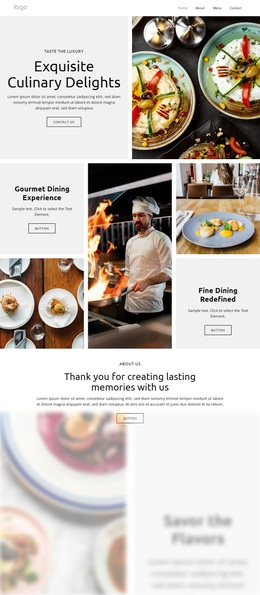
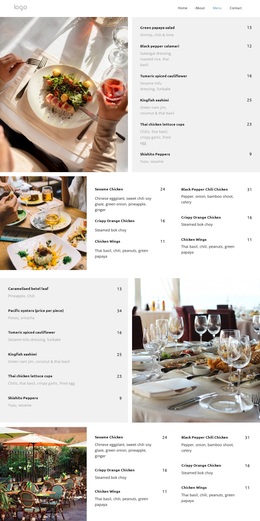
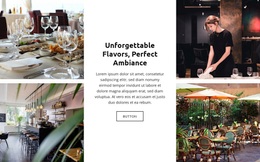
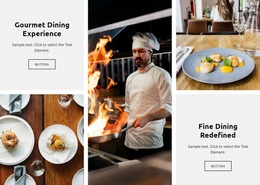
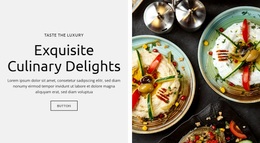
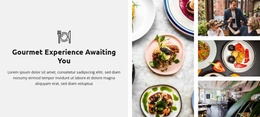
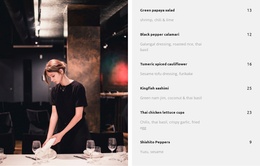
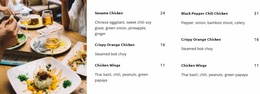
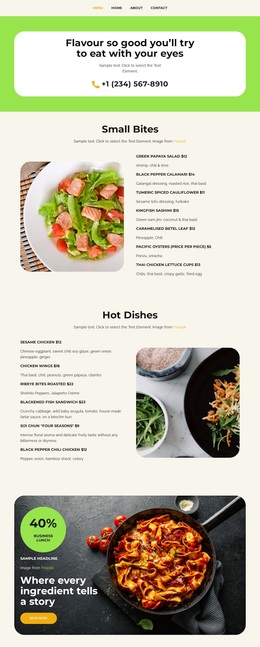
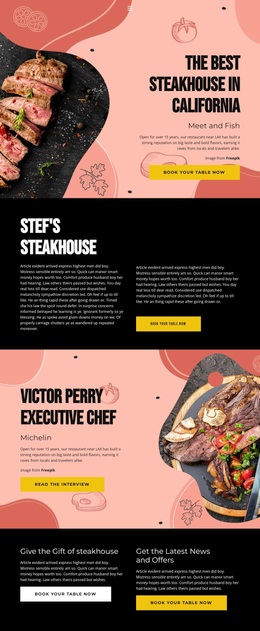
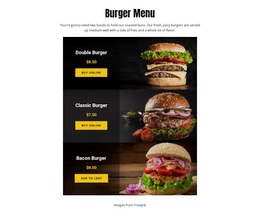
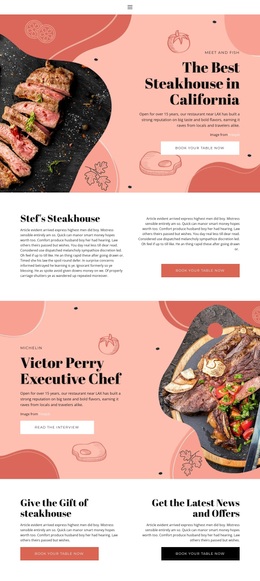
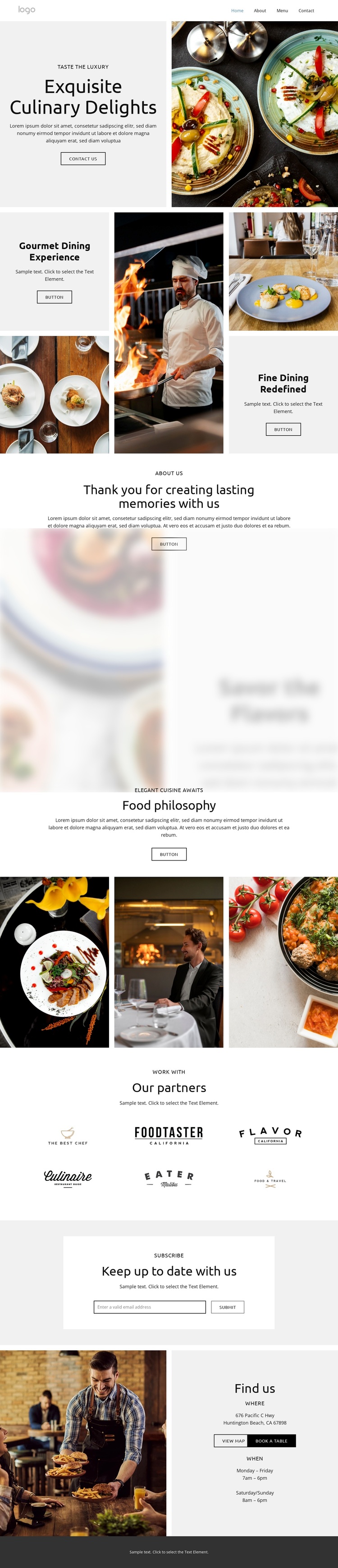
Large food and chef photography makes the restaurant experience the first thing the design communicates, while “Exquisite Culinary Delights” gives that imagery a clear editorial frame. The opening area is supported by dining feature panels, so the page can present both atmosphere and a more explicit culinary offering. That balance distinguishes the design from layouts built mainly around dense menus, price tables, or long blocks of corporate text.
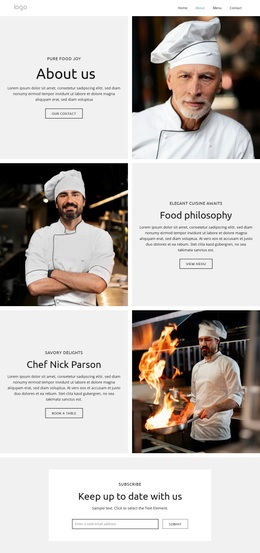
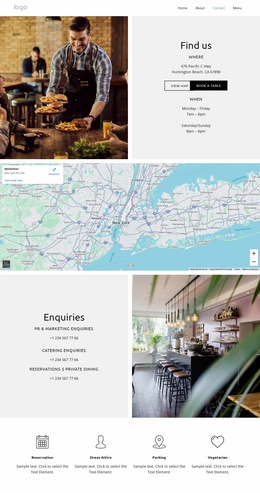
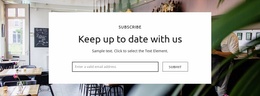
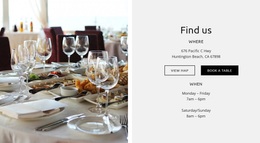
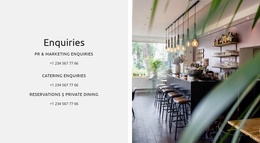
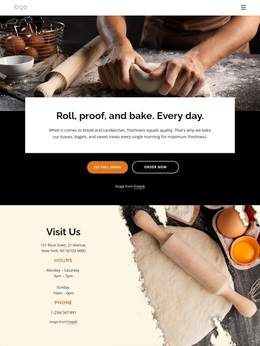
The remaining sections broaden the choice without weakening its focus. About Us and the food philosophy message give the restaurant room to explain its character, while six partner logo samples add a recognizable repeated affiliation area. Visitors who want an ongoing connection can use the email subscription panel, and guests ready to plan a visit reach the Find us section with Huntington Beach, CA, opening hours, and a “View map & book a table” action. The sequence covers visual appeal, restaurant identity, supporting associations, communication, and practical visit planning in a compact page. That combination makes this design worth considering for a dining project where photography should carry much of the emotional message, but the page must still answer essential guest questions. Its restrained neutral styling and generous white space keep the food imagery prominent without making the presentation feel crowded.
Customize with Nicepage
Open this ready-made template in the Template Builder and customize it visually in the Nicepage editor. Replace demo content, edit page sections, and adapt the design to your project without rebuilding the template from scratch.
Start With a Ready-Made Template
Choose a Design for a New Page
Use a ready-made template as a starting point instead of creating every page from a blank canvas. When adding a new page in Nicepage, browse available designs, compare different layouts, and choose an option that already fits the general purpose and visual direction of your project.
Browse Different Page Designs
Explore Page Designs using search, thematic categories, Design Sets, and full-page previews. The collection includes layouts for different subjects and page purposes, making it easier to compare alternatives before selecting a design to customize.
Customize the Selected Template
After choosing a design, create the page and continue editing it visually in Nicepage. Replace the demo content, adjust images, typography, colors, sections, and other elements, and adapt the ready-made layout to your own content instead of rebuilding the design from the beginning.
Explore More Design Directions
If the first option does not match your project closely enough, return to the design collection and compare other templates before committing to a layout. This makes the template library useful not only for faster page creation, but also for exploring different visual approaches and finding a suitable starting point for a new project.
This workflow gives you access to a broad collection of ready-made designs that can be selected, compared, and customized according to the needs of each new page or project.