Nannies and babysitters Template



Edit Template Offline
2. Create new page and search for id 6313470
Edit Template Online
Create Awesome Websites


Free Nicepage Builder
Keywords
Four Care Categories Connect Discovery With Familiar Faces
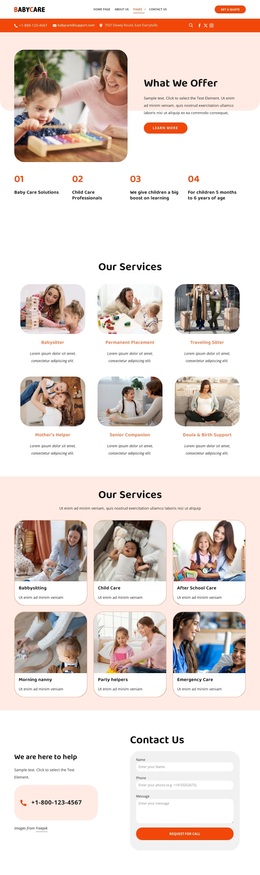
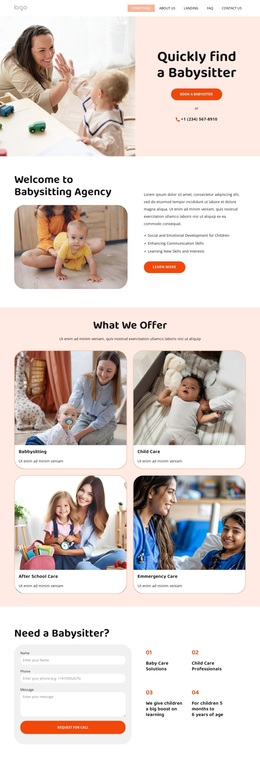
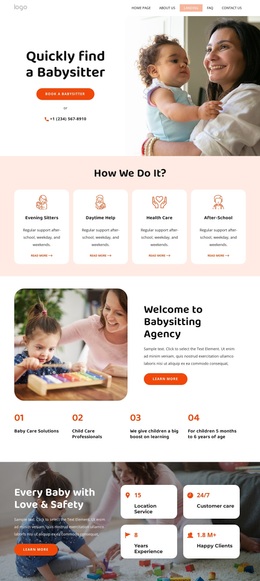
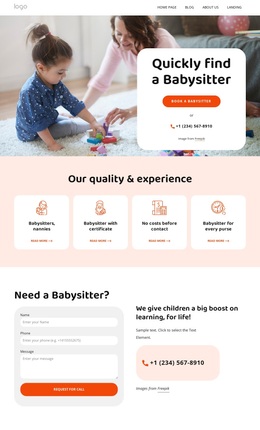
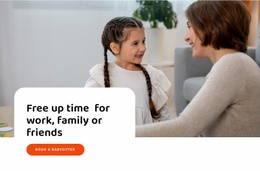
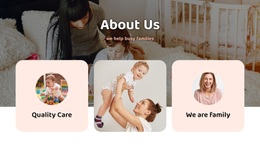
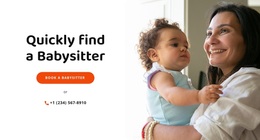
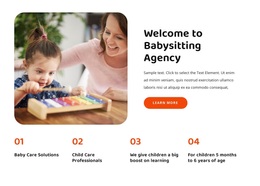
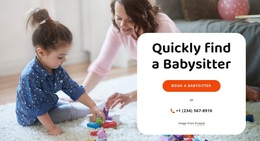
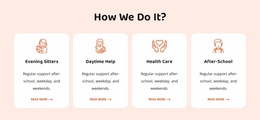
The strongest reason to choose this design is the way it combines service discovery with human context. The hero gives the page an immediate babysitter-search focus, while the agency introduction explains who is presenting the care service. Below that, four image-led cards distinguish babysitting, child care, after-school care, and emergency care. The repeated card format makes the range of offerings easy to scan without reducing the page to one generic service statement.
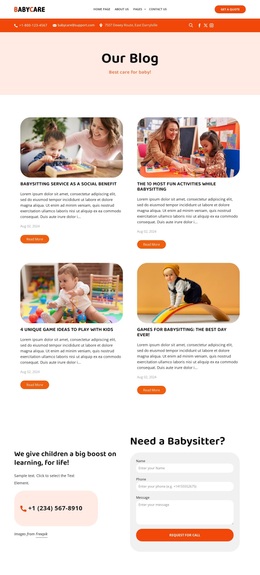
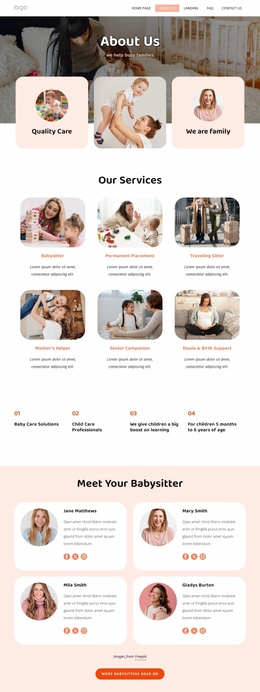
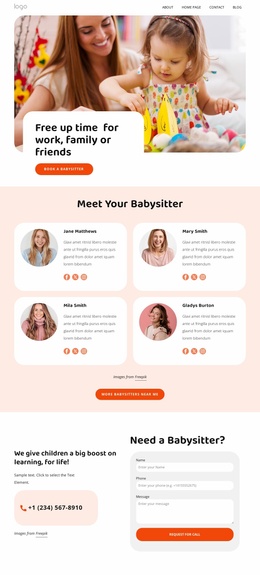
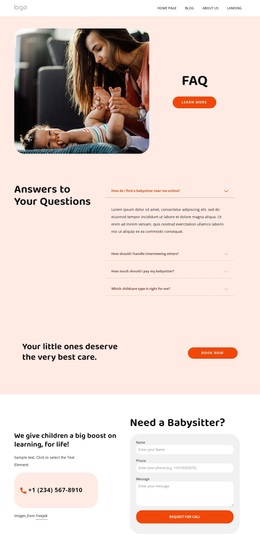
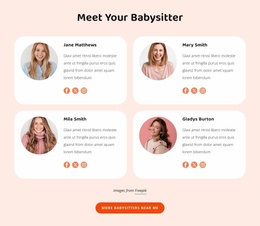
The design also gives families several ways to understand the people and experience behind the offer. Three testimonial cards create a compact feedback area, and two babysitter profile cards add portraits, descriptions, and rating indicators. A six-image gallery extends the family-care visual story, while two advice articles and four FAQ items support visitors who need information before contacting the agency. These elements give the page more content coverage than a simple booking screen.
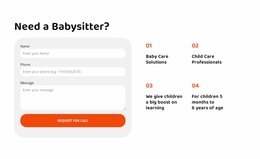
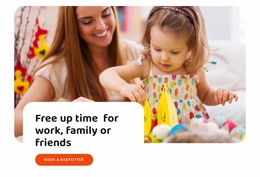
Two contact forms make the design especially suitable for a care service that needs more than one inquiry moment. The first follows the service categories, and the second appears with help messaging and phone contact near the end. A final call to action links the practical promise of freeing time for work, family, or friends to those response areas. The combination is a useful choice when a project needs warmth, service clarity, caregiver familiarity, and direct contact in one coherent page.
Customize with Nicepage
Open this ready-made template in the Template Builder and customize it visually in the Nicepage editor. Replace demo content, edit page sections, and adapt the design to your project without rebuilding the template from scratch.
Start With a Ready-Made Template
Choose a Design for a New Page
Use a ready-made template as a starting point instead of creating every page from a blank canvas. When adding a new page in Nicepage, browse available designs, compare different layouts, and choose an option that already fits the general purpose and visual direction of your project.
Browse Different Page Designs
Explore Page Designs using search, thematic categories, Design Sets, and full-page previews. The collection includes layouts for different subjects and page purposes, making it easier to compare alternatives before selecting a design to customize.
Customize the Selected Template
After choosing a design, create the page and continue editing it visually in Nicepage. Replace the demo content, adjust images, typography, colors, sections, and other elements, and adapt the ready-made layout to your own content instead of rebuilding the design from the beginning.
Explore More Design Directions
If the first option does not match your project closely enough, return to the design collection and compare other templates before committing to a layout. This makes the template library useful not only for faster page creation, but also for exploring different visual approaches and finding a suitable starting point for a new project.
This workflow gives you access to a broad collection of ready-made designs that can be selected, compared, and customized according to the needs of each new page or project.

Design Set (21)
-

-
-
-
-
-
-
-
-
-
-
-
-
Free Website Builder SoftwareDownload
-