Group therapy center Template


Four Distinct Support Paths With Unequal Visual Weight
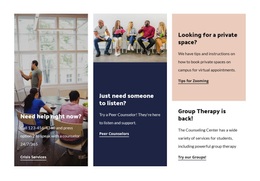
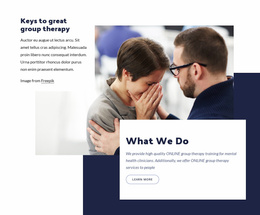
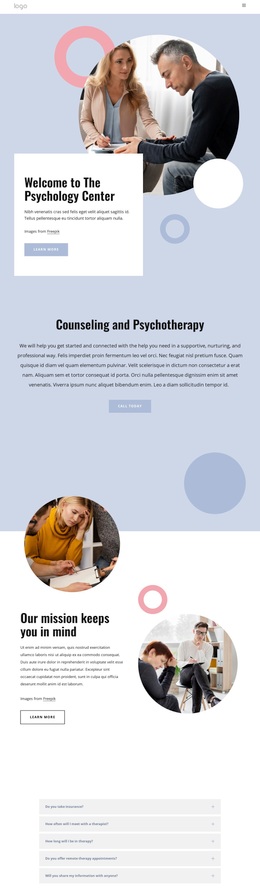
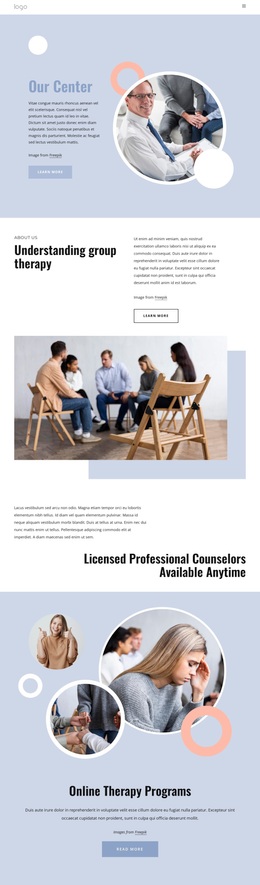
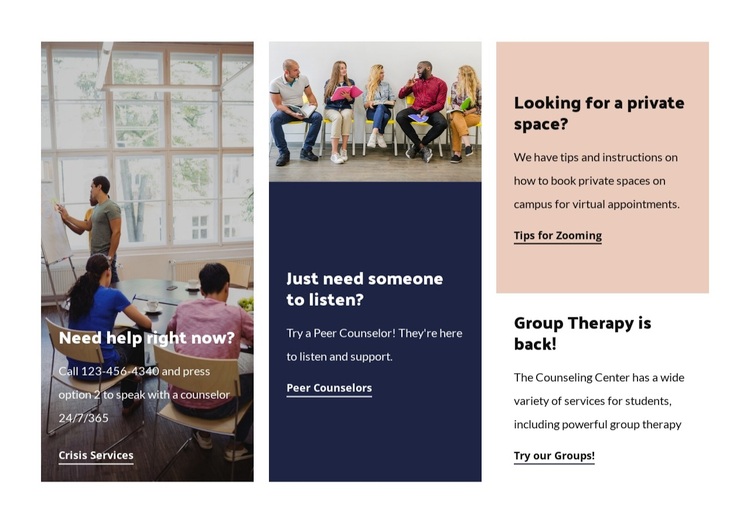
The section stands out by combining four counseling resources with a more varied composition than a uniform card grid. “Need help right now?” occupies the tall left panel with imagery and overlaid text, giving crisis support the strongest visual presence. Beside it, the peer-counselor resource uses another image with supporting text below, creating a second visual anchor. These two image treatments make the service group feel editorial and spatial rather than purely informational.
The right side completes the content model with two stacked text panels. “Looking for a private space?” explains guidance for booking a campus space for virtual appointments, while “Group Therapy is back!” presents a student-focused group service. Warm peach, dark navy, and white panels separate the messages, and bold headings contrast with smaller descriptions so each resource can be scanned independently.
This design is a useful choice when a page needs to present several counseling or student-support routes without flattening them into identical cards. Each panel has its own linked action, so visitors can move from the resource that matches their situation. The block provides the content arrangement and visual distinction for that decision point, while neighboring sections can add broader introductions or follow-up information.
Customize with Nicepage
Open this ready-made template in the Template Builder and customize it visually in the Nicepage editor. Replace demo content, edit page sections, and adapt the design to your project without rebuilding the template from scratch.
Edit Template Offline
2. Create a new page or select existing
3. Click Add new block, search for id 6150771 and click enter
Edit Template Online
Create Awesome Websites


Free Nicepage Builder
Keywords
Start With a Ready-Made Template
Choose a Design for a New Page
Use a ready-made template as a starting point instead of creating every page from a blank canvas. When adding a new page in Nicepage, browse available designs, compare different layouts, and choose an option that already fits the general purpose and visual direction of your project.
Browse Different Page Designs
Explore Page Designs using search, thematic categories, Design Sets, and full-page previews. The collection includes layouts for different subjects and page purposes, making it easier to compare alternatives before selecting a design to customize.
Customize the Selected Template
After choosing a design, create the page and continue editing it visually in Nicepage. Replace the demo content, adjust images, typography, colors, sections, and other elements, and adapt the ready-made layout to your own content instead of rebuilding the design from the beginning.
Explore More Design Directions
If the first option does not match your project closely enough, return to the design collection and compare other templates before committing to a layout. This makes the template library useful not only for faster page creation, but also for exploring different visual approaches and finding a suitable starting point for a new project.
This workflow gives you access to a broad collection of ready-made designs that can be selected, compared, and customized according to the needs of each new page or project.