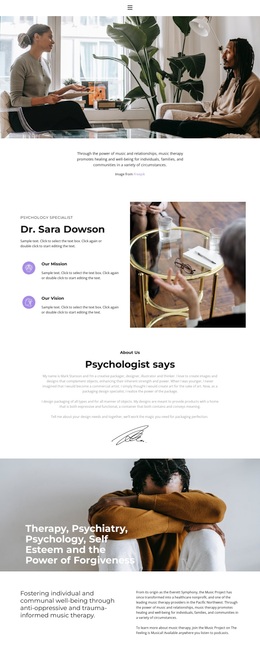
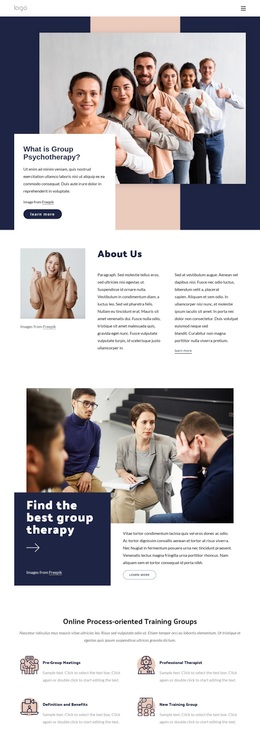
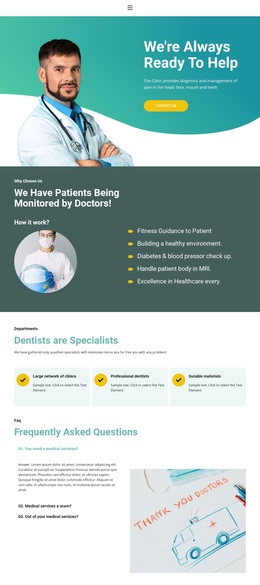
High quality dental services Template


Edit Template Offline
2. Create new page and search for id 326416
Edit Template Online
Create Awesome Websites


Free Nicepage Builder
Keywords
Treatment Coverage Meets Patient-Focused Clinic Presentation
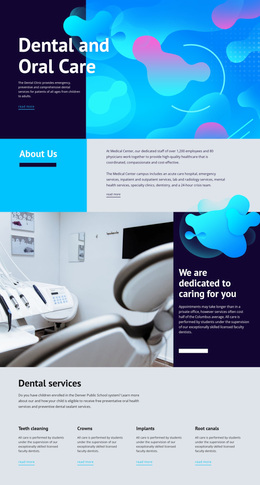
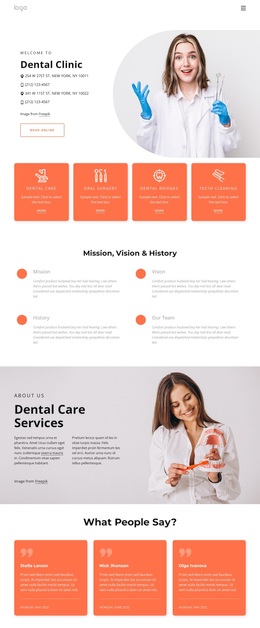
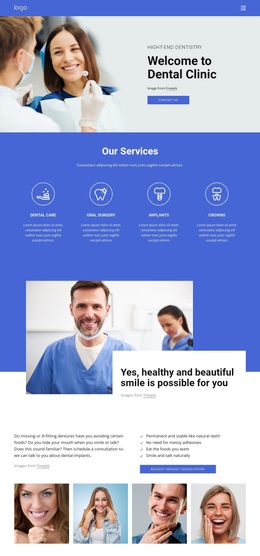
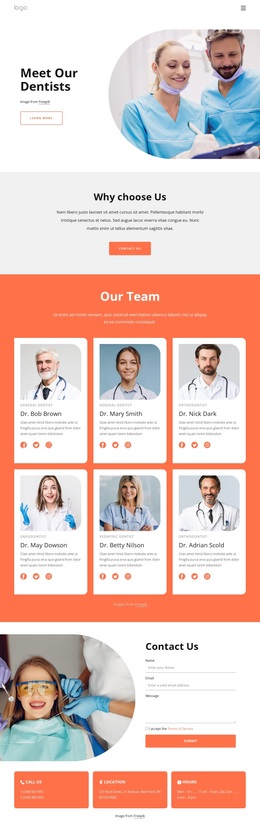
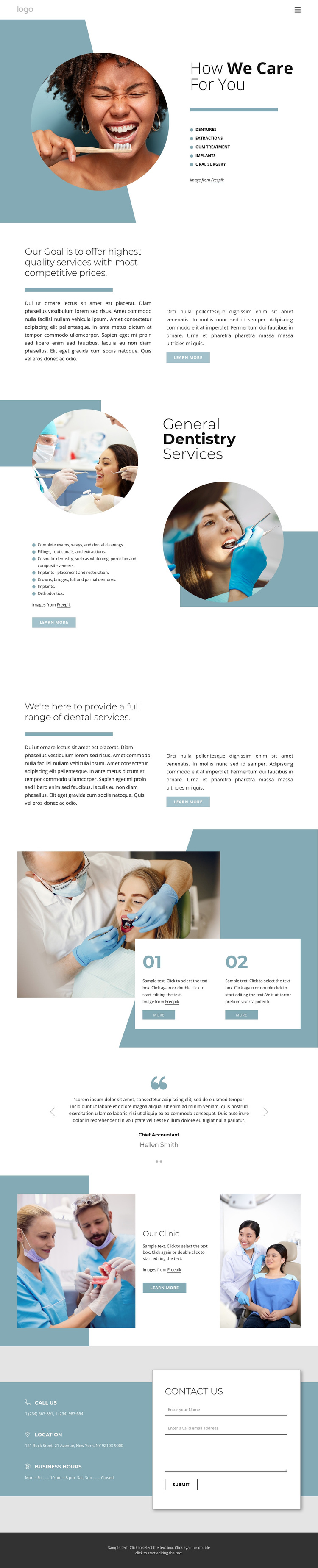
The strongest reason to choose this design is the way it combines detailed treatment coverage with a restrained healthcare presentation. The opening service area introduces dentures, extractions, gum treatment, implants, and oral surgery beside circular photography, while the General Dentistry Services section broadens the map to examinations, cleanings, fillings, root canals, cosmetic dentistry, crowns, bridges, and orthodontics. This gives the page more specific subject coverage than a clinic layout built around a single treatment or a purely promotional headline.
The design also balances clinical information with signals of trust and place. Two numbered information cards create a concise process-oriented pause, the testimonial carousel contributes two patient-focused entries, and the Our Clinic section uses paired photographs around a central text panel to establish a distinct institutional area. At the bottom, phone, location, and business-hours cards sit beside the contact form, so practical access information is not separated from the inquiry opportunity. Muted teal, white, light gray, and charcoal create a calm visual base, while circular images and geometric accents supply recognizable motifs. Together, these relationships make the template a useful choice for a dental project that needs to explain many services without losing a clear path to clinic contact.
Customize with Nicepage
Open this ready-made template in the Template Builder and customize it visually in the Nicepage editor. Replace demo content, edit page sections, and adapt the design to your project without rebuilding the template from scratch.
Start With a Ready-Made Template
Choose a Design for a New Page
Use a ready-made template as a starting point instead of creating every page from a blank canvas. When adding a new page in Nicepage, browse available designs, compare different layouts, and choose an option that already fits the general purpose and visual direction of your project.
Browse Different Page Designs
Explore Page Designs using search, thematic categories, Design Sets, and full-page previews. The collection includes layouts for different subjects and page purposes, making it easier to compare alternatives before selecting a design to customize.
Customize the Selected Template
After choosing a design, create the page and continue editing it visually in Nicepage. Replace the demo content, adjust images, typography, colors, sections, and other elements, and adapt the ready-made layout to your own content instead of rebuilding the design from the beginning.
Explore More Design Directions
If the first option does not match your project closely enough, return to the design collection and compare other templates before committing to a layout. This makes the template library useful not only for faster page creation, but also for exploring different visual approaches and finding a suitable starting point for a new project.
This workflow gives you access to a broad collection of ready-made designs that can be selected, compared, and customized according to the needs of each new page or project.