You have a vision Template


Experience, Imagery, and a Nine-Item Offering Pattern
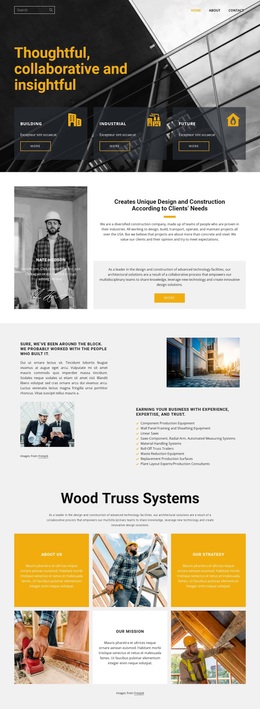
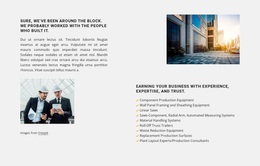
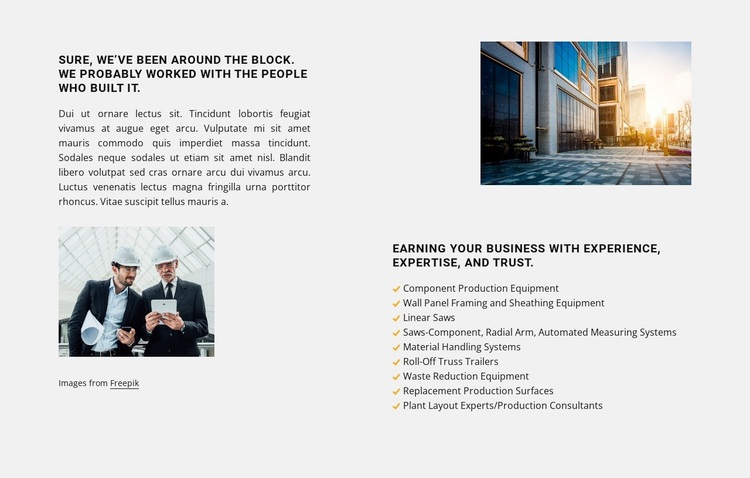
The section stands out through the way it combines two different information densities. The left column gives experience-focused context with a prominent heading, supporting paragraph, photograph, and credit line. The right column uses a second photograph and heading to introduce nine compact offering labels. This is more distinctive than a simple card grid because the content moves from narrative context into a vertically organized capability list.
The list covers a broad but coherent range: component production equipment, wall panel framing and sheathing equipment, linear saws, automated measuring systems, material handling systems, roll-off truss trailers, waste reduction equipment, replacement production surfaces, and plant layout or production consultants. The yellow check markers make the labels feel like a unified set, while the opposing photographs prevent the text from becoming visually heavy.
This design is a useful choice when a page needs to explain experience and then show the scope of related services without splitting the message across several blocks. It offers a clear visual contrast between image and text, but it does not rely on complex interaction or crowded controls. The result is a ready-made services option with enough content coverage to communicate capability while remaining focused on one section.
Customize with Nicepage
Open this ready-made template in the Template Builder and customize it visually in the Nicepage editor. Replace demo content, edit page sections, and adapt the design to your project without rebuilding the template from scratch.
Edit Template Offline
2. Create a new page or select existing
3. Click Add new block, search for id 5991456 and click enter
Edit Template Online
Create Awesome Websites


Free Nicepage Builder
Keywords
Start With a Ready-Made Template
Choose a Design for a New Page
Use a ready-made template as a starting point instead of creating every page from a blank canvas. When adding a new page in Nicepage, browse available designs, compare different layouts, and choose an option that already fits the general purpose and visual direction of your project.
Browse Different Page Designs
Explore Page Designs using search, thematic categories, Design Sets, and full-page previews. The collection includes layouts for different subjects and page purposes, making it easier to compare alternatives before selecting a design to customize.
Customize the Selected Template
After choosing a design, create the page and continue editing it visually in Nicepage. Replace the demo content, adjust images, typography, colors, sections, and other elements, and adapt the ready-made layout to your own content instead of rebuilding the design from the beginning.
Explore More Design Directions
If the first option does not match your project closely enough, return to the design collection and compare other templates before committing to a layout. This makes the template library useful not only for faster page creation, but also for exploring different visual approaches and finding a suitable starting point for a new project.
This workflow gives you access to a broad collection of ready-made designs that can be selected, compared, and customized according to the needs of each new page or project.