Subscribe to travel news Template

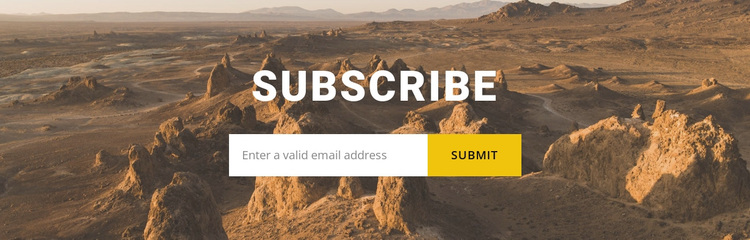
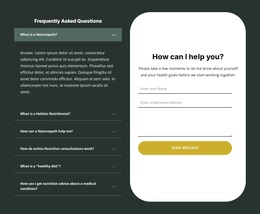
The block is a compact subscription design built around a centered “Subscribe” heading and one horizontal email form. A warm desert landscape spans the background, giving the section a strong scenic identity while keeping the content group in the middle of the composition. The form includes a submit button and sits directly below the heading, so the block communicates its purpose without needing multiple content areas. Its combination of landscape imagery, uppercase emphasis, and concise email interaction makes it a distinct reusable option for a larger page.
ID : 53563   |   Category : Nature, Contact Form

A Scenic Subscription Layout With One Clear Response Area

The centered heading, wide landscape background, and horizontal email form give this block a specific design direction: it turns a short subscription invitation into a visually prominent section without adding a dense card grid or multiple competing messages. The desert image provides the main visual difference, while the uppercase “Subscribe” heading creates a strong point of entry above the form. Together, these choices make the section recognizable at a glance.

This design is particularly useful when a page needs a compact email-capture area with more atmosphere than a plain text-and-form arrangement. The form remains the functional center, and the submit button makes the response point easy to identify. At the same time, the full-width image can create a visual pause between neighboring sections, helping the subscription area feel intentional rather than appended as an afterthought.

As a ready-made block choice, its value comes from the relationship between scenic context and concise interaction. It can suit a page that wants an outdoor or travel-oriented visual mood while still keeping the content model simple: one heading, one horizontal subscription form, and one clear action. Other sections can provide the wider story, navigation, or supporting detail.

Customize with Nicepage

Open this ready-made template in the Template Builder and customize it visually in the Nicepage editor. Replace demo content, edit page sections, and adapt the design to your project without rebuilding the template from scratch.

Edit Template Offline

1. Download and Install the Nicepage application for Windows and Mac. Or WordPress and Joomla plugins from the download page
2. Create a new page or select existing
3. Click Add new block, search for id 53563 and click enter

Edit Template Online

Run Online Builder to edit this template on our hosting

Create Awesome Websites

WordPress Plugin WordPress
Windows Application Windows App
Joomla Plugin Joomla
Mac OS Application Mac OS App
HTML5 HTML5
Online Builder Online

Free Nicepage Builder

15,000+ Templates
Easy Drag-n-Drop
No Coding
Mobile-Friendly

Keywords


Start With a Ready-Made Template

Choose a Design for a New Page

Use a ready-made template as a starting point instead of creating every page from a blank canvas. When adding a new page in Nicepage, browse available designs, compare different layouts, and choose an option that already fits the general purpose and visual direction of your project.

Browse Different Page Designs

Explore Page Designs using search, thematic categories, Design Sets, and full-page previews. The collection includes layouts for different subjects and page purposes, making it easier to compare alternatives before selecting a design to customize.

Customize the Selected Template

After choosing a design, create the page and continue editing it visually in Nicepage. Replace the demo content, adjust images, typography, colors, sections, and other elements, and adapt the ready-made layout to your own content instead of rebuilding the design from the beginning.

Explore More Design Directions

If the first option does not match your project closely enough, return to the design collection and compare other templates before committing to a layout. This makes the template library useful not only for faster page creation, but also for exploring different visual approaches and finding a suitable starting point for a new project.

This workflow gives you access to a broad collection of ready-made designs that can be selected, compared, and customized according to the needs of each new page or project.

Template selection in the Nicepage New Page dialog

More from Nature Templates