Latest organized events Template


Edit Template Offline
2. Create new page and search for id 5100331
Edit Template Online
Create Awesome Websites


Free Nicepage Builder
Keywords
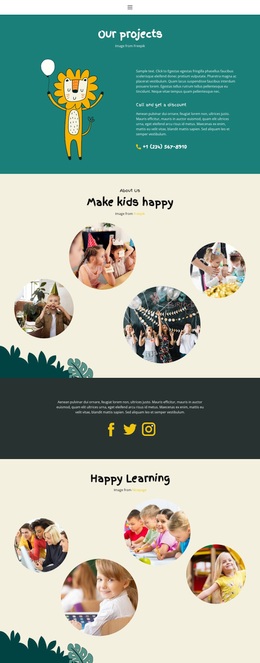
Circular Activity Imagery Gives This Design Its Character
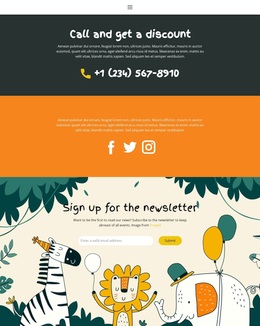
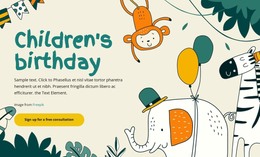
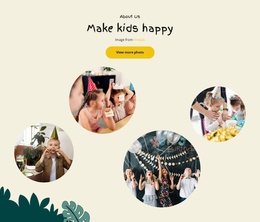
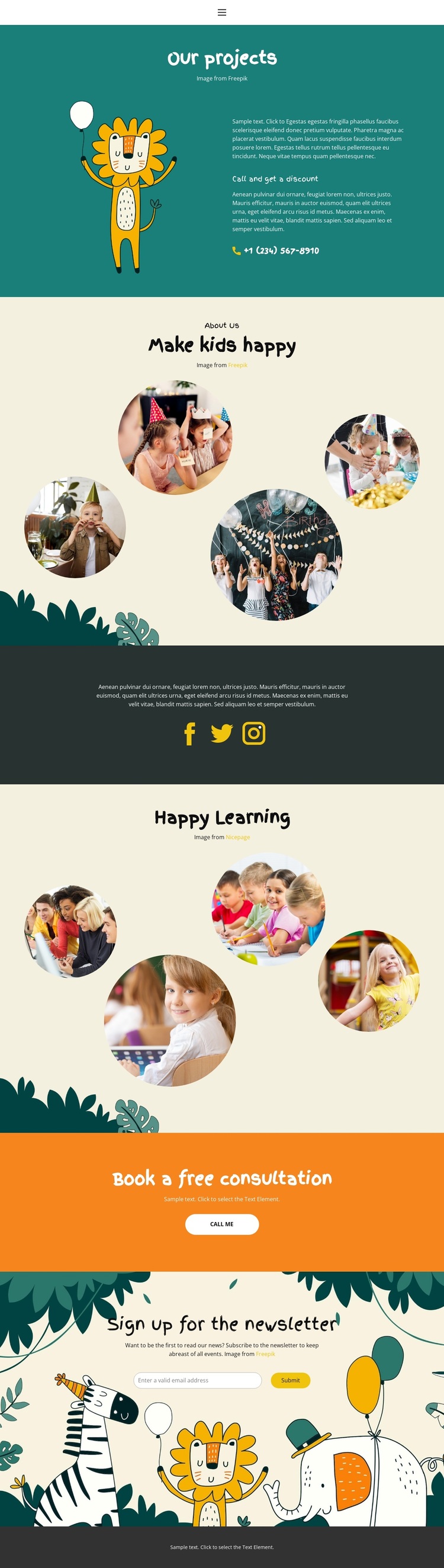
Four circular images around “Make kids happy” and another four around “Happy Learning” make imagery the main carrier of the page’s children’s education theme. The repeated shape creates a recognizable visual motif, while the two gallery areas separate general happiness and learning activity into distinct moments. This is useful for projects that need to communicate warmth and participation visually instead of relying on dense explanatory copy. The illustrated project introduction adds a different kind of content, pairing an image with descriptive text, a discount prompt, and a phone action.
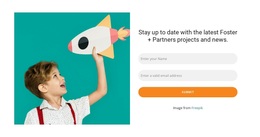
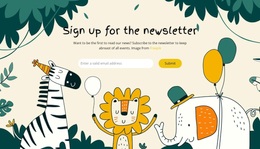
The design also covers several practical communication needs without losing its central gallery emphasis. Compact navigation gives the page a site-oriented frame, and the dark social band gathers Facebook, Twitter, and Instagram links into one contrasting horizontal area. Near the end, the orange consultation section changes the rhythm and makes the invitation to “Book a free consultation” easy to identify. The newsletter form then offers a quieter way to stay connected through email. These relationships make the template worth considering when one page must combine project presentation, child-focused activity imagery, social connection, and two types of response. Rather than centering on pricing, product listings, or long editorial content, the design favors approachable visuals and direct family-oriented communication. Its strongest choice is the balance between repeated circular galleries and clearly separated contact opportunities.
Customize with Nicepage
Open this ready-made template in the Template Builder and customize it visually in the Nicepage editor. Replace demo content, edit page sections, and adapt the design to your project without rebuilding the template from scratch.
Start With a Ready-Made Template
Choose a Design for a New Page
Use a ready-made template as a starting point instead of creating every page from a blank canvas. When adding a new page in Nicepage, browse available designs, compare different layouts, and choose an option that already fits the general purpose and visual direction of your project.
Browse Different Page Designs
Explore Page Designs using search, thematic categories, Design Sets, and full-page previews. The collection includes layouts for different subjects and page purposes, making it easier to compare alternatives before selecting a design to customize.
Customize the Selected Template
After choosing a design, create the page and continue editing it visually in Nicepage. Replace the demo content, adjust images, typography, colors, sections, and other elements, and adapt the ready-made layout to your own content instead of rebuilding the design from the beginning.
Explore More Design Directions
If the first option does not match your project closely enough, return to the design collection and compare other templates before committing to a layout. This makes the template library useful not only for faster page creation, but also for exploring different visual approaches and finding a suitable starting point for a new project.
This workflow gives you access to a broad collection of ready-made designs that can be selected, compared, and customized according to the needs of each new page or project.