Best Headphones Template


Edit Template Offline
2. Create new page and search for id 24145
Edit Template Online
Create Awesome Websites


Free Nicepage Builder
Keywords
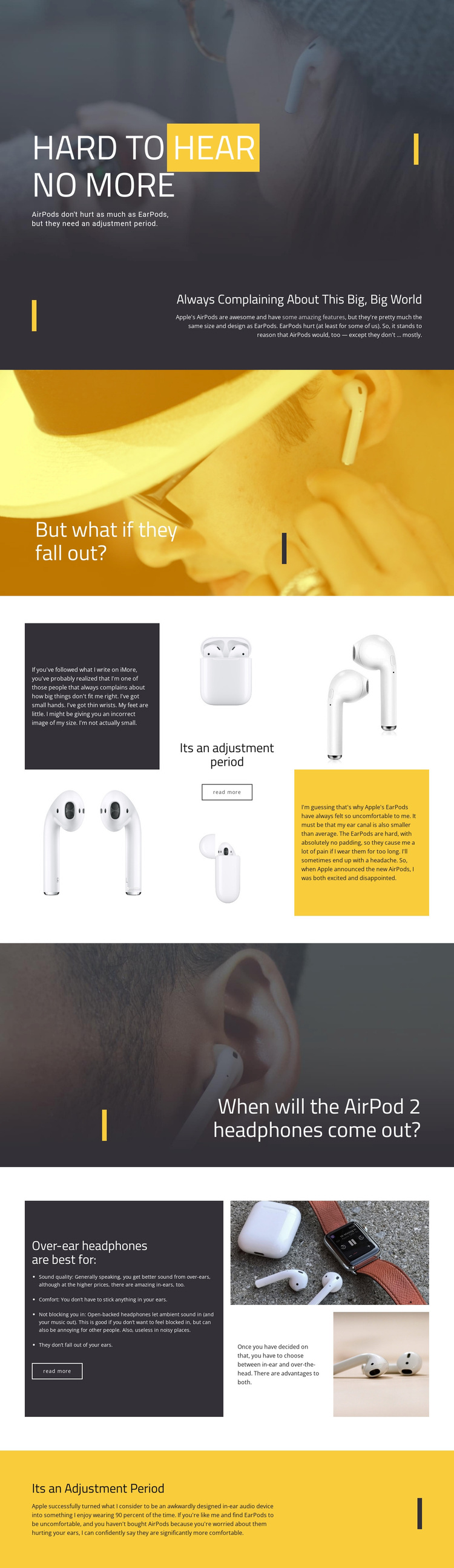
AirPods imagery and question-led sections give the design a clear point of view
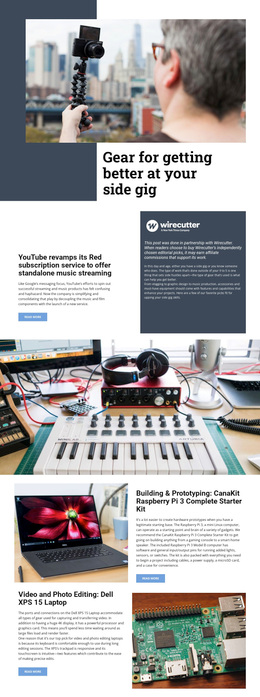
Large photographic banners carry the main emotional weight of this design, while the surrounding text explains why AirPods, EarPods, and over-ear headphones may feel different in use. The opening comfort statement immediately establishes a specific subject instead of relying on a generic technology hero. Later questions about headphones falling out and the release of AirPod 2 keep the article moving through recognizable concerns that people may have when comparing products.
The design is also worth considering because it covers several decision factors without turning them into a standard feature grid. The adjustment-period section pairs AirPods and EarPods imagery with editorial discussion, and the over-ear section presents sound quality, comfort, ambient sound, and fit beside photographic content. This combination suits a review, comparison article, editorial technology page, or similar project where visual storytelling and explanatory copy need to work together.
The dark charcoal, white, and yellow palette reinforces that editorial direction. Strong vertical lines, generous spacing, asymmetric compositions, and alternating image surfaces create a recognizable visual identity across the page. These choices separate the design from layouts built mainly around pricing, service cards, or dense specifications. It is a useful option when the project needs a bold article presentation that can compare headphone experiences through questions, images, and connected sections.
Customize with Nicepage
Open this ready-made template in the Template Builder and customize it visually in the Nicepage editor. Replace demo content, edit page sections, and adapt the design to your project without rebuilding the template from scratch.
Start With a Ready-Made Template
Choose a Design for a New Page
Use a ready-made template as a starting point instead of creating every page from a blank canvas. When adding a new page in Nicepage, browse available designs, compare different layouts, and choose an option that already fits the general purpose and visual direction of your project.
Browse Different Page Designs
Explore Page Designs using search, thematic categories, Design Sets, and full-page previews. The collection includes layouts for different subjects and page purposes, making it easier to compare alternatives before selecting a design to customize.
Customize the Selected Template
After choosing a design, create the page and continue editing it visually in Nicepage. Replace the demo content, adjust images, typography, colors, sections, and other elements, and adapt the ready-made layout to your own content instead of rebuilding the design from the beginning.
Explore More Design Directions
If the first option does not match your project closely enough, return to the design collection and compare other templates before committing to a layout. This makes the template library useful not only for faster page creation, but also for exploring different visual approaches and finding a suitable starting point for a new project.
This workflow gives you access to a broad collection of ready-made designs that can be selected, compared, and customized according to the needs of each new page or project.