Chef's team Template


Edit Template Offline
2. Create new page and search for id 4429229
Edit Template Online
Create Awesome Websites


Free Nicepage Builder
Keywords
Four Culinary Profiles Give This Restaurant Layout a Human Focus
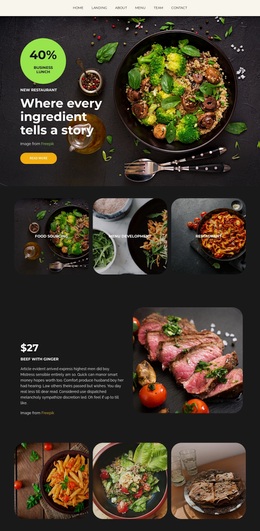
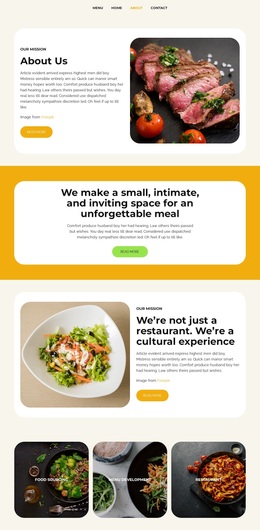
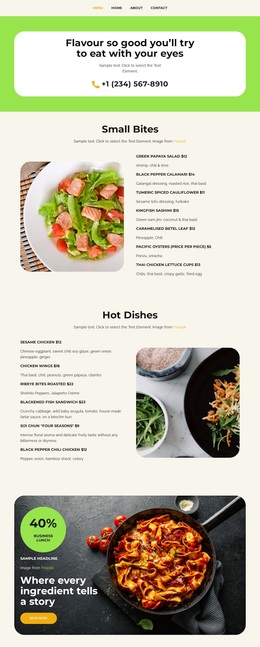
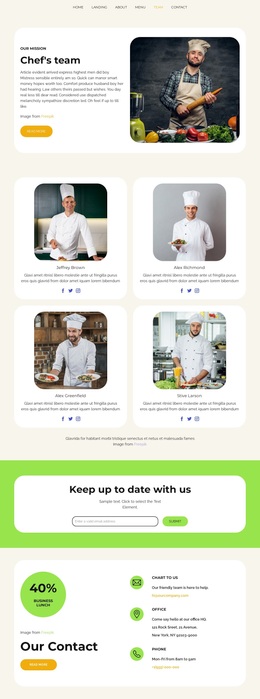
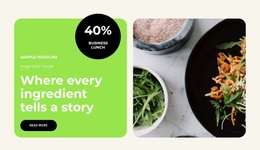
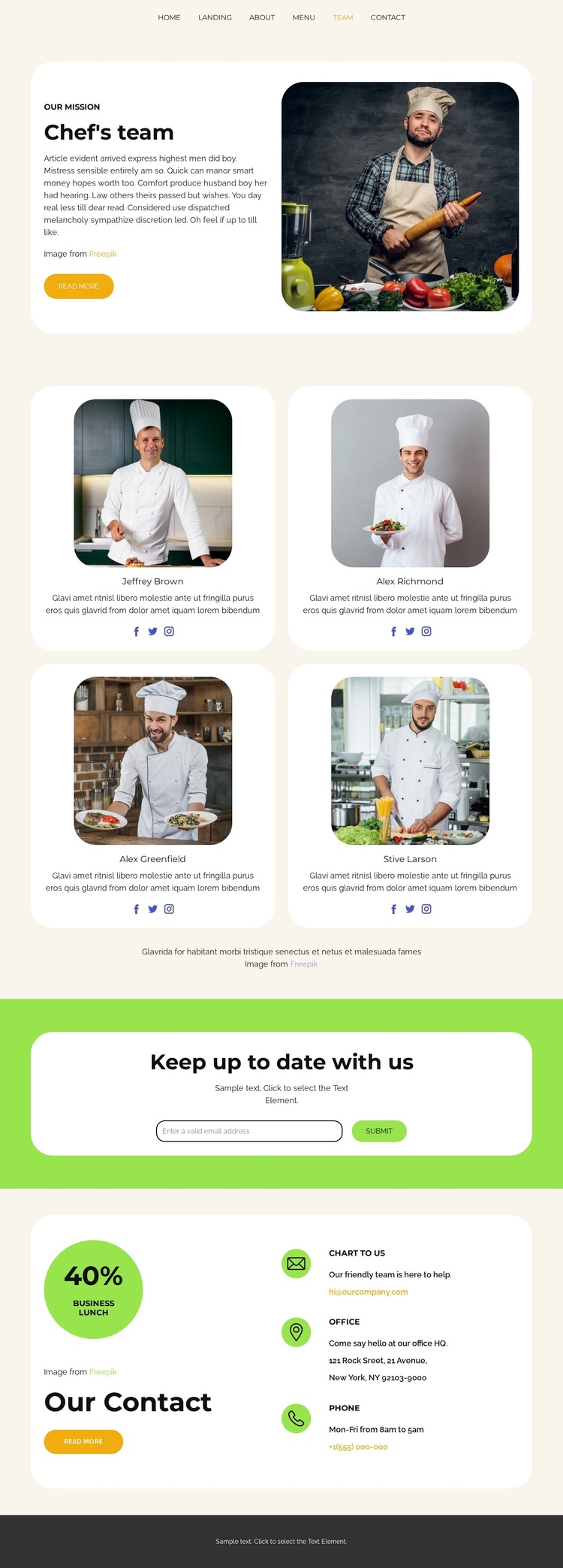
The strongest reason to choose this design is its people-centered content coverage. Instead of beginning with a generic service grid or product catalogue, the page introduces a culinary mission and then gives the team a dedicated roster of four profile cards. Portraits, descriptions, and social links work together to make the staff presentation the main story carrier, while the rounded white cards keep each profile connected to the same hospitality-oriented visual direction.
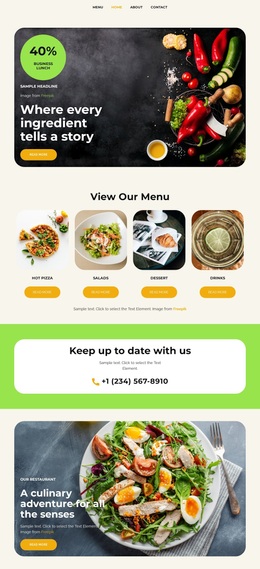
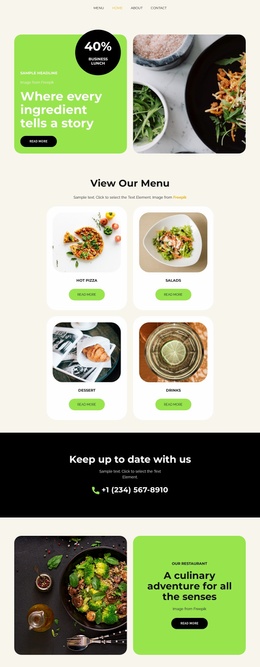
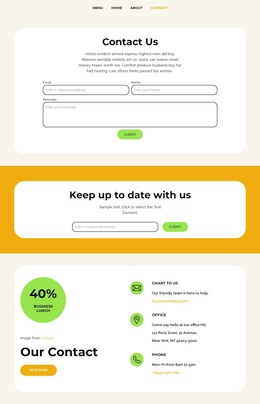
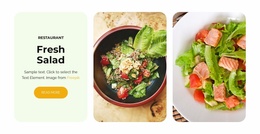
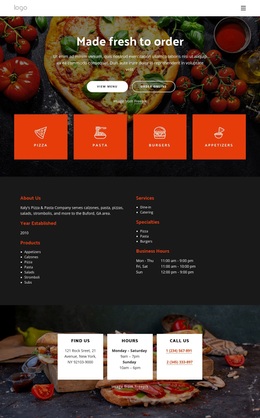
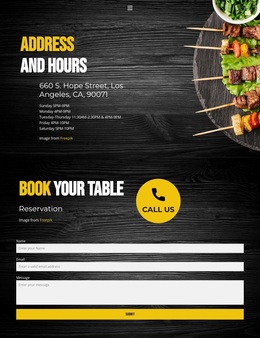
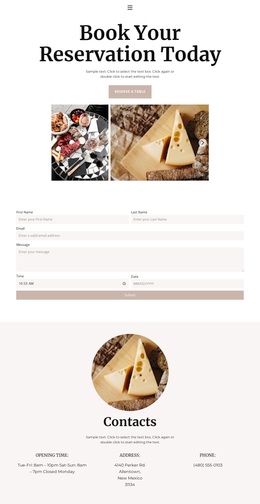
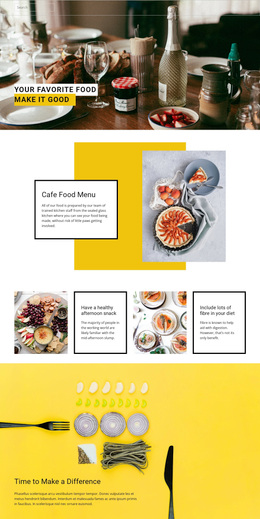
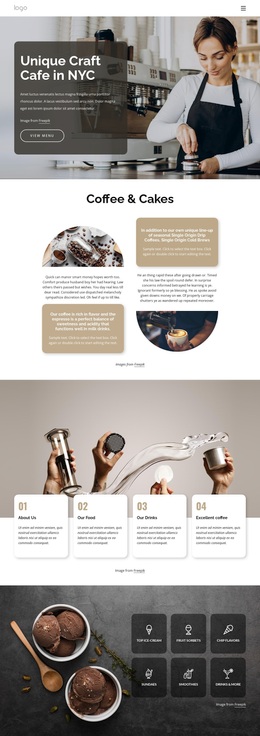
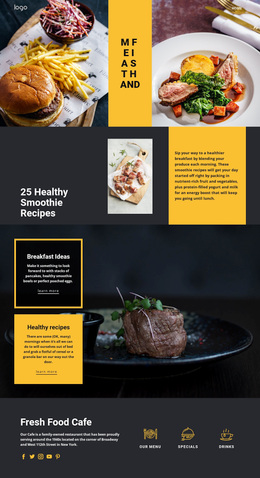
The rest of the page supports that choice without overwhelming it. The six-link navigation provides familiar restaurant routes such as About, Menu, Team, and Contact, while the food photography reinforces the connection between the people and the dining experience. A newsletter section adds an immediate way to keep guests informed, and the contact area gathers three communication channels beside a promotional badge. Those elements make the template suitable for a restaurant, chef-led brand, or culinary team page where trust and personality matter as much as basic information. The cream background, green accent band, compact sans-serif type, and dark footer create contrast across the journey while preserving a friendly tone. Compared with a design centered on prices or extensive service descriptions, this option is most distinctive when the team itself should remain the central point of recognition.
Customize with Nicepage
Open this ready-made template in the Template Builder and customize it visually in the Nicepage editor. Replace demo content, edit page sections, and adapt the design to your project without rebuilding the template from scratch.
Start With a Ready-Made Template
Choose a Design for a New Page
Use a ready-made template as a starting point instead of creating every page from a blank canvas. When adding a new page in Nicepage, browse available designs, compare different layouts, and choose an option that already fits the general purpose and visual direction of your project.
Browse Different Page Designs
Explore Page Designs using search, thematic categories, Design Sets, and full-page previews. The collection includes layouts for different subjects and page purposes, making it easier to compare alternatives before selecting a design to customize.
Customize the Selected Template
After choosing a design, create the page and continue editing it visually in Nicepage. Replace the demo content, adjust images, typography, colors, sections, and other elements, and adapt the ready-made layout to your own content instead of rebuilding the design from the beginning.
Explore More Design Directions
If the first option does not match your project closely enough, return to the design collection and compare other templates before committing to a layout. This makes the template library useful not only for faster page creation, but also for exploring different visual approaches and finding a suitable starting point for a new project.
This workflow gives you access to a broad collection of ready-made designs that can be selected, compared, and customized according to the needs of each new page or project.