Leader in technology Template


Edit Template Offline
2. Create new page and search for id 17226
Edit Template Online
Create Awesome Websites


Free Nicepage Builder
Keywords
Model Comparison and Product Imagery Define the Design Choice
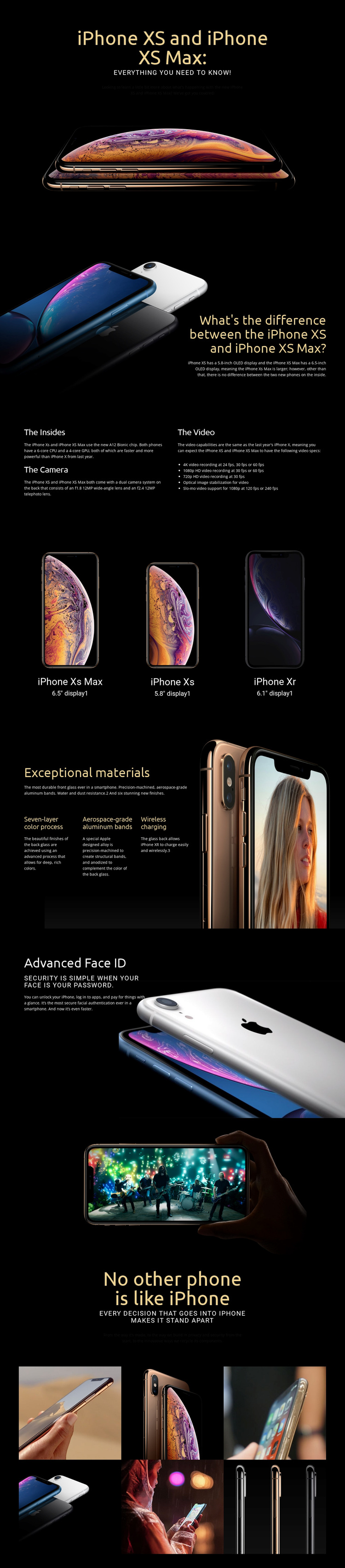
Three iPhone models give this design a clear subject and a practical reason to choose it. The opening focuses on iPhone XS and iPhone XS Max, then the next section explains their display-size difference beside a large phone image. Later, iPhone XS Max, iPhone XS, and iPhone XR appear together with 6.5-inch, 5.8-inch, and 6.1-inch display labels. The design therefore supports projects where visitors need to compare related products while still receiving a strong visual introduction.
The page also covers more than a specification table. “The Insides” connects the A12 Bionic chip, dual camera system, and video capabilities, including 4K, 1080p HD, and 720p recording. The materials section changes the emphasis to the seven-layer color process, aerospace-grade aluminum bands, and wireless charging. Advanced Face ID adds a separate security and authentication story, allowing technical, physical, and privacy-related information to occupy different visual moments.
The black backgrounds, bright product photography, generous vertical spacing, and warm accent typography make imagery the main carrier of attention. The six-image gallery strengthens that direction at the end instead of introducing an unrelated content type. This is a useful design option for a technology presentation that needs product comparison, feature explanation, construction details, security messaging, and visual atmosphere in one connected page. It is less suited to a layout centered primarily on long editorial text or a single compact service offer.
Customize with Nicepage
Open this ready-made template in the Template Builder and customize it visually in the Nicepage editor. Replace demo content, edit page sections, and adapt the design to your project without rebuilding the template from scratch.
Start With a Ready-Made Template
Choose a Design for a New Page
Use a ready-made template as a starting point instead of creating every page from a blank canvas. When adding a new page in Nicepage, browse available designs, compare different layouts, and choose an option that already fits the general purpose and visual direction of your project.
Browse Different Page Designs
Explore Page Designs using search, thematic categories, Design Sets, and full-page previews. The collection includes layouts for different subjects and page purposes, making it easier to compare alternatives before selecting a design to customize.
Customize the Selected Template
After choosing a design, create the page and continue editing it visually in Nicepage. Replace the demo content, adjust images, typography, colors, sections, and other elements, and adapt the ready-made layout to your own content instead of rebuilding the design from the beginning.
Explore More Design Directions
If the first option does not match your project closely enough, return to the design collection and compare other templates before committing to a layout. This makes the template library useful not only for faster page creation, but also for exploring different visual approaches and finding a suitable starting point for a new project.
This workflow gives you access to a broad collection of ready-made designs that can be selected, compared, and customized according to the needs of each new page or project.