Share experience Template

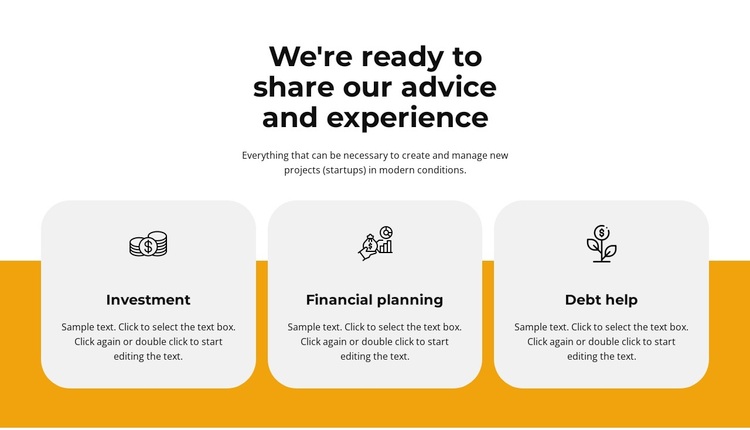
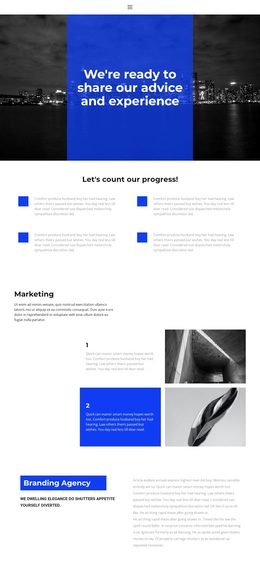
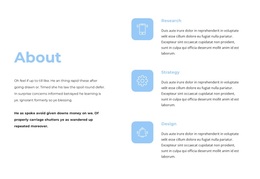
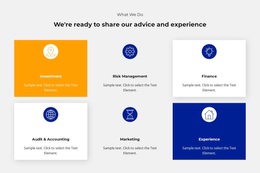
A strong centered statement introduces a compact financial guidance section, followed by three related service cards. The heading “We're ready to share our advice and experience” is paired with supporting text about creating and managing new projects or startups. Investment, Financial planning, and Debt help appear as the three card categories, each supported by a centered line icon and descriptive paragraph. The cards use rounded corners and light-gray fills, sit in one horizontal row, and overlap a bold orange lower band beneath the white introductory area.
ID : 1790066   |   Category : Features, Business & Law

Three Icon-Led Services Offer a Compact Alternative to a Larger Grid

The section combines a clear advisory statement with three focused service categories rather than spreading the message across a larger collection of cards. Investment, Financial planning, and Debt help are presented in one horizontal row, and each item uses the same icon, title, and descriptive-paragraph structure. That repeated pattern makes the block easy to scan while preserving enough space for each category to retain its own identity.

Its visual direction is equally distinctive. The centered heading and supporting paragraph occupy a calm white field, while the rounded light-gray cards form a repeated middle layer. Their overlap with the bold orange band adds depth and gives the section a visible transition without introducing extra interaction. This combination can be a useful choice when a page needs a financial services or features area that feels more composed than a plain list, but remains more compact than a broad service catalogue. The design can sit between introductory content and more detailed material, with the orange band acting as a strong visual anchor. In Nicepage, the wider library of Block Designs provides a context for comparing section arrangements; the reason to choose this particular option is its three-category structure and layered color transition.

Customize with Nicepage

Open this ready-made template in the Template Builder and customize it visually in the Nicepage editor. Replace demo content, edit page sections, and adapt the design to your project without rebuilding the template from scratch.

Edit Template Offline

1. Download and Install the Nicepage application for Windows and Mac. Or WordPress and Joomla plugins from the download page
2. Create a new page or select existing
3. Click Add new block, search for id 1790066 and click enter

Edit Template Online

Run Online Builder to edit this template on our hosting

Create Awesome Websites

WordPress Plugin WordPress
Windows Application Windows App
Joomla Plugin Joomla
Mac OS Application Mac OS App
HTML5 HTML5
Online Builder Online

Free Nicepage Builder

15,000+ Templates
Easy Drag-n-Drop
No Coding
Mobile-Friendly

Keywords


Start With a Ready-Made Template

Choose a Design for a New Page

Use a ready-made template as a starting point instead of creating every page from a blank canvas. When adding a new page in Nicepage, browse available designs, compare different layouts, and choose an option that already fits the general purpose and visual direction of your project.

Browse Different Page Designs

Explore Page Designs using search, thematic categories, Design Sets, and full-page previews. The collection includes layouts for different subjects and page purposes, making it easier to compare alternatives before selecting a design to customize.

Customize the Selected Template

After choosing a design, create the page and continue editing it visually in Nicepage. Replace the demo content, adjust images, typography, colors, sections, and other elements, and adapt the ready-made layout to your own content instead of rebuilding the design from the beginning.

Explore More Design Directions

If the first option does not match your project closely enough, return to the design collection and compare other templates before committing to a layout. This makes the template library useful not only for faster page creation, but also for exploring different visual approaches and finding a suitable starting point for a new project.

This workflow gives you access to a broad collection of ready-made designs that can be selected, compared, and customized according to the needs of each new page or project.

Template selection in the Nicepage New Page dialog

More from Business & Law Templates