Phone numbers Template


Edit Template Offline
2. Create new page and search for id 5387464
Edit Template Online
Create Awesome Websites


Free Nicepage Builder
Keywords
A Form-Led Contact Choice with Client Showcase and Direct Channels
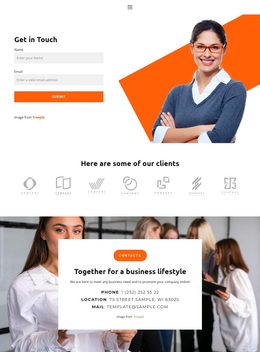
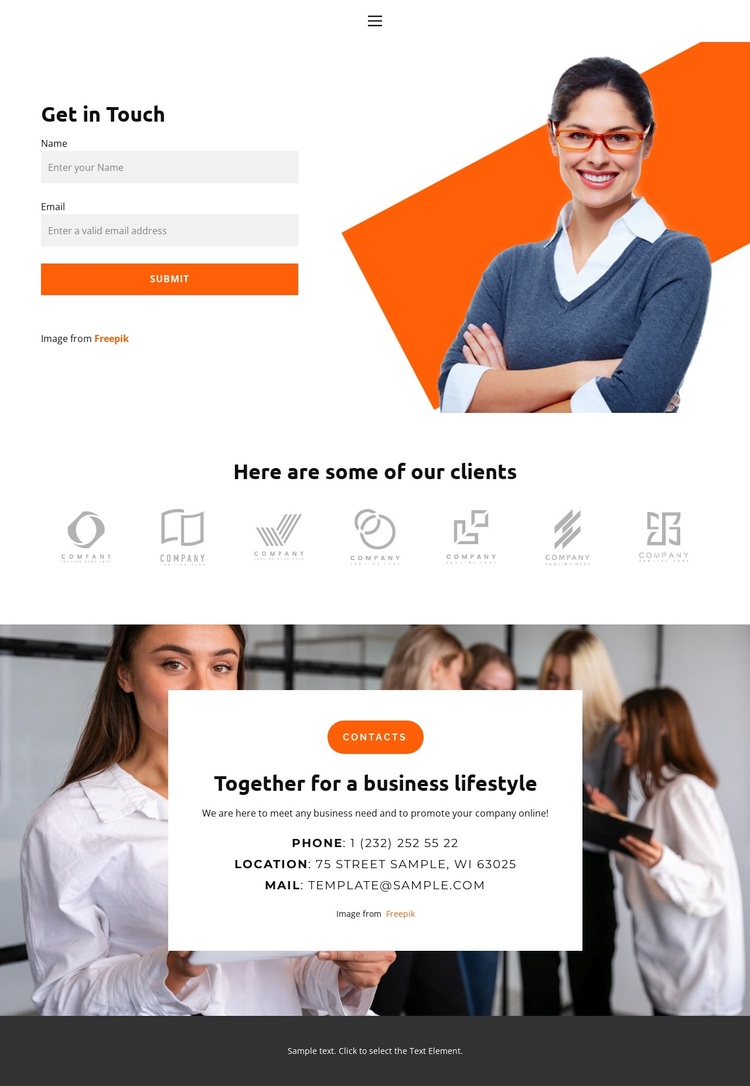
A contact form paired with a large business photograph gives this design a clear starting point for projects that need visitors to get in touch rather than browse a dense service catalog. The Get in Touch heading, name and email inputs, and Submit button create a recognizable inquiry area, while the image adds visual context around the action. This combination makes the page a useful design option for communication-focused presentations.
The seven-logo client row provides a distinctive middle section. Its repeated horizontal arrangement introduces a visual showcase without requiring a complex portfolio or product grid. The logos should be treated as structural demo content until independently verified, but the section itself expands the page beyond a simple form and gives a project a place to present selected associations or replace the imagery with appropriate content.
The lower contact card strengthens the design’s coverage of direct communication. Phone, location, and email details appear together on a white surface centered over a full-width photograph, creating a second contact moment with a different visual treatment from the opening form. The muted gray and white palette, orange accents, compact typography, and dark footer support a business-oriented tone without relying on an unsupported industry claim. Choose this layout when a project needs contact capture, supporting client imagery, and clearly grouped contact channels in one visually focused page.
Customize with Nicepage
Open this ready-made template in the Template Builder and customize it visually in the Nicepage editor. Replace demo content, edit page sections, and adapt the design to your project without rebuilding the template from scratch.
Start With a Ready-Made Template
Choose a Design for a New Page
Use a ready-made template as a starting point instead of creating every page from a blank canvas. When adding a new page in Nicepage, browse available designs, compare different layouts, and choose an option that already fits the general purpose and visual direction of your project.
Browse Different Page Designs
Explore Page Designs using search, thematic categories, Design Sets, and full-page previews. The collection includes layouts for different subjects and page purposes, making it easier to compare alternatives before selecting a design to customize.
Customize the Selected Template
After choosing a design, create the page and continue editing it visually in Nicepage. Replace the demo content, adjust images, typography, colors, sections, and other elements, and adapt the ready-made layout to your own content instead of rebuilding the design from the beginning.
Explore More Design Directions
If the first option does not match your project closely enough, return to the design collection and compare other templates before committing to a layout. This makes the template library useful not only for faster page creation, but also for exploring different visual approaches and finding a suitable starting point for a new project.
This workflow gives you access to a broad collection of ready-made designs that can be selected, compared, and customized according to the needs of each new page or project.