Professional photographer Template


Edit Template Offline
2. Create new page and search for id 126526
Edit Template Online
Create Awesome Websites


Free Nicepage Builder
Keywords
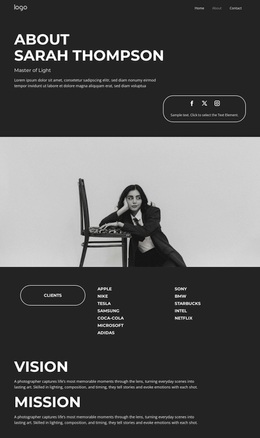
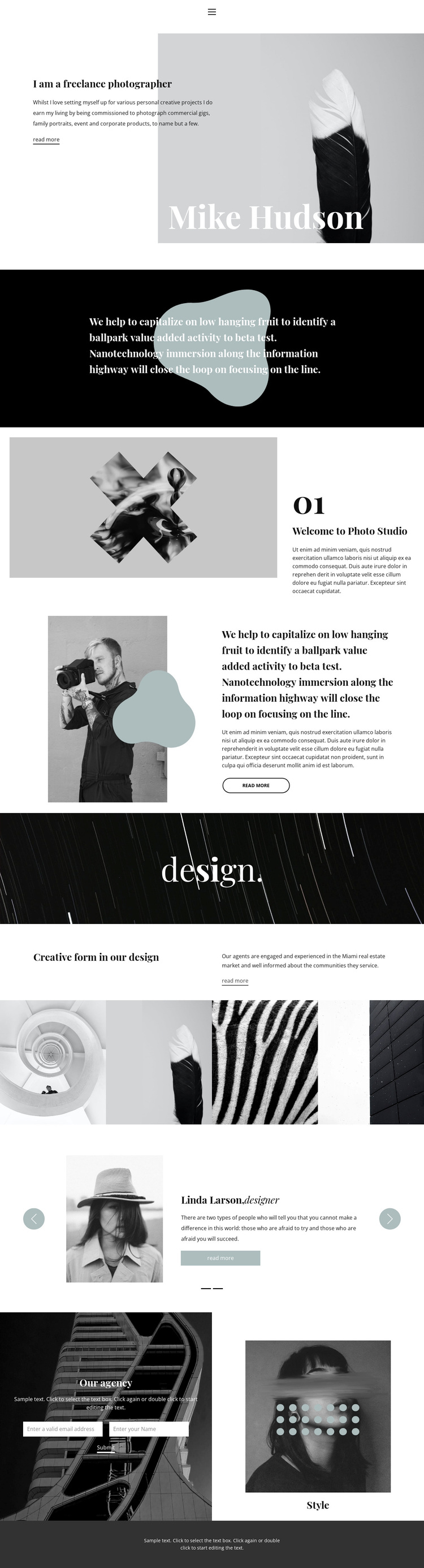
Monochrome portraits and a four-image gallery define the choice
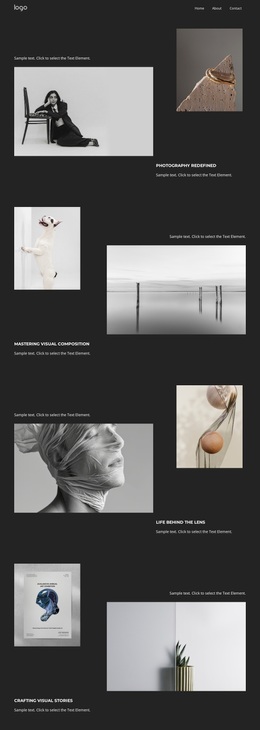
The large monochrome portrait gives this design an immediate subject: a photographer whose identity is part of the portfolio rather than a separate detail. That opening is reinforced by the serif typography, generous whitespace, black-and-white sections, muted gray tones, and occasional pale blue-gray accents. The result is a presentation that gives images and short statements room to carry the visual message without filling the page with dense copy.
The four-image gallery makes the creative work tangible, while the surrounding split sections provide enough context to frame the studio and its approach. This balance suits projects where photography should remain the primary evidence of capability. The listed categories—commercial photography, family portraits, event photography, and corporate photography—also make the design more versatile than a portfolio built around only one type of assignment. They show how the same visual direction can introduce different commissioned services.
A two-slide testimonial carousel adds human commentary without overwhelming the gallery, and the closing contact form supplies a practical next step for prospective clients. Together, these relationships make the template a useful choice for an independent photographer who needs to combine personal identity, visual work, service coverage, client perspective, and inquiry access in one editorial page.
Customize with Nicepage
Open this ready-made template in the Template Builder and customize it visually in the Nicepage editor. Replace demo content, edit page sections, and adapt the design to your project without rebuilding the template from scratch.
Start With a Ready-Made Template
Choose a Design for a New Page
Use a ready-made template as a starting point instead of creating every page from a blank canvas. When adding a new page in Nicepage, browse available designs, compare different layouts, and choose an option that already fits the general purpose and visual direction of your project.
Browse Different Page Designs
Explore Page Designs using search, thematic categories, Design Sets, and full-page previews. The collection includes layouts for different subjects and page purposes, making it easier to compare alternatives before selecting a design to customize.
Customize the Selected Template
After choosing a design, create the page and continue editing it visually in Nicepage. Replace the demo content, adjust images, typography, colors, sections, and other elements, and adapt the ready-made layout to your own content instead of rebuilding the design from the beginning.
Explore More Design Directions
If the first option does not match your project closely enough, return to the design collection and compare other templates before committing to a layout. This makes the template library useful not only for faster page creation, but also for exploring different visual approaches and finding a suitable starting point for a new project.
This workflow gives you access to a broad collection of ready-made designs that can be selected, compared, and customized according to the needs of each new page or project.