Best Headphones Website Template


Edit Template Offline
2. Create new page and search for id 24145
Edit Template Online
Create Awesome Websites


Free Nicepage Builder
Keywords
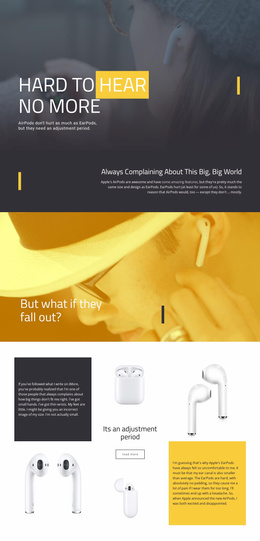
Comparison, comfort, and alternative headphone sections establish a project foundation
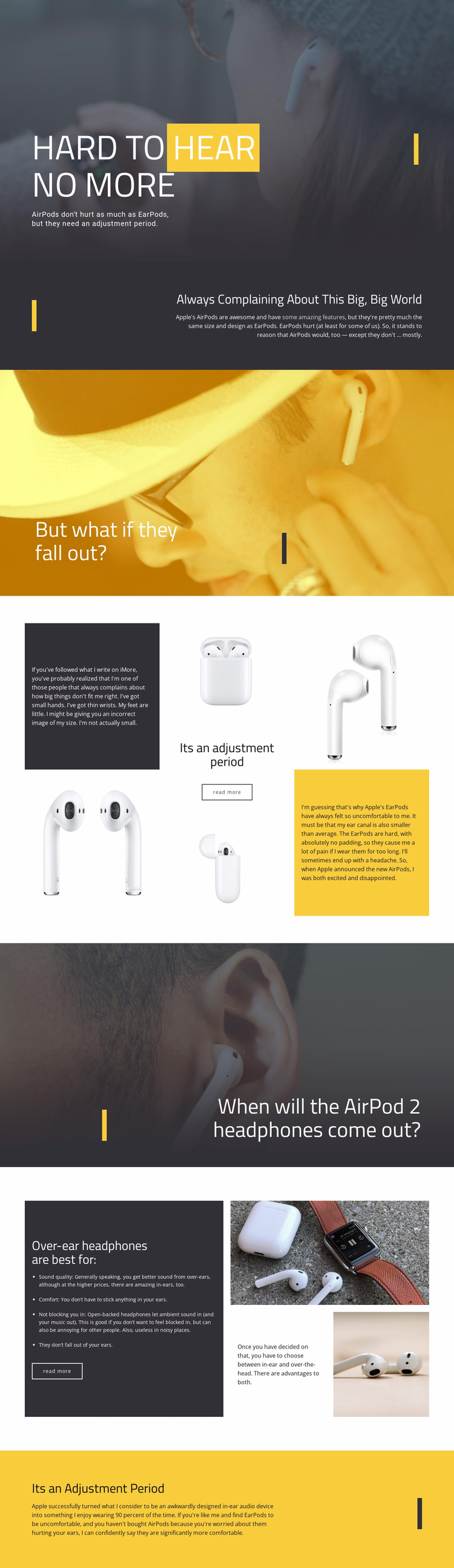
The design already defines several useful content areas for a broader consumer-audio website. The opening hero can introduce the project’s editorial direction through the AirPods comfort topic, while the following text section provides a place for contextual explanation about AirPods and EarPods. Question-led photographic banners create recognizable transition points that could separate related discussions without requiring every idea to use the same layout.
The adjustment-period grid adds a product-focused content area with AirPods and EarPods imagery, explanatory copy, and a read-more link. The over-ear section expands the information architecture by presenting sound quality, comfort, ambient sound, and fit as comparison criteria for another headphone format. Together, these areas suggest a foundation for product comparisons, comfort guides, listening advice, or related technology articles. They do not prove that additional pages already exist, but they give a larger project clear categories to build around.
The visual system also supports expansion. Dark panels can carry longer explanations, photographic blocks can introduce new topics, and yellow sections can emphasize conclusions or editorial highlights. Consistent vertical lines, generous spacing, and high-contrast typography would help related pages feel connected if the project adds more content. The template is therefore valuable as a starting site structure because it supplies both subject-specific content areas and a repeatable visual direction, not merely a styled homepage with no clear path for growth.
Customize with Nicepage
Open this ready-made template in the Website Template Builder and customize it visually in the Nicepage editor. Replace demo content, edit page sections, and adapt the design to your project without rebuilding the template from scratch.
Build a Complete Website From This Template
Customize the Website Visually
Use this ready-made website template as a starting point for your project and adapt its pages visually in Nicepage. Change content, images, typography, navigation, sections, and other design elements while keeping the website together as a single editable project.
Manage Website Pages in One Project
Use the Pages panel to open, add, duplicate, and manage the pages of your website. Work on individual pages while keeping navigation and the overall site structure accessible from the same project, making it easier to develop a complete website instead of managing separate page files.
Expand the Website With Matching Designs
When you need additional pages or sections, use Page Design Sets to find Page and Block Designs created in the same visual style. Design Sets group matching designs together, making it easier to expand the website with new content while maintaining a consistent look across its pages and sections.
Organize Larger Multi-Page Websites
As the website grows, use Page Folders to organize related pages and keep larger multi-page projects easier to navigate in the editor. This is especially useful for websites with separate service pages, company information, contacts, landing pages, and other content areas.
This workflow makes the template a practical foundation for building and expanding a complete website while managing its pages, content, and visual design within one Nicepage project.