Africa Wildlife Guide Joomla Template


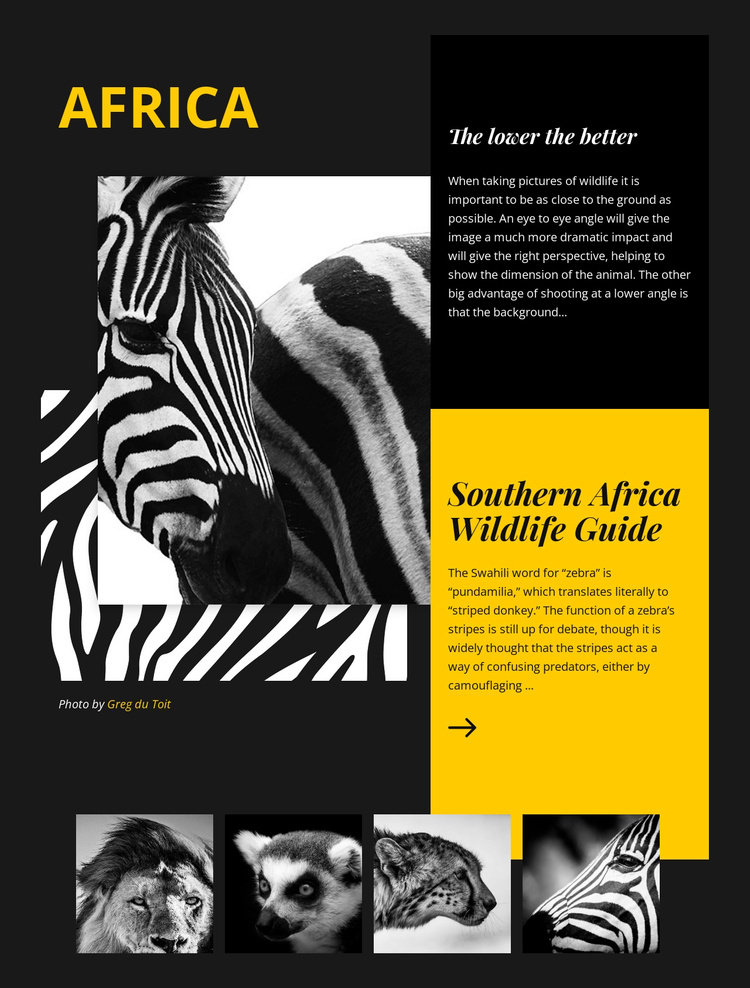
Guide Text and Wildlife Images Form a Structured Joomla Content Region
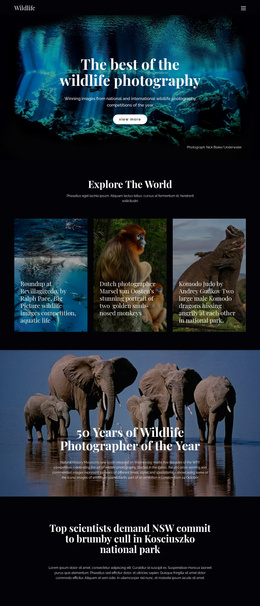
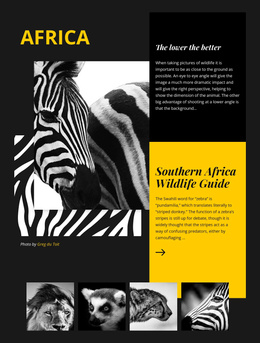
The main editorial feature separates the block into clear information units that suit a Joomla-managed content area. “Africa” provides the location-led entry point, while the layered zebra image supplies the visual subject. The two stacked panels then organize the accompanying explanation: “The lower the better” points to the close-to-ground photographic approach, and “Southern Africa Wildlife Guide” frames the wider subject. This gives the section a stable informational role rather than reducing it to a decorative banner.
The copy can function as article-like wildlife guidance within a broader Joomla page, with the image and text remaining visually connected. The photo credit to Greg du Toit belongs to the editorial presentation, and the mention of “pundamilia,” the Swahili word for zebra, adds a defined detail that can remain part of the content region. The charcoal background, yellow panels, and overlapping black-and-white imagery provide the visual container for that information without changing its subject.
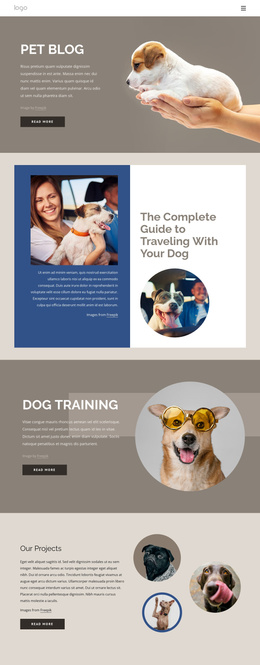
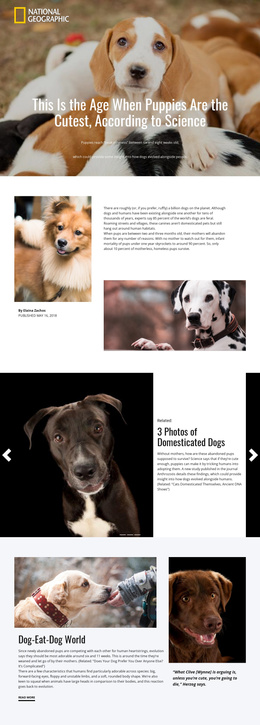
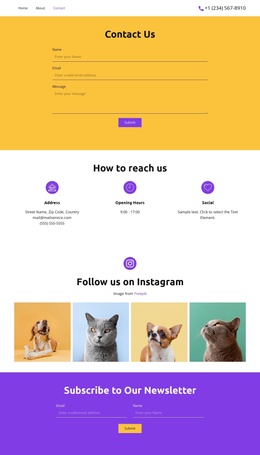
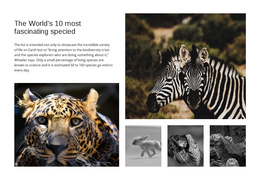
The lower row of four square thumbnails offers a separate supporting image group. It can provide additional wildlife context beneath the main guide feature while other Joomla-managed content areas handle navigation, longer articles, or related topics. The block therefore works as a reusable visual section for structured wildlife information: one prominent feature, two connected text units, and a compact image row that can sit within a larger CMS-managed page.
Customize with Nicepage
Open this ready-made template in the Joomla Page Builder and customize it visually in the Nicepage editor. Replace demo content, edit page sections, and adapt the design to your project without rebuilding the template from scratch.
Edit Template Offline
2. Create a new page or select existing
3. Click Add new block, search for id 71122 and click enter
Edit Template Online
Create Awesome Websites


Free Nicepage Builder
Keywords
Work With This Template in Joomla
Customize and Install the Joomla Template
Start with this ready-made template instead of building the Joomla design from scratch. Customize its layout, content, typography, images, sections, and other design elements visually in the Nicepage application, then export and install the Joomla Template, Nicepage Extension, and supported content on your Joomla website.
Edit the Template Directly in Joomla
After installation, you can edit the Joomla Template directly in Joomla with the Nicepage Joomla Extension. Customize the Header, Footer, Colors, Fonts, typography, and Page Templates from the Joomla workflow while keeping the site design connected with your CMS content.
Edit Joomla Articles Visually
Use the Nicepage Joomla Extension to open and edit Joomla Articles visually from the Joomla Administrator. Change text, images, sections, layouts, and other page content in the Nicepage editor while continuing to manage the Articles through Joomla.
Joomla Content and Template Integration
Use the customized template together with Joomla Articles, module Positions, menus, forms, Blog Pages, and other supported CMS elements. With the Nicepage Extension used as the Site Style Source, shared design settings can be applied across Joomla Articles while Joomla continues to provide the CMS environment for managing site content.
This workflow combines a ready-made Joomla Template with visual customization, direct template editing in Joomla, and continued content management through the Nicepage Joomla Extension.