How to wear yellow Joomla Template


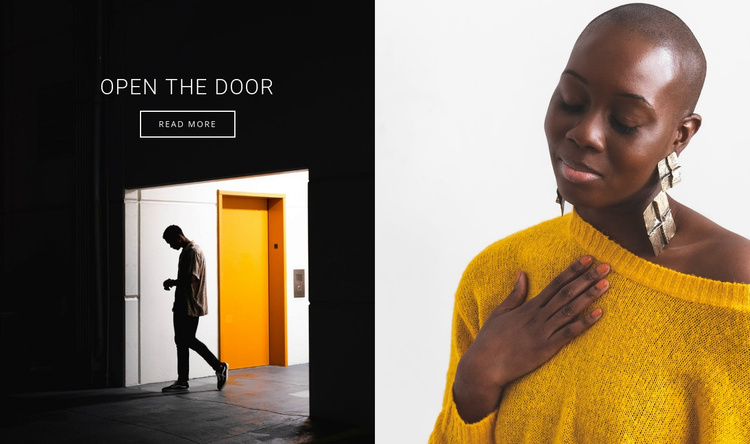
The “Open the Door” Split Creates a Structured Fashion Content Area
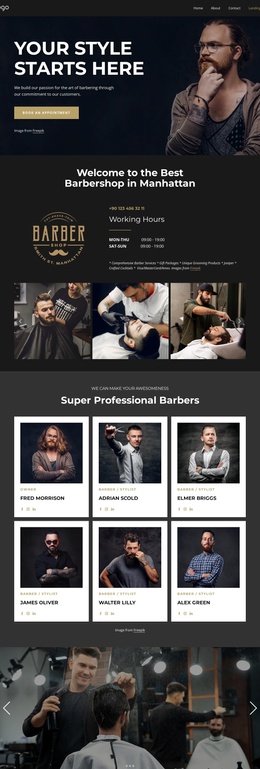
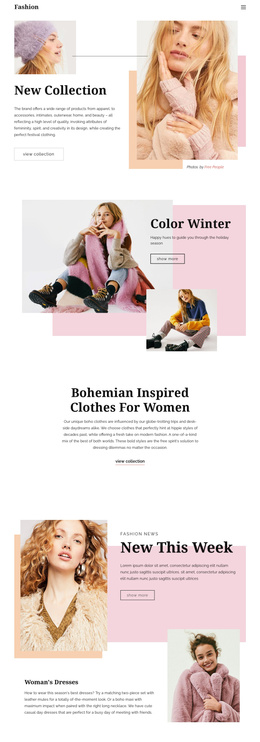
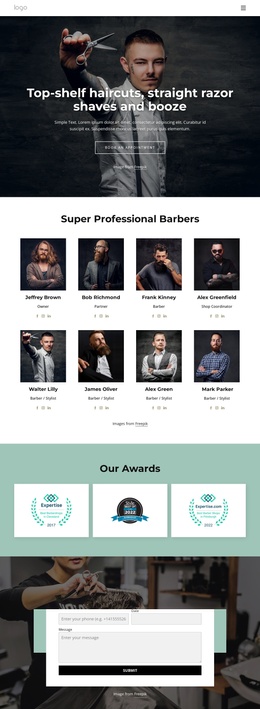
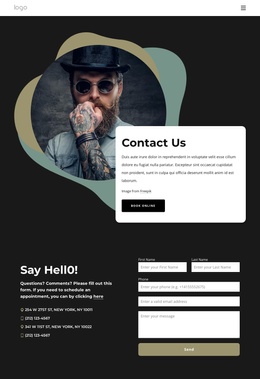
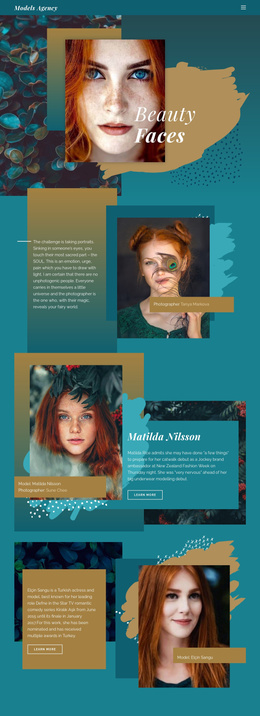
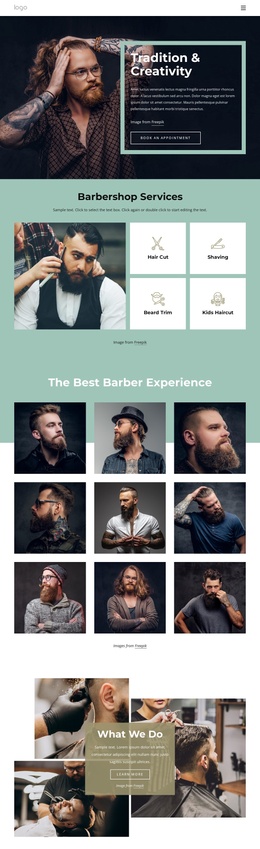
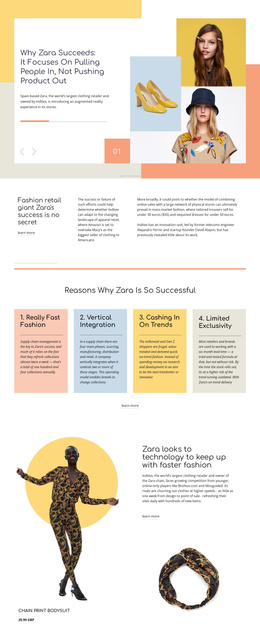
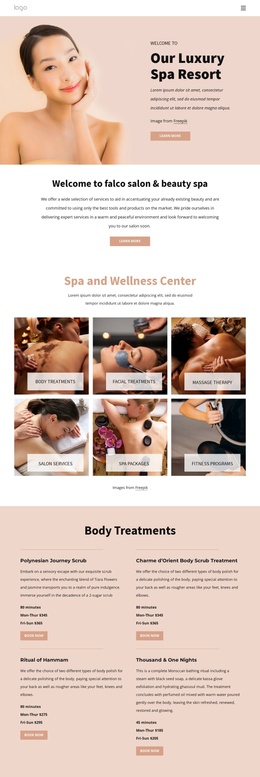
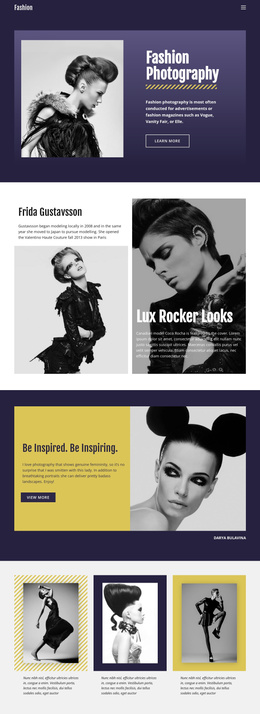
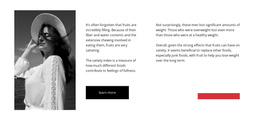
The dark doorway photograph and the portrait in the yellow sweater divide this block into two equal visual regions, while the centered heading and “read more” button give the left side a clear informational and action-oriented purpose. The yellow door and sweater create a visual link across the panels, so the section communicates a fashion-and-beauty direction without relying on multiple content cards or a dense list of offerings.
In a Joomla-managed website, this arrangement can function as a reusable content region for an article-like introduction, campaign message, or promotional section. The block’s content remains easy to identify: one heading introduces the idea, one button points visitors toward further information, and the paired photographs carry much of the atmosphere. The static interaction keeps the section visually direct rather than turning it into a rotating gallery or expandable content area.
The high-contrast black, white, and yellow treatment can also help this Joomla-oriented section remain recognizable beside other editorial or promotional content. The broader site can manage additional pages and content around it, while this block preserves its own two-panel identity. Its role is therefore best understood as a visually led Joomla content section that presents a concise prompt and a clear next step within a larger page.
Customize with Nicepage
Open this ready-made template in the Joomla Page Builder and customize it visually in the Nicepage editor. Replace demo content, edit page sections, and adapt the design to your project without rebuilding the template from scratch.
Edit Template Offline
2. Create a new page or select existing
3. Click Add new block, search for id 57131 and click enter
Edit Template Online
Create Awesome Websites


Free Nicepage Builder
Keywords
Work With This Template in Joomla
Customize and Install the Joomla Template
Start with this ready-made template instead of building the Joomla design from scratch. Customize its layout, content, typography, images, sections, and other design elements visually in the Nicepage application, then export and install the Joomla Template, Nicepage Extension, and supported content on your Joomla website.
Edit the Template Directly in Joomla
After installation, you can edit the Joomla Template directly in Joomla with the Nicepage Joomla Extension. Customize the Header, Footer, Colors, Fonts, typography, and Page Templates from the Joomla workflow while keeping the site design connected with your CMS content.
Edit Joomla Articles Visually
Use the Nicepage Joomla Extension to open and edit Joomla Articles visually from the Joomla Administrator. Change text, images, sections, layouts, and other page content in the Nicepage editor while continuing to manage the Articles through Joomla.
Joomla Content and Template Integration
Use the customized template together with Joomla Articles, module Positions, menus, forms, Blog Pages, and other supported CMS elements. With the Nicepage Extension used as the Site Style Source, shared design settings can be applied across Joomla Articles while Joomla continues to provide the CMS environment for managing site content.
This workflow combines a ready-made Joomla Template with visual customization, direct template editing in Joomla, and continued content management through the Nicepage Joomla Extension.