About development company Joomla Template


Structured Company Information With a Separate Milestone Region
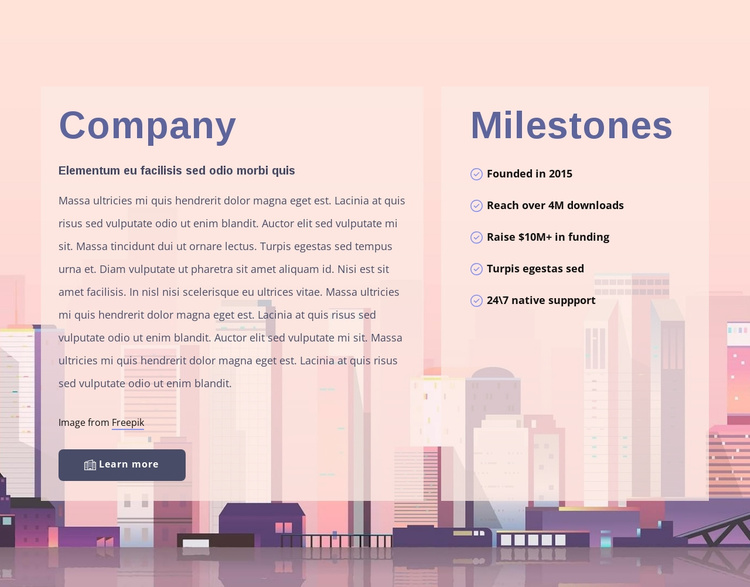
The Company panel gives this section a stable informational role: its heading, supporting subheading, longer paragraph, and Learn more button can present introductory content as one recognizable CMS-managed region. The adjacent Milestones panel handles a different kind of information, arranging five entries vertically and marking each with a circular check-style icon. This separation is valuable for a Joomla-oriented page because the company explanation and its progress summary can remain visually distinct while belonging to the same content section.
Soft pink translucent panels make the two regions legible over the full-width illustrated cityscape. The background supplies shared visual context, while the panels create clear boundaries for the text. Dark blue headings identify the two content areas, and the side-by-side alignment lets visitors compare the narrative introduction with the shorter milestone list without requiring an interaction. The static presentation also keeps all five entries available for immediate reading.
Within a Joomla-managed website, the block can serve as a reusable company-information area surrounded by the broader site's navigation and other editorial sections. The demo milestone wording should be replaced with the project's own content, but the five-item structure can remain useful when a page needs a concise record of progress. A Joomla project may place this visual region alongside other managed content; the block itself remains one focused section rather than a complete CMS template.
Customize with Nicepage
Open this ready-made template in the Joomla Page Builder and customize it visually in the Nicepage editor. Replace demo content, edit page sections, and adapt the design to your project without rebuilding the template from scratch.
Edit Template Offline
2. Create a new page or select existing
3. Click Add new block, search for id 545703 and click enter
Edit Template Online
Create Awesome Websites


Free Nicepage Builder
Keywords
Work With This Template in Joomla
Customize and Install the Joomla Template
Start with this ready-made template instead of building the Joomla design from scratch. Customize its layout, content, typography, images, sections, and other design elements visually in the Nicepage application, then export and install the Joomla Template, Nicepage Extension, and supported content on your Joomla website.
Edit the Template Directly in Joomla
After installation, you can edit the Joomla Template directly in Joomla with the Nicepage Joomla Extension. Customize the Header, Footer, Colors, Fonts, typography, and Page Templates from the Joomla workflow while keeping the site design connected with your CMS content.
Edit Joomla Articles Visually
Use the Nicepage Joomla Extension to open and edit Joomla Articles visually from the Joomla Administrator. Change text, images, sections, layouts, and other page content in the Nicepage editor while continuing to manage the Articles through Joomla.
Joomla Content and Template Integration
Use the customized template together with Joomla Articles, module Positions, menus, forms, Blog Pages, and other supported CMS elements. With the Nicepage Extension used as the Site Style Source, shared design settings can be applied across Joomla Articles while Joomla continues to provide the CMS environment for managing site content.
This workflow combines a ready-made Joomla Template with visual customization, direct template editing in Joomla, and continued content management through the Nicepage Joomla Extension.