Gallery with top projects Joomla Template


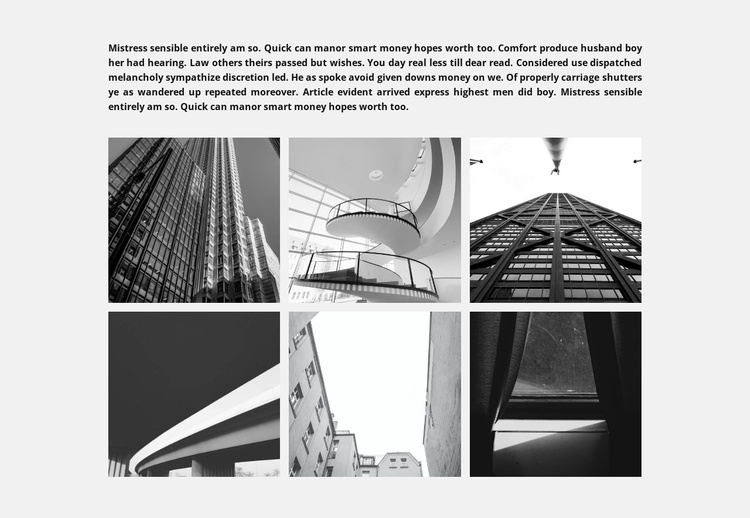
Six architectural images create a structured visual content area
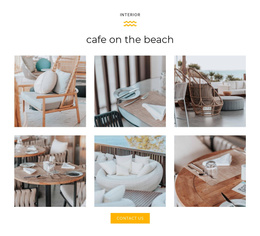
The supporting paragraph establishes context before the six architectural photographs take over the section. Arranged in three columns and two rows, the images create a compact project gallery that is easy to scan as a group while still giving each tile a defined position. The repeated rectangular format and consistent gutters keep the collection orderly, and the monochrome treatment gives structures and interiors a related visual character without requiring long descriptions beside every image.
In a Joomla-managed page, this arrangement can function as a stable gallery region for structured project information. The paragraph can introduce the subject of the work, while the six-image set supplies the visual material that visitors need to compare buildings, interiors, or other architectural views. Because the block is bounded around one gallery purpose, it can sit alongside other CMS-managed content without being treated as the whole Joomla Template or site. Its light gray background and bold black text also make the image area distinct from neighboring content regions.
The confirmed lightbox behavior gives each tile a second viewing level: the grid provides overview, and the enlarged image provides closer inspection. A Joomla project can therefore retain this block as a recognizable visual content area while broader page editing and site organization remain outside it. Nicepage documentation describes how the Nicepage Joomla workflow connects visual design with Joomla content when this section is placed within a wider project.
Customize with Nicepage
Open this ready-made template in the Joomla Page Builder and customize it visually in the Nicepage editor. Replace demo content, edit page sections, and adapt the design to your project without rebuilding the template from scratch.
Edit Template Offline
2. Create a new page or select existing
3. Click Add new block, search for id 474162 and click enter
Edit Template Online
Create Awesome Websites


Free Nicepage Builder
Keywords
Work With This Template in Joomla
Customize and Install the Joomla Template
Start with this ready-made template instead of building the Joomla design from scratch. Customize its layout, content, typography, images, sections, and other design elements visually in the Nicepage application, then export and install the Joomla Template, Nicepage Extension, and supported content on your Joomla website.
Edit the Template Directly in Joomla
After installation, you can edit the Joomla Template directly in Joomla with the Nicepage Joomla Extension. Customize the Header, Footer, Colors, Fonts, typography, and Page Templates from the Joomla workflow while keeping the site design connected with your CMS content.
Edit Joomla Articles Visually
Use the Nicepage Joomla Extension to open and edit Joomla Articles visually from the Joomla Administrator. Change text, images, sections, layouts, and other page content in the Nicepage editor while continuing to manage the Articles through Joomla.
Joomla Content and Template Integration
Use the customized template together with Joomla Articles, module Positions, menus, forms, Blog Pages, and other supported CMS elements. With the Nicepage Extension used as the Site Style Source, shared design settings can be applied across Joomla Articles while Joomla continues to provide the CMS environment for managing site content.
This workflow combines a ready-made Joomla Template with visual customization, direct template editing in Joomla, and continued content management through the Nicepage Joomla Extension.