
Nowadays, most websites consist of Blocks. The Grid helps to structure the Content in a Block. The vast benefit of Grids is that it automatically simplifies the Mobile Views or the Responsive Modes settings. Your websites must be mobile-friendly.

Video Lesson
Cols, Rows, And Gap Properties
We have reworked the Grid's Cols, Rows, and Gap properties, similar to those of the Grid Repeater and other columnar Elements.
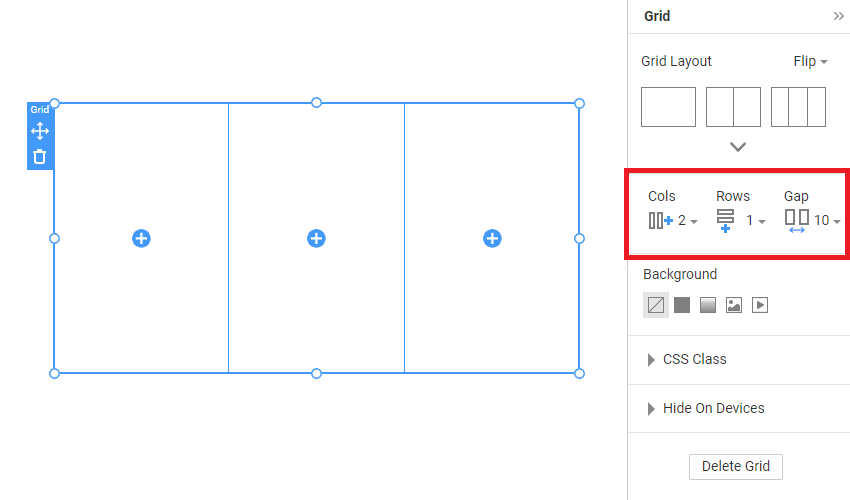
Edit Grid
You can choose any Grid layout and modify its dimensions. You can resize the Grid by clicking and pulling the blue resize markers. You can also resize the Grid proportionally following the red diagonal guide.
Copy and Paste
- Right-click the Block marker and select the Copy option from the Context Menu.
- You can also press the "CTRL + С" hotkeys.
- Select the destination Block.
- Right-click and select Paste from the Context Menu or
- Press the "CTRL + V" keys to paste.
- Align the Grid.
Delete Grid and Block
- Select the Grid and
- Click the "Delete Grid" button in the Property Panel, or
- Press the DELETE key.
Edit Grid Cells
- Select the bigger cell to the left.
- Change the Image Fill to Color Fill in the Property Panel.
- Copy this cell by dragging it over another, holding the CTRL or AlT key.
Swap Cells
Select a cell and drag it over another without pressing any keys. The cell Content is also moved.
Resize Cells
Resize the cell by pulling the bar markers on the cell borders.
Hide Cells on Devices
You can hide the cells for Tablets or Phones. Enable the Hide On property in the Right Panel. Then, click the Tablet and Phone icons to hide this cell for mobile views.
Image Zoom For Grid Cells
You can use the Zoom function on the Grid Cell toolbar. It allows users to expand a selected cell into a larger, focused view for easier reading and editing of content without leaving the grid context.

Grid Border and Shadow
You can use the Border and Shadow properties for the Grid Element.

Responsive Modes
Change the cell fill to white by selecting the color in the small toolbar above the cell. Change the background image of the first cell. As stated before, grids' massive benefit automatically makes your web Block and pages mobile-friendly.
Preview
Click the Preview. Click the Device Icons in the Quick Preview.