Grid repeater on gradient background WordPress Theme


A Reusable Product-Features Region for Managed Page Content
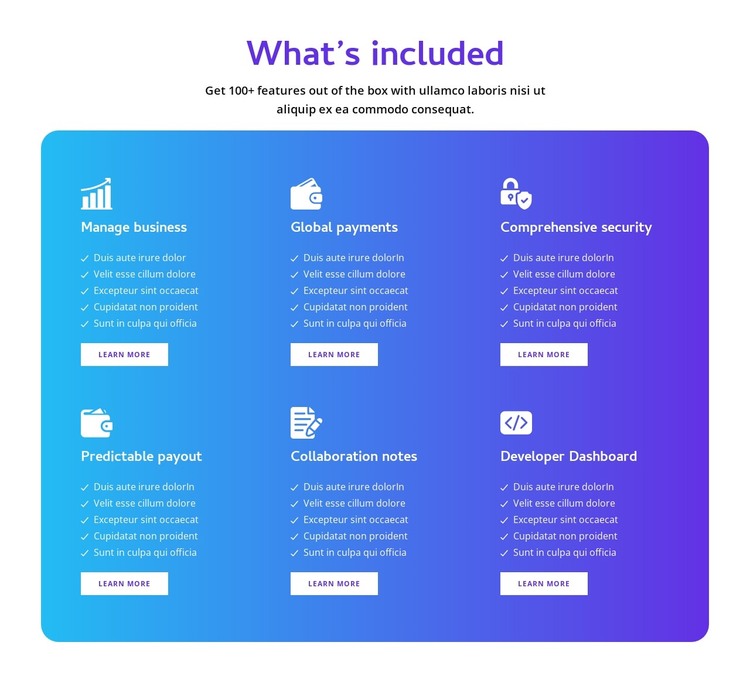
The centered heading “What’s included” and its supporting paragraph read as stable explanatory content rather than a time-sensitive article. Below this introduction, the block organizes six capability groups: Manage business, Global payments, Comprehensive security, Predictable payout, Collaboration notes, and Developer Dashboard. Each group uses an icon, a five-line list, and a Learn More button, giving the page content a repeatable pattern that can remain visually consistent as the surrounding project develops.
The feature entries occupy three columns across two rows within a rounded blue-to-purple gradient panel. This panel acts as the visual container for the capability information, while the white background around it preserves separation between the introduction and the detailed content. White icons, text, checkmarks, and buttons carry the same contrast treatment across all six groups, making the collection easy to scan as one page section.
In a WordPress-managed project, the block can provide a durable features area on a page while other content regions handle broader explanations, updates, or related destinations. The section does not need to carry the entire site’s content; its value lies in giving one product-information topic a defined, reusable presentation. The individual Learn More buttons can support deeper destinations, while the two-row grid keeps the capability overview compact enough to coordinate with other page sections.
Customize with Nicepage
Open this ready-made template in the WordPress Website Builder and customize it visually in the Nicepage editor. Replace demo content, edit page sections, and adapt the design to your project without rebuilding the template from scratch.
Edit Template Offline
2. Create a new page or select existing
3. Click Add new block, search for id 1552869 and click enter
Edit Template Online
Create Awesome Websites


Free Nicepage Builder
Keywords
Manage and Edit This Theme in WordPress
Customize and Install the WordPress Theme
Start with this ready-made theme instead of building the WordPress design from scratch. Customize its layout, content, typography, images, sections, and other design elements visually in Nicepage editor, then export and install the WordPress Theme, Plugin, and Pages on your WordPress site. The Nicepage WordPress Plugin lets you continue working with the site after installation.
Edit the Theme Directly in WordPress
After installation, you can edit the WordPress Theme directly in WordPress with the Nicepage WordPress Plugin. Use Site Style to customize site Colors, Fonts, Header, Footer, Blog, and Post Page Templates while working within your WordPress website.
Edit WordPress Pages Visually
Use the Nicepage WordPress Plugin to edit page content directly from the WordPress admin area. Open a WordPress Page with Nicepage and visually change its text, images, sections, and other page elements while continuing to manage the Page through WordPress.
WordPress Content and Theme Integration
Use the customized theme with WordPress Pages, Posts, Blog and Post Templates, menus, widgets, and other CMS-managed content. Shared theme elements such as Colors, Fonts, Header, Footer, Blog, and Post Page Templates can be managed as part of the overall site design, while WordPress provides the CMS environment for managing site content.
This workflow combines a ready-made WordPress Theme with visual customization, direct theme editing in WordPress, and continued content management through the Nicepage WordPress Plugin.