Save Future Template


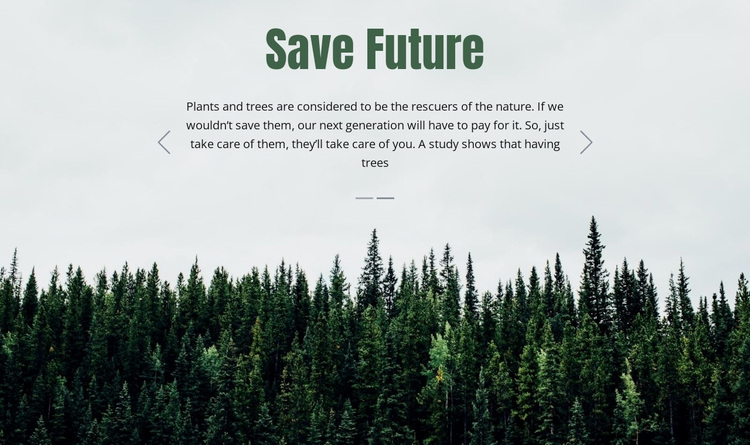
A centered conservation message paired with a forest-led visual change
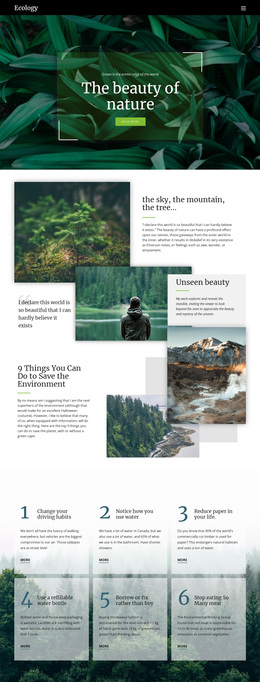
The block brings together several characteristics that distinguish it from a plain environmental text section. “Save Future” provides a direct heading, the two text slides allow related conservation ideas to rotate through one message area, and the forest image gives the section a strong natural setting. The subject extends across trees, plants, animals, and responsibility toward future generations, so the design communicates more than a generic image-and-text arrangement.
The carousel controls and two indicators add a controlled movement pattern without overwhelming the content. Visitors can explore the two messages while remaining within the same section, and the centered layout keeps attention on the relationship between the heading, explanatory copy, and forest scene. Generous spacing and muted controls preserve a restrained tone that suits awareness-focused communication rather than a highly promotional panel.
As a ready-made block choice, this design is useful when a page needs an environmental introduction or thematic transition with visible imagery and a modest interactive element. Other section designs may prioritize cards, statistics, or a direct response, whereas Save Future is defined by its conservation message, forest backdrop, and two-state carousel presentation.
Customize with Nicepage
Open this ready-made template in the Template Builder and customize it visually in the Nicepage editor. Replace demo content, edit page sections, and adapt the design to your project without rebuilding the template from scratch.
Edit Template Offline
2. Create a new page or select existing
3. Click Add new block, search for id 96270 and click enter
Edit Template Online
Create Awesome Websites


Free Nicepage Builder
Keywords
Start With a Ready-Made Template
Choose a Design for a New Page
Use a ready-made template as a starting point instead of creating every page from a blank canvas. When adding a new page in Nicepage, browse available designs, compare different layouts, and choose an option that already fits the general purpose and visual direction of your project.
Browse Different Page Designs
Explore Page Designs using search, thematic categories, Design Sets, and full-page previews. The collection includes layouts for different subjects and page purposes, making it easier to compare alternatives before selecting a design to customize.
Customize the Selected Template
After choosing a design, create the page and continue editing it visually in Nicepage. Replace the demo content, adjust images, typography, colors, sections, and other elements, and adapt the ready-made layout to your own content instead of rebuilding the design from the beginning.
Explore More Design Directions
If the first option does not match your project closely enough, return to the design collection and compare other templates before committing to a layout. This makes the template library useful not only for faster page creation, but also for exploring different visual approaches and finding a suitable starting point for a new project.
This workflow gives you access to a broad collection of ready-made designs that can be selected, compared, and customized according to the needs of each new page or project.