Zero Waste Tips Template

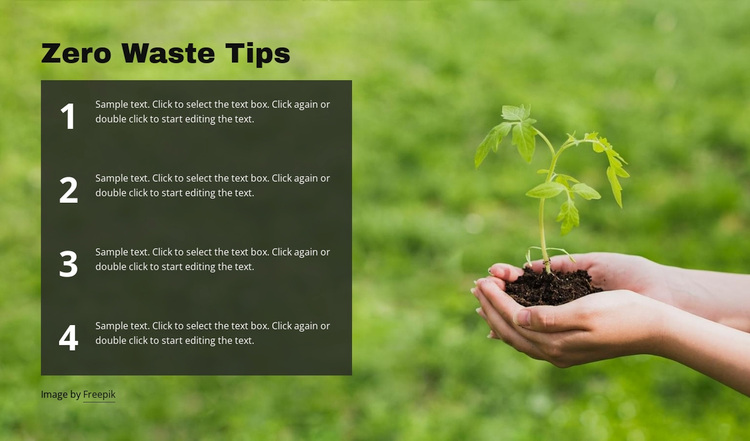
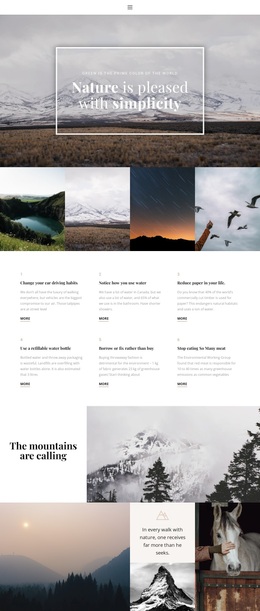
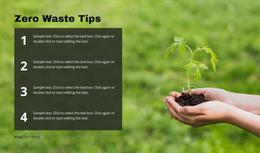
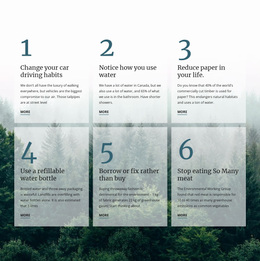
One bold “Zero Waste Tips” heading, four large number markers, and a vertical stack of informational entries give this design a strong content pattern. The list sits over a full-width green nature image, with a plant held in hands visible on the right as a distinctive visual counterpoint. A dark translucent panel separates the four supporting paragraphs from the background and gives the white text a consistent reading surface. This combination makes the block a considered option for pages that need ordered environmental guidance with more visual presence than an unstyled text list.
ID : 84737   |   Category : Nature, Grid Repeater

A numbered list adds structure to a nature-led content design

The “Zero Waste Tips” heading and four numbered entries give this section a recognizable content pattern: introduce a topic, then lead readers through four related points. The vertical arrangement is a practical alternative to a compact card grid because it preserves a clear sequence and leaves room for supporting paragraphs beneath each number. Large markers make the progression visible, while the repeated dark panels give the four items a shared visual treatment without flattening them into one continuous text area.

This design is worth choosing when a page needs sustainability guidance with a stronger visual setting than a plain text list. The full-width nature background image, including a plant held in hands on the right, establishes an environmental context, while the left-aligned heading and list keep the information anchored in one readable area. A dark translucent panel creates separation from the green image and supports white text contrast. The four sample entries can be replaced with final guidance while the numbered structure continues to organize the section. It is a focused ready-made block choice for explanatory content that benefits from both sequence and imagery.

Customize with Nicepage

Open this ready-made template in the Template Builder and customize it visually in the Nicepage editor. Replace demo content, edit page sections, and adapt the design to your project without rebuilding the template from scratch.

Edit Template Offline

1. Download and Install the Nicepage application for Windows and Mac. Or WordPress and Joomla plugins from the download page
2. Create a new page or select existing
3. Click Add new block, search for id 84737 and click enter

Edit Template Online

Run Online Builder to edit this template on our hosting

Create Awesome Websites

WordPress Plugin WordPress
Windows Application Windows App
Joomla Plugin Joomla
Mac OS Application Mac OS App
HTML5 HTML5
Online Builder Online

Free Nicepage Builder

15,000+ Templates
Easy Drag-n-Drop
No Coding
Mobile-Friendly

Keywords


Start With a Ready-Made Template

Choose a Design for a New Page

Use a ready-made template as a starting point instead of creating every page from a blank canvas. When adding a new page in Nicepage, browse available designs, compare different layouts, and choose an option that already fits the general purpose and visual direction of your project.

Browse Different Page Designs

Explore Page Designs using search, thematic categories, Design Sets, and full-page previews. The collection includes layouts for different subjects and page purposes, making it easier to compare alternatives before selecting a design to customize.

Customize the Selected Template

After choosing a design, create the page and continue editing it visually in Nicepage. Replace the demo content, adjust images, typography, colors, sections, and other elements, and adapt the ready-made layout to your own content instead of rebuilding the design from the beginning.

Explore More Design Directions

If the first option does not match your project closely enough, return to the design collection and compare other templates before committing to a layout. This makes the template library useful not only for faster page creation, but also for exploring different visual approaches and finding a suitable starting point for a new project.

This workflow gives you access to a broad collection of ready-made designs that can be selected, compared, and customized according to the needs of each new page or project.

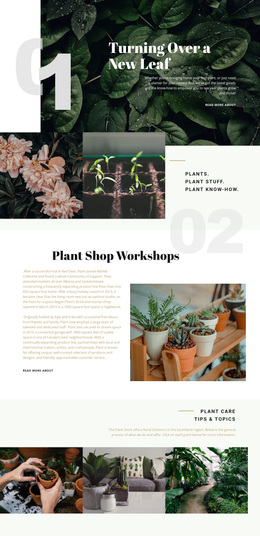
Template selection in the Nicepage New Page dialog

More from Nature Templates